This feature is only available in Apptrove SDK v2.0.2+. Trackier SDK does not support direct APN token methods. For Trackier SDK, use the Firebase Analytics method.
Uninstall Tracking through Apple Push Notification Service
Track app uninstalls using Apple Push Notification Service (APNs) to measure user retention and optimize your campaigns.
iOS uninstalls take 9+ days to appear in reports due to Apple Push Notification service processing time.
Prerequisites
Before implementing APN uninstall tracking, ensure you have:
- iOS 10.0 or higher
- Xcode 12.0 or later
- Apple Developer Account with push notification certificates
- Apptrove SDK v2.0.2+ properly initialized
- Expo project with EAS Build configured
- expo-notifications package installed (version 0.28.0+)
- Physical iOS device for testing (Simulator doesn't support APNs)
For Firebase Analytics-based uninstall tracking (works with both Apptrove and Trackier SDKs), see Through Firebase Analytics.
Implementation
1. Add Dependencies
Add the notifications package to your project:
npx expo install expo-notifications
package.json:
{
  "dependencies": {
    "expo-notifications": "~0.28.0",
    "apptrove-expo-sdk": "^2.0.2"
  }
}
Check the Expo Notifications documentation for the latest version and setup instructions.
2. Configure app.json
Add push notification configuration to your app.json:
{
  "expo": {
    "ios": {
      "bundleIdentifier": "com.yourcompany.yourapp",
      "infoPlist": {
        "NSUserNotificationsUsageDescription": "We need permission to send you notifications and track uninstalls."
      }
    },
    "plugins": [
      [
        "expo-notifications",
        {
          "sounds": []
        }
      ]
    ]
  }
}
Step 1: Request Certificate in Keychain Access
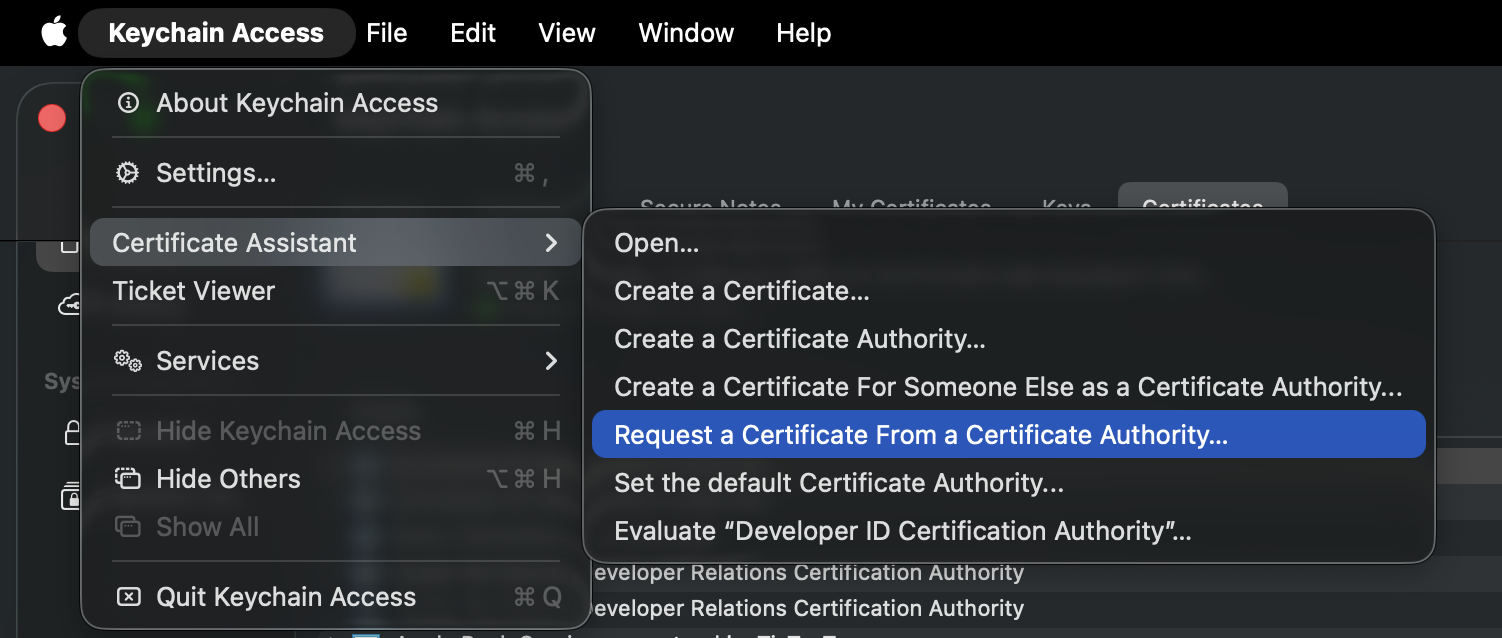
1.1. Open Keychain Access on your Mac.
1.2. Go to Keychain Access > Certificate Assistant > Request a Certificate From a Certificate Authority.
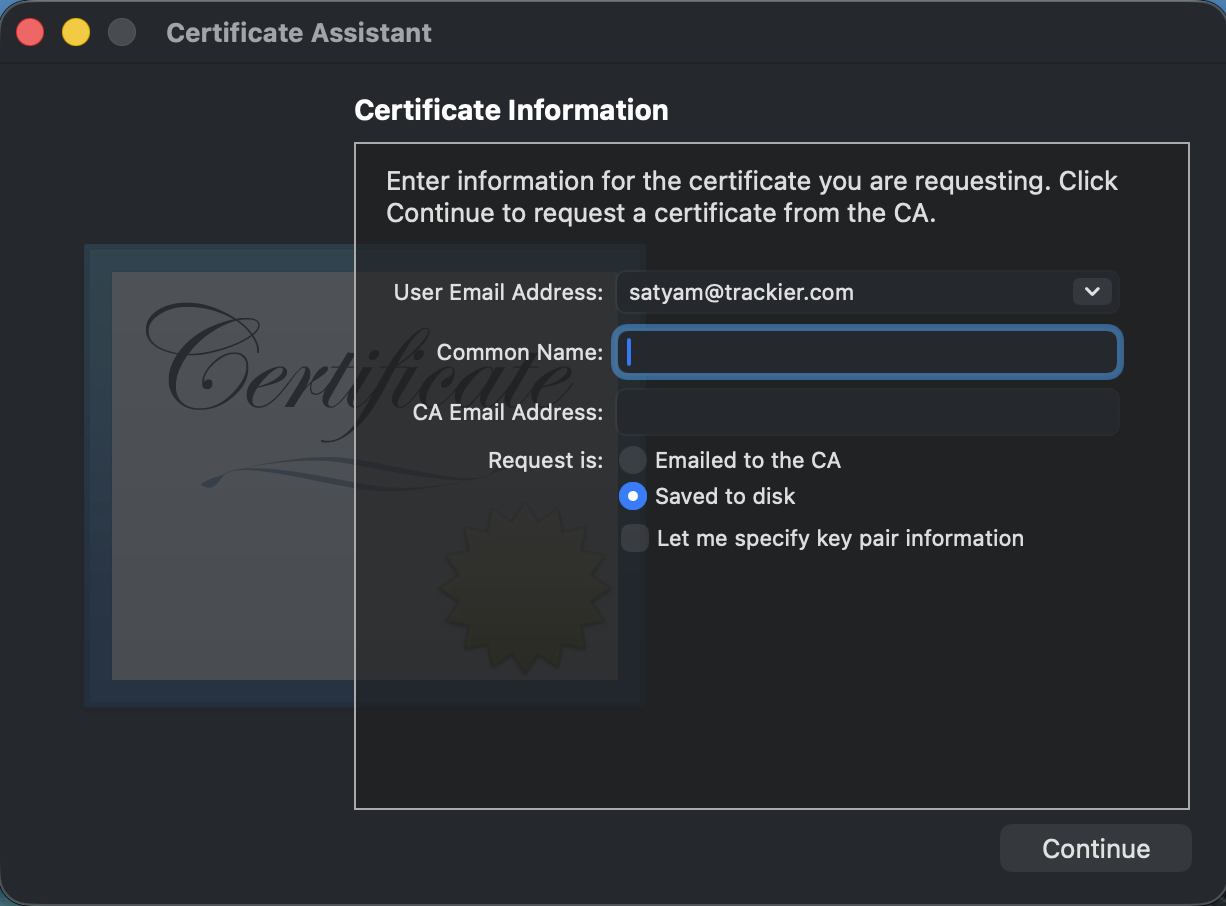
1.3. Fill in the form:
- User Email Address: Your email
- Common Name: Your name
- Request is: Select Saved to disk
- Click Continue
1.4. Save the file to your Desktop.
Step 2: Go to Apple Developer Portal - Identifiers
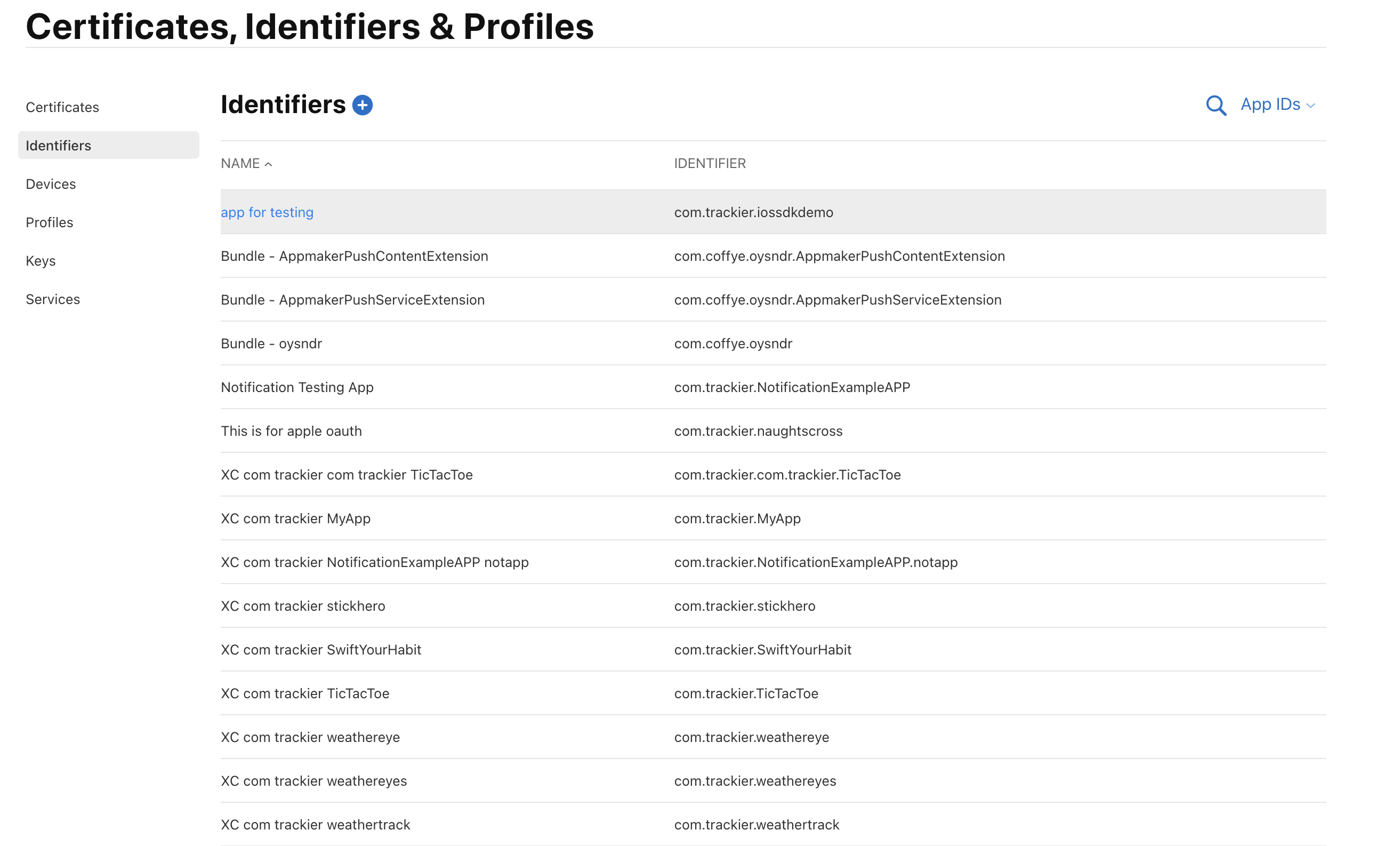
2.1. Open Apple Developer Portal.
2.2. Go to Certificates, Identifiers & Profiles.
2.3. Click Identifiers.
2.4. Select your App ID (your app's bundle ID/package name).
Step 3: Configure Push Notifications
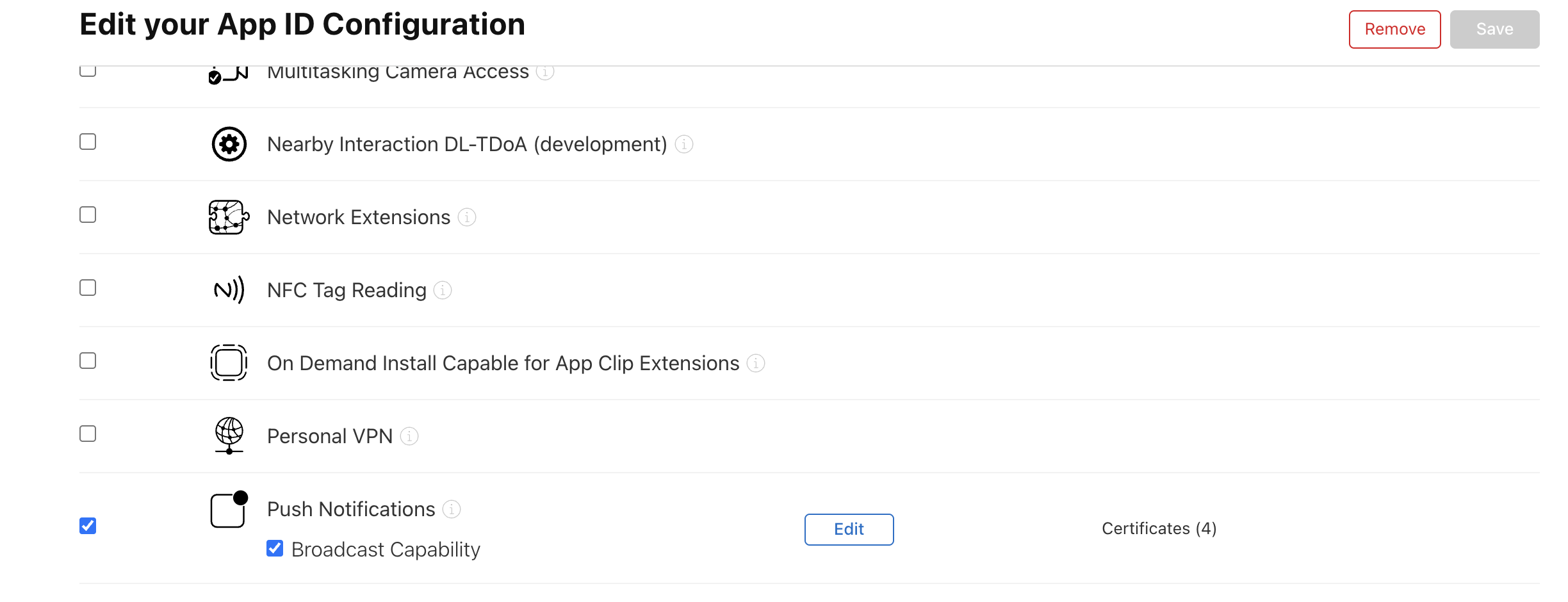
3.1. After clicking your App ID, you'll see the App ID Configuration page.
3.2. Scroll to Capabilities section.
3.3. Check Push Notifications.
3.4. Click Configure.
Step 4: Upload Certificate and Download .cer
4.1. In the Push Notifications configuration screen, choose:
- Production SSL Certificate (for App Store/Production)
- Click Create Certificate
4.2. Click Choose File and upload the .certSigningRequest file from Step 1.
4.3. Click Continue.
4.4. Click Download to save the .cer file.
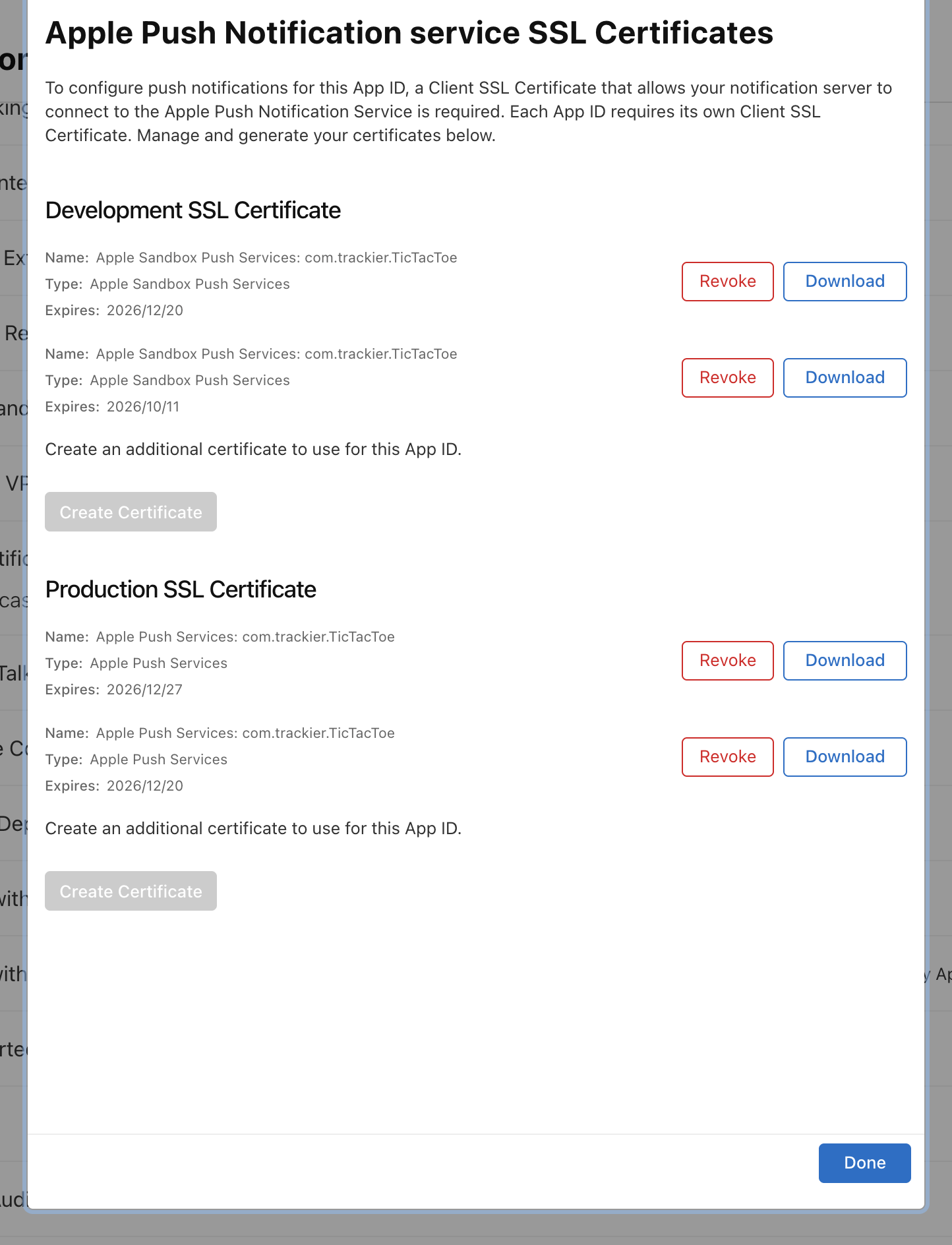
Step 5: Go to Keychain and Export as .p12
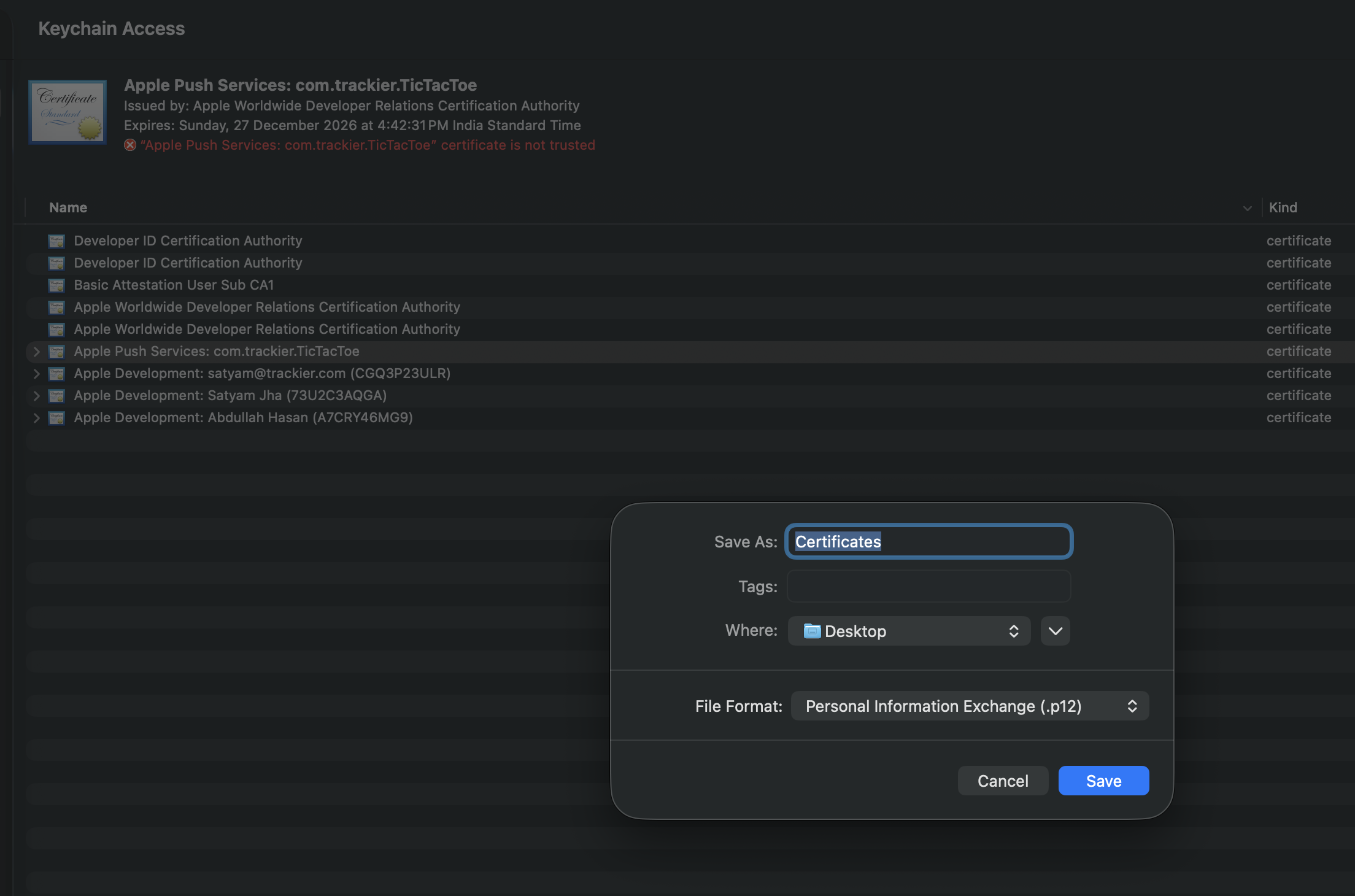
5.1. Double-click the downloaded .cer file to open it in Keychain Access.
5.2. In Keychain Access, click My Certificates in the left sidebar.
5.3. Find your Push Notification certificate (e.g., "Apple Push Services: com.yourapp.package").
5.4. Right-click on the certificate → Select Export.
5.5. Save as:
- File Format: Personal Information Exchange (.p12)
- Enter a password (you will need this later)
- Click Save
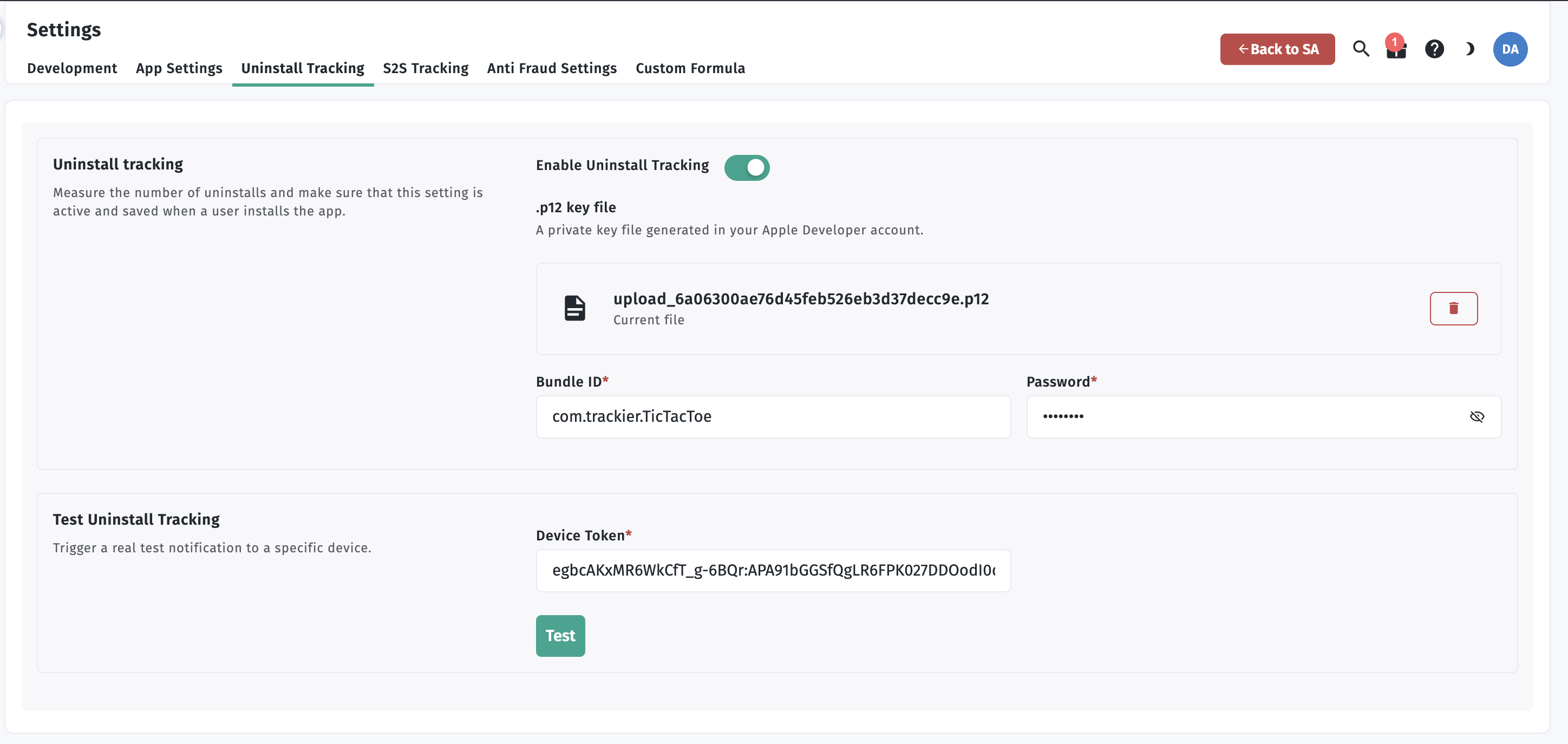
Step 6: Upload .p12 to Apptrove Panel
6.1. Log in to your Apptrove Panel.
6.2. Go to Settings > Uninstall Tracking.
6.3. Select your iOS app.
6.4. Click Upload and select the .p12 file.
6.5. Enter the password you created in Step 5.
6.6. Click Save.
Step 7: Send Token to Apptrove SDK
Implementation in App.tsx/App.js
Retrieve the APN token using expo-notifications and send it to the Apptrove SDK:
import React, { useEffect } from 'react';
import { Platform } from 'react-native';
import * as Notifications from 'expo-notifications';
import { AppTroveSDK, AppTroveConfig } from 'apptrove-expo-sdk';

export default function App() {
  useEffect(() => {
    initializeSDK();
  }, []);

  const initializeSDK = async () => {
    // Initialize AppTrove SDK
    const config = new AppTroveConfig(
      'YOUR_SDK_KEY',
      AppTroveConfig.EnvironmentDevelopment
    );
    AppTroveSDK.initialize(config);

    // Register push notifications for iOS
    if (Platform.OS === 'ios') {
      await registerPushNotifications();
    }
  };

  const registerPushNotifications = async () => {
    try {
      console.log('[APN] Requesting push notification permissions...');

      // Request permissions
      const { status: existingStatus } = await Notifications.getPermissionsAsync();
      let finalStatus = existingStatus;

      if (existingStatus !== 'granted') {
        const { status } = await Notifications.requestPermissionsAsync();
        finalStatus = status;
      }

      if (finalStatus !== 'granted') {
        console.warn('[APN] Push notification permission denied');
        return;
      }

      console.log('[APN] Permission granted');

      // Get the device push token (APN token for iOS)
      const deviceToken = await Notifications.getDevicePushTokenAsync();
      const apnsToken = deviceToken.data;

      console.log('[APN] Token retrieved:', apnsToken);

      // Send APN token to AppTrove SDK
      AppTroveSDK.sendAPNToken(apnsToken);
      console.log('[APN] Token sent to AppTrove SDK successfully');
    } catch (error) {
      console.error('[APN] Error registering push notifications:', error);
    }
  };

  return (
    // Your app components
  );
}
- Token Generation: APN tokens are generated when the app is first installed or when the token is refreshed
- Token Refresh: Tokens can change when: app is restored on a new device, app data is cleared, app is uninstalled and reinstalled, or token expires (rare)
- One-Time Call: Token retrieval happens once during app initialization
- SDK Integration: Call
AppTroveSDK.sendAPNToken(apnsToken)when the token is generated
Step 8: Testing Uninstall Tracking
Local APN tokens do NOT work for uninstall tracking testing. You must upload your app to TestFlight and test with TestFlight APN tokens.
Testing with TestFlight
To properly test uninstall tracking, follow these steps:
-
Build your app with EAS Build:
eas build --platform ios --profile production -
Upload to TestFlight via App Store Connect
-
Install the app from TestFlight on a physical device
-
Launch the app and grant notification permissions
-
Capture the APN token using one of these methods:
Method 1: Send Token via Custom Event Parameter
Add this code to capture and send the token for testing purposes:
import { AppTroveSDK, AppTroveEvent } from 'apptrove-expo-sdk';

// After getting APN token
const sendTokenForTesting = async (apnsToken) => {
  // Send to AppTrove SDK
  AppTroveSDK.sendAPNToken(apnsToken);

  // TESTING ONLY: Send token via custom event parameter
  const testEvent = new AppTroveEvent("apn_token_test");
  testEvent.param1 = apnsToken;  // Send token in param1
  AppTroveSDK.trackEvent(testEvent);
};
Sending the APN token via a custom event parameter allows you to:
- Verify the token is being generated correctly
- See the token value in your dashboard for debugging
- Confirm the SDK is properly initialized and tracking events
Method 2: Check Console Logs
Run your app on a physical device (Simulator doesn't support APNs).
Check console logs. You should see:
[APN] Requesting push notification permissions...
[APN] Permission granted
[APN] Token retrieved: [YOUR_APN_TOKEN]
[APN] Token sent to AppTrove SDK successfully
Check Token Response in Xcode Console: Look for the log message Apn token Api response saved successfully in the Xcode console output.
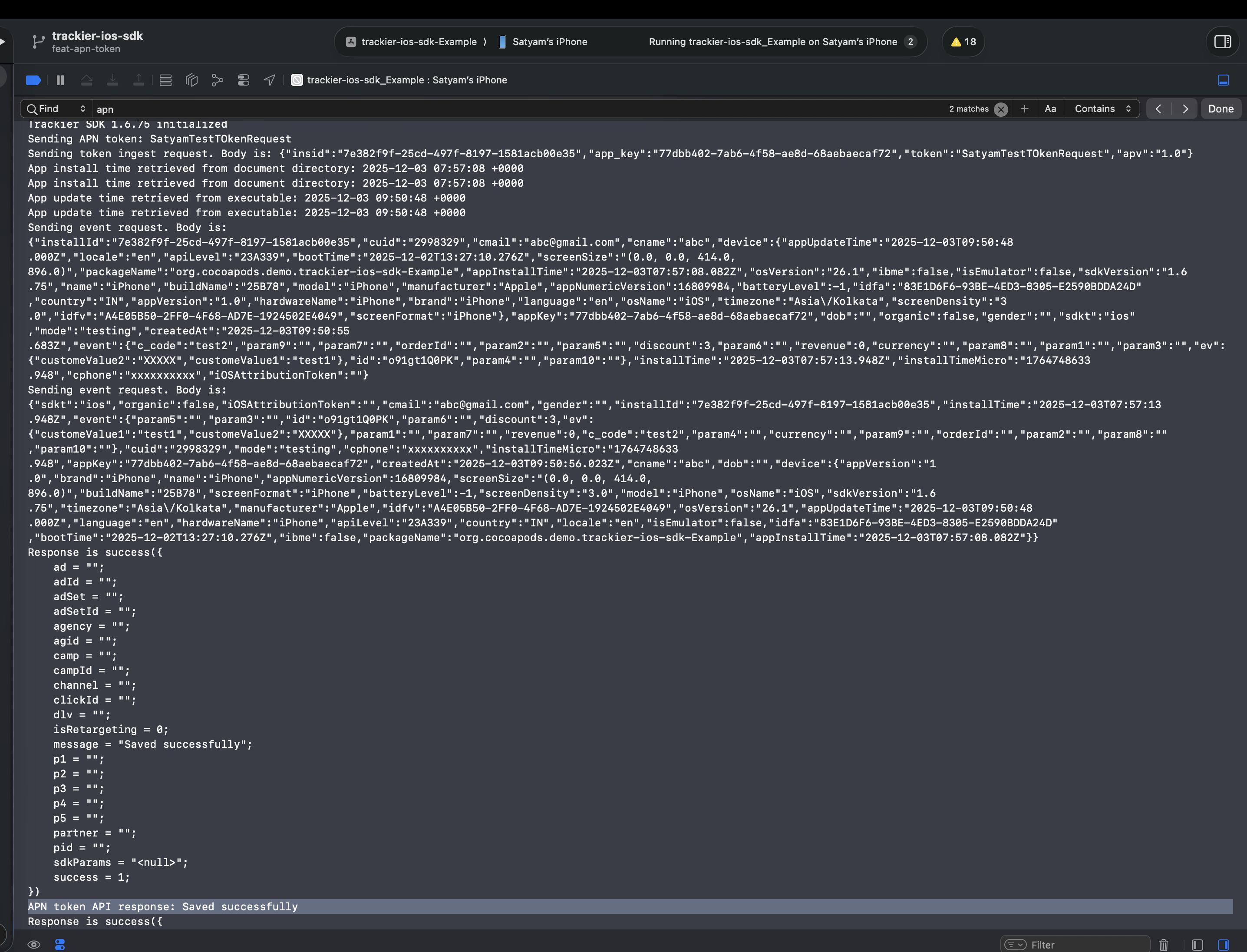
Expected Log Output:
Apn token Api response saved successfully
| Success: "Apn token Api response saved successfully"
Verify Token in Dashboard
After sending the token, verify it in your Apptrove dashboard:
- Go to Apptrove Panel > Events or Logs
- Look for the
apn_token_testevent (if using Method 1) - Check the parameter value (p1) to see the captured token
- Verify the token matches what you see in console logs
- Confirm you see "Apn token Api response saved successfully" in Xcode console
- Build app with EAS Build for production
- Upload to TestFlight
- Install from TestFlight on physical device
- Launch app and grant notification permission
- Check console logs for APN token
- Verify "Apn token Api response saved successfully" in Xcode console
- Send token via custom event parameter (optional)
- Verify token appears in Apptrove dashboard
- Uninstall app and wait 9+ days to see uninstall event
Troubleshooting
Common Issues
- Token Not Generated: Ensure Push Notifications are configured in your
app.json, test on a physical device (not Simulator), verify user granted notification permission, and make sure you're using EAS Build (not Expo Go) - "API Response Failed" Error: Check
.p12certificate and password in Apptrove panel, ensure you are using a Production certificate for App Store builds, and verify SDK is initialized before callingsendAPNToken - Expo Go Limitations: Expo Go does not support native push notifications. You must use EAS Build to create a development or production build. Use
eas build --profile development --platform iosfor testing - Token not sent to SDK: Ensure
registerPushNotifications()is called after SDK initialization - Permission denied: Verify push notification permission is granted by the user
- Token not visible in logs: Check Xcode console output for the success message "Apn token Api response saved successfully"
Best Practices
- Silent notifications: Use silent push notifications to avoid user disruption
- Token management: Handle APN token refresh and updates properly
- Error handling: Implement comprehensive error handling for APN failures
- Security: Store APN tokens securely on your server
- Call Order: Always initialize APN after Apptrove SDK initialization
- Use EAS Build: Always use EAS Build for testing APN functionality (not Expo Go)
- Test on Physical Device: Always test on a physical iOS device, not the simulator
- TestFlight Required: Use TestFlight for proper uninstall tracking testing, as local APN tokens don't work
Debug Steps
-
Verify Expo Setup:
npx expo run:ios -
Check Console Logs:
- Look for
[APN]prefixed logs in console - Verify token is retrieved and sent successfully
- Look for "Apn token Api response saved successfully"
- Look for
-
Check Xcode Console:
- Open Xcode
- Run the app on a physical device
- Check the console output for APN token logs
- Verify "Apn token Api response saved successfully" appears
-
Verify Dependencies: Ensure
expo-notificationsis properly installed:npx expo install expo-notifications -
Check Apple Developer Portal:
- Verify your app is registered with Push Notifications enabled
- Confirm
.p12certificate is uploaded to Apptrove panel - Ensure certificate password is correct
-
Test with EAS Build: Build and test with EAS Build:
eas build --profile development --platform ios -
Verify Platform: Ensure you're testing on iOS physical device, as simulator doesn't support APNs
-
Test with TestFlight:
- Build production version:
eas build --platform ios --profile production - Upload to TestFlight
- Install and test on physical device
- Verify token is captured correctly
- Build production version:
-
Test Token Event (Optional): If using Method 1, check your dashboard for the
apn_token_testevent to verify the token is being captured correctly -
Verify app.json Configuration: Ensure your
app.jsonhas the correct push notification configuration:{
"expo": {
"ios": {
"infoPlist": {
"NSUserNotificationsUsageDescription": "We need permission to send you notifications and track uninstalls."
}
},
"plugins": [
["expo-notifications", { "sounds": [] }]
]
}
}
Complete Flow Summary
- Install Dependencies →
npx expo install expo-notifications - Configure app.json → Add push notifications and permissions
- Keychain Access → Request Certificate → Save
.certSigningRequestfile - Apple Developer Portal → Identifiers → Select your App ID
- Configure Push Notifications → Enable and click Configure
- Upload Certificate Request → Download
.cerfile - Keychain Access → Export
.ceras.p12with password - Apptrove Panel → Upload
.p12file + password - Expo App → Call
AppTroveSDK.sendAPNToken(apnsToken)after SDK initialization - Build with EAS →
eas build --platform ios - Test on TestFlight → Verify token is sent successfully
SDK Method
sendAPNToken(token)
Send the APN token to Apptrove for uninstall tracking.
Usage:
if (Platform.OS === 'ios') {
  AppTroveSDK.sendAPNToken(apnsToken);
}
Parameters:
apnsToken(string): The APN device token retrieved fromexpo-notifications
Returns: void
Example:
if (Platform.OS === 'ios') {
  const deviceToken = await Notifications.getDevicePushTokenAsync();
  const apnsToken = deviceToken.data;
  AppTroveSDK.sendAPNToken(apnsToken);
}
For support, contact support@apptrove.com.