Integrate AppBrew with Apptrove
This guide helps advertisers and app owners integrate AppBrew with Apptrove to track user interactions, customer engagement, and app events.
Overview
AppBrew is a mobile commerce platform that enables brands to build, manage, and customize mobile shopping experiences with ease.
By integrating AppBrew with Apptrove, you can effectively:
- Track user interactions and in-app events
- Measure campaign performance
- Automate marketing workflows
- Optimize customer engagement and retention
- View event-level analytics directly within the Apptrove dashboard
Prerequisites
Before starting the integration, ensure you have:
- An active AppBrew account
- An active Apptrove account
- Access to the SDK Key section in the Apptrove dashboard
Integration Steps
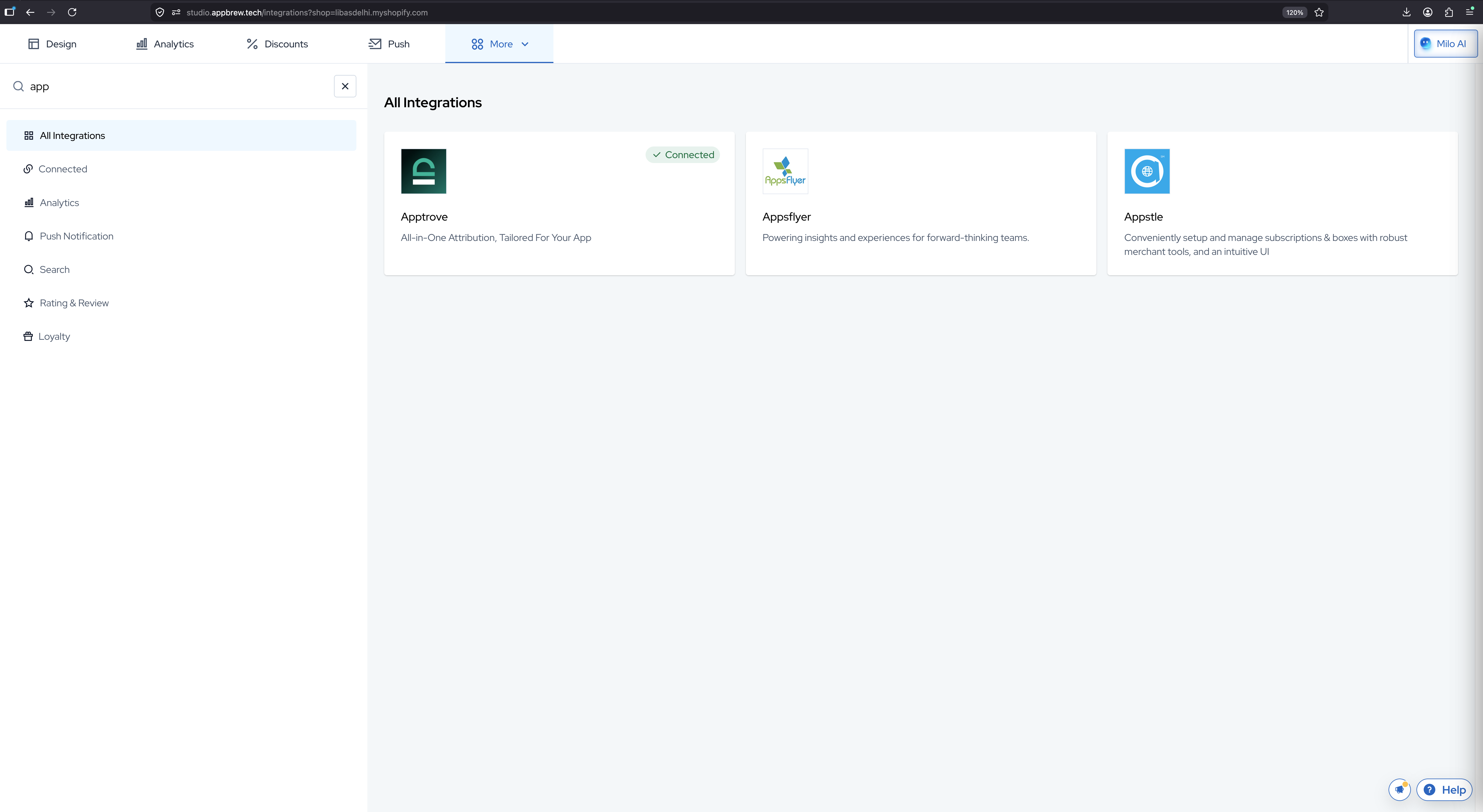
Step 1: Open Integrations in AppBrew Studio
- Log in to AppBrew Studio.
- From the top navigation, open More and go to Integrations.
- In the left sidebar, select All Integrations.
- Search for Apptrove.
Step 2: Open the Apptrove Integration
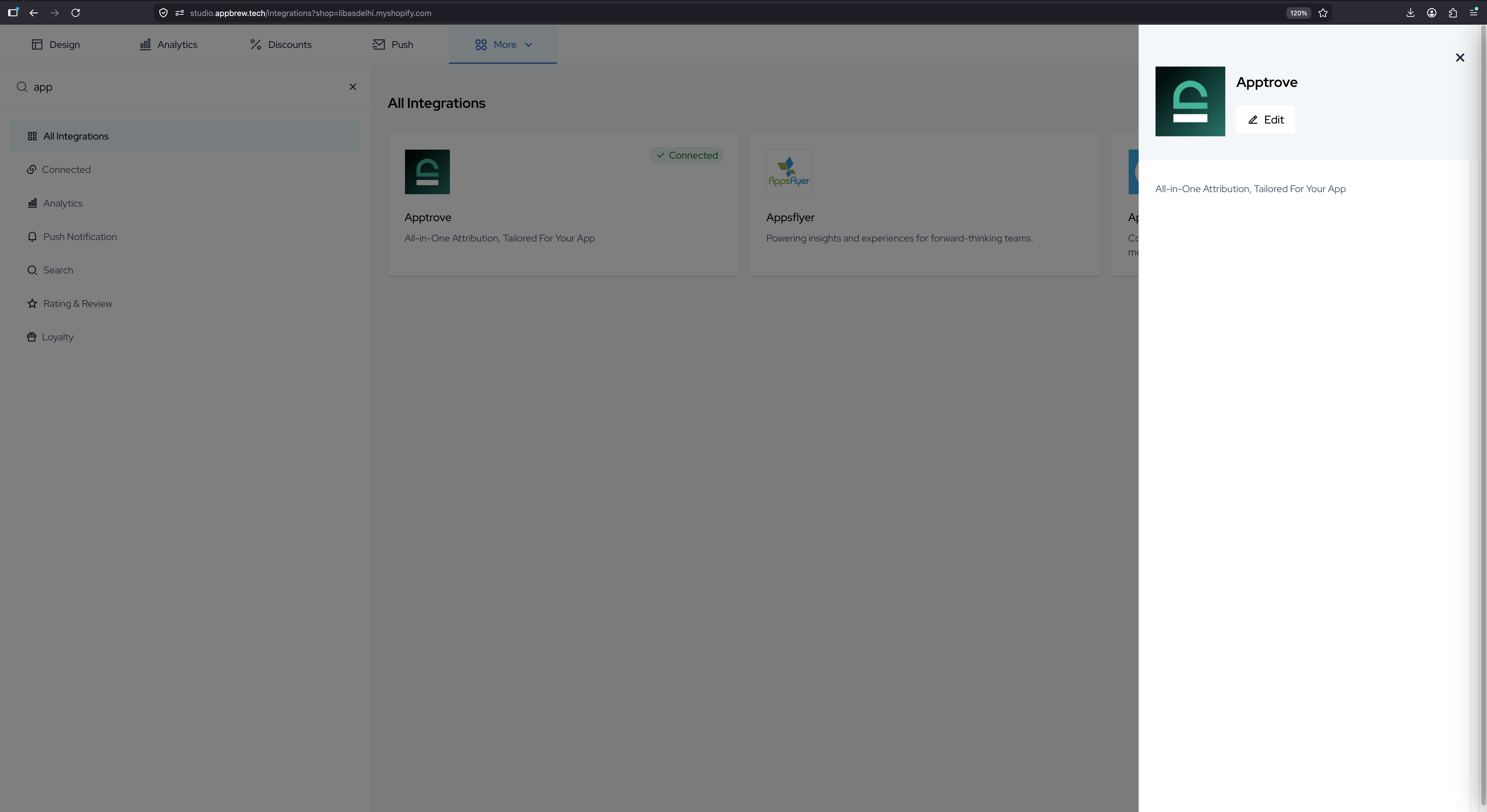
- Click the Apptrove integration card.
- Click Edit in the side panel.
Step 3: Copy Your SDK Key from Apptrove
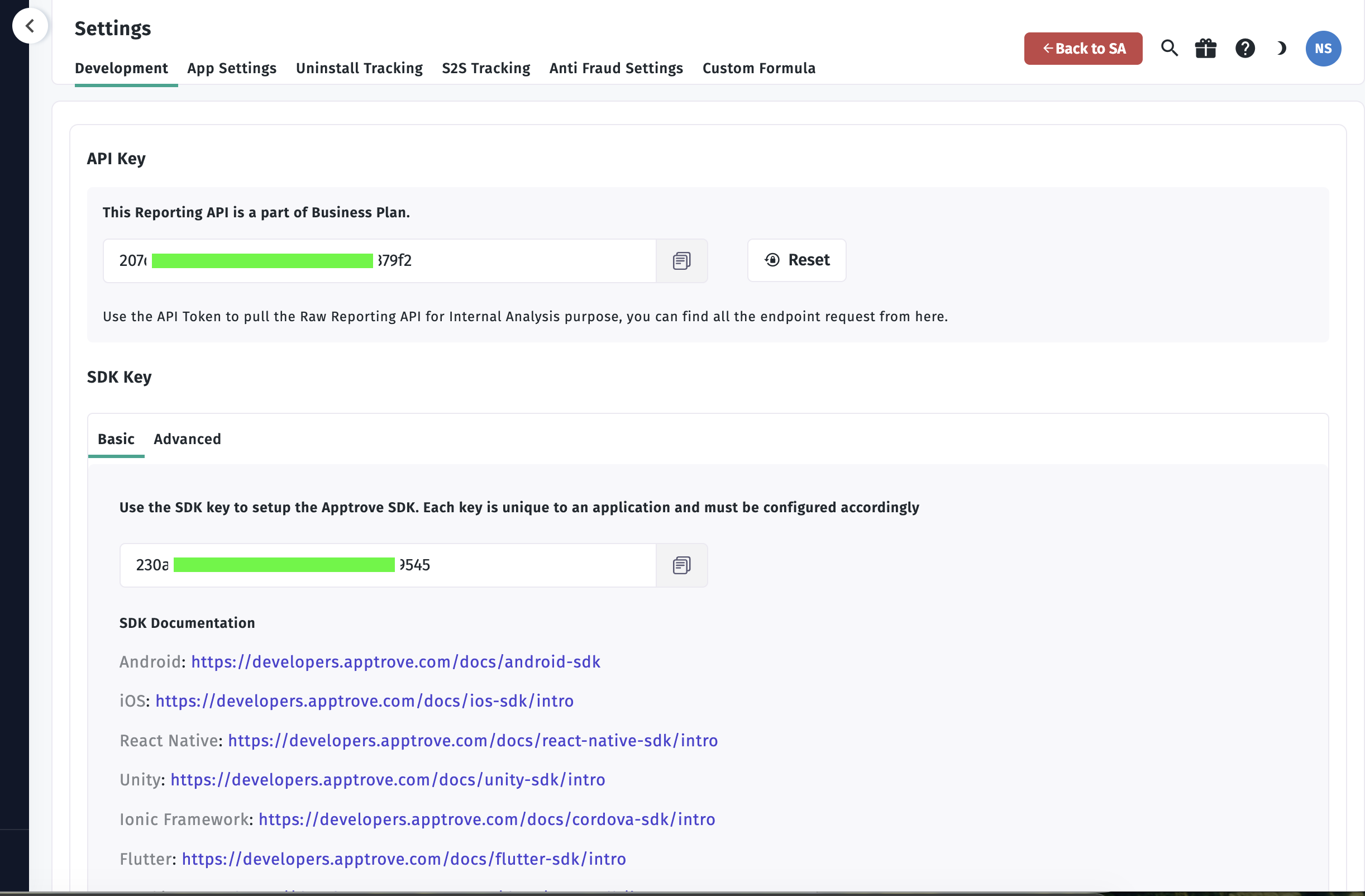
- Log in to the Apptrove Dashboard.
- Select your application.
- Go to Settings → Development.
- Under SDK Key, copy your key.
Step 4: Configure Apptrove in AppBrew
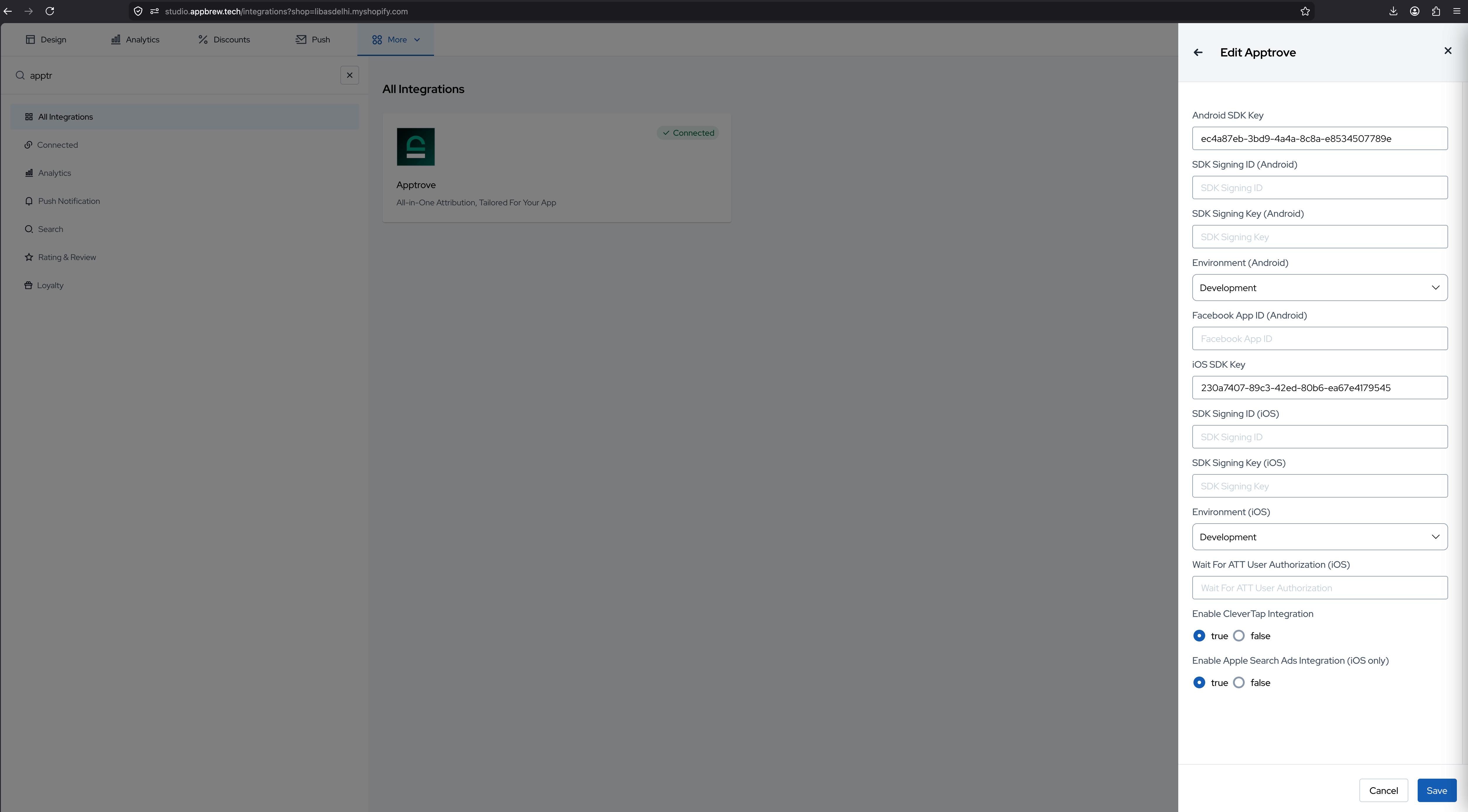
In the Edit Apptrove panel, fill in the required fields:
Android
- Android SDK Key
- SDK Signing ID (Android)
- SDK Signing Key (Android)
- Environment (Android)
- Facebook App ID (Android)
iOS
- iOS SDK Key
- SDK Signing ID (iOS)
- SDK Signing Key (iOS)
- Environment (iOS)
- Wait For ATT User Authorization (iOS)
Other settings
- Enable CleverTap Integration
- Enable Apple Search Ads Integration (iOS only)
Step 5: Save the Integration
- Click Save in the Edit Apptrove panel.
Once saved, the Apptrove card shows a Connected status.
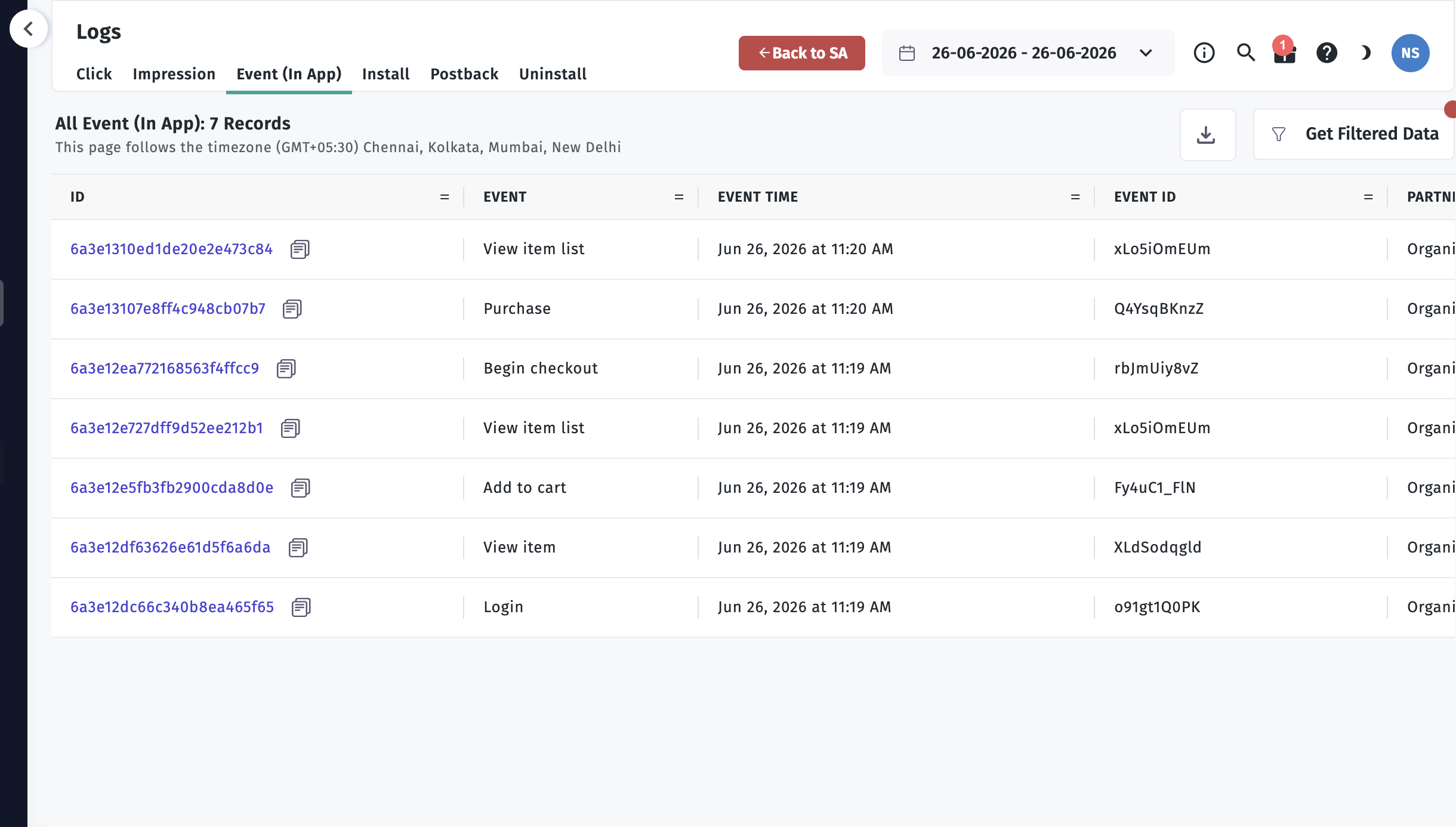
Step 6: Verify Events in the Apptrove Dashboard
- In the Apptrove Dashboard, go to Logs.
- Open the Event (In App) tab.
- Confirm your in-app events are listed.