Integrate Appmaker with Apptrove
For advertisers and app owners who want to connect Appmaker with Apptrove and track in-app events.
Appmaker is a no-code platform for building mobile commerce apps. Linking it with Apptrove lets you track user actions, run campaigns, and review event data in your dashboard.
Before you start: Appmaker account, Apptrove account, and access to Settings → Development → SDK Key.
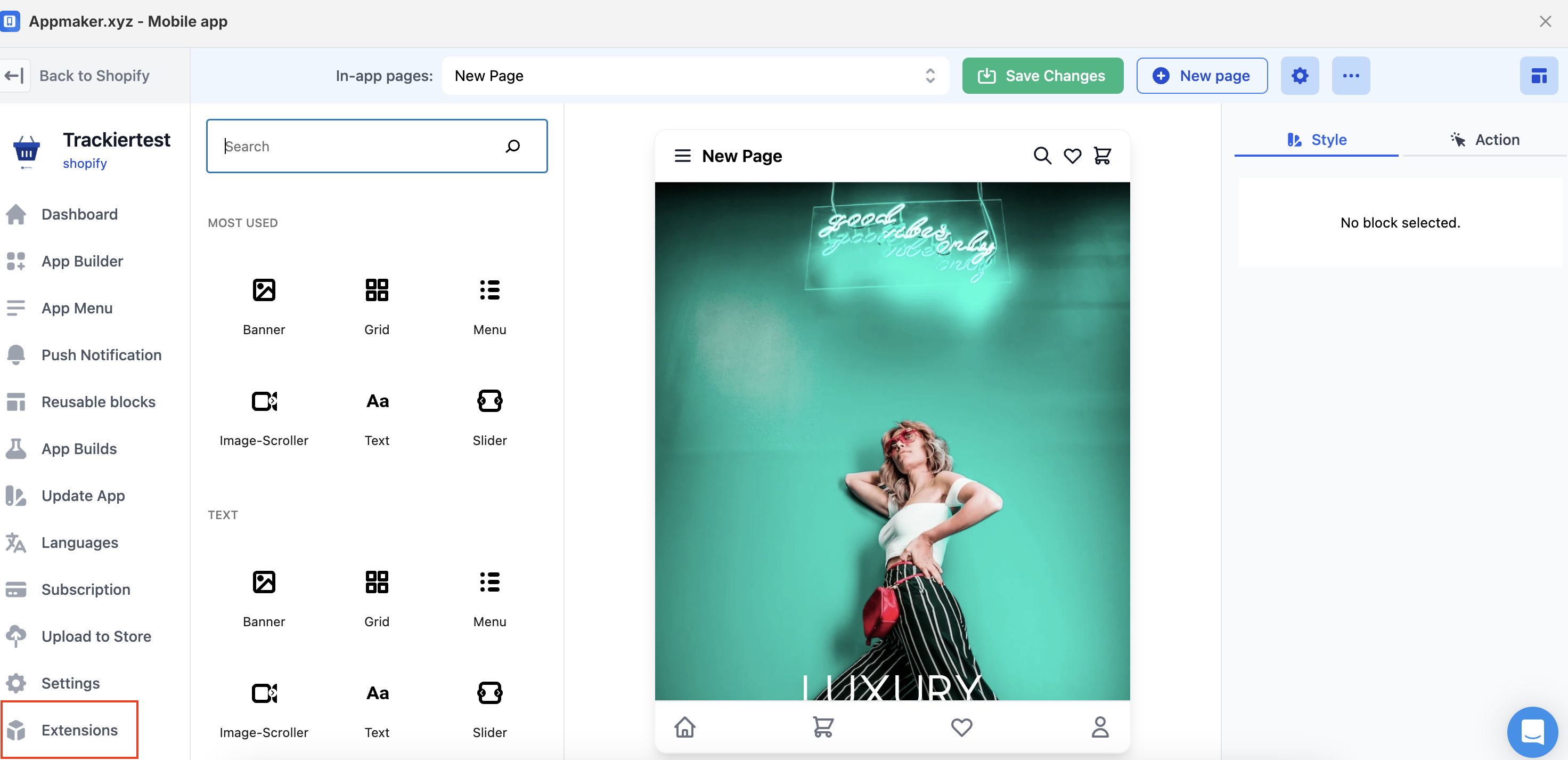
Step 1: Open Extensions
In your Appmaker dashboard, click Extensions in the left sidebar.
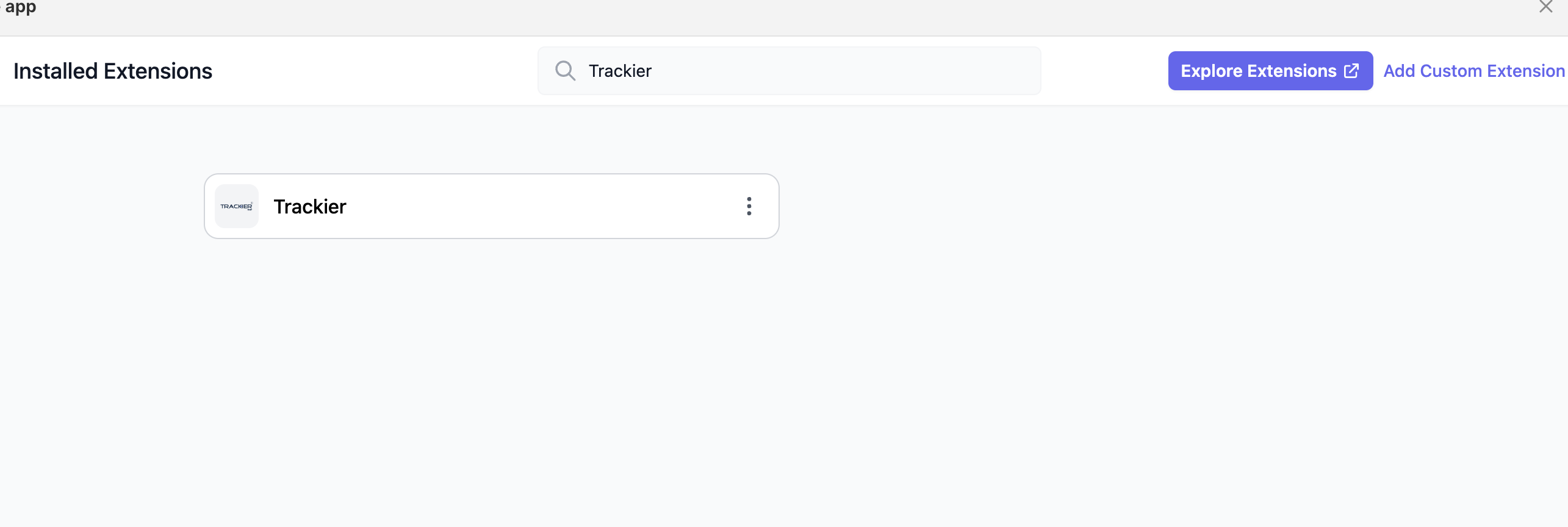
Step 2: Select Trackier
Under installed extensions, find Trackier and click it to open the setup page.
Appmaker lists this integration as Trackier. Enter your Apptrove credentials from the dashboard in the steps below.
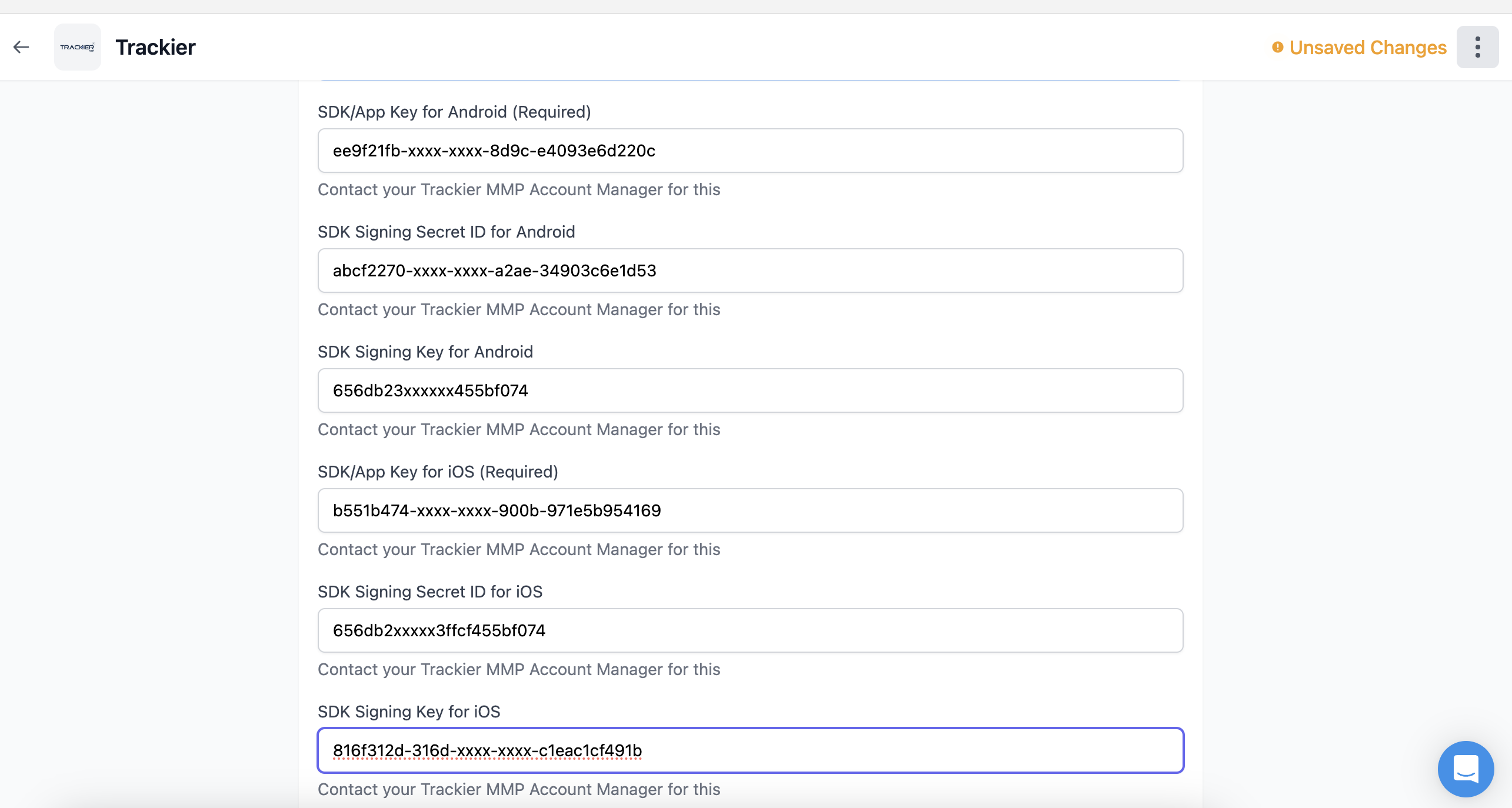
Step 3: Fill Required Fields
In the Trackier extension settings, enter these for Android and iOS where applicable:
- SDK/App Key
- SDK Signing Secret ID
- SDK Signing Key
Step 4: Get Credentials from Apptrove
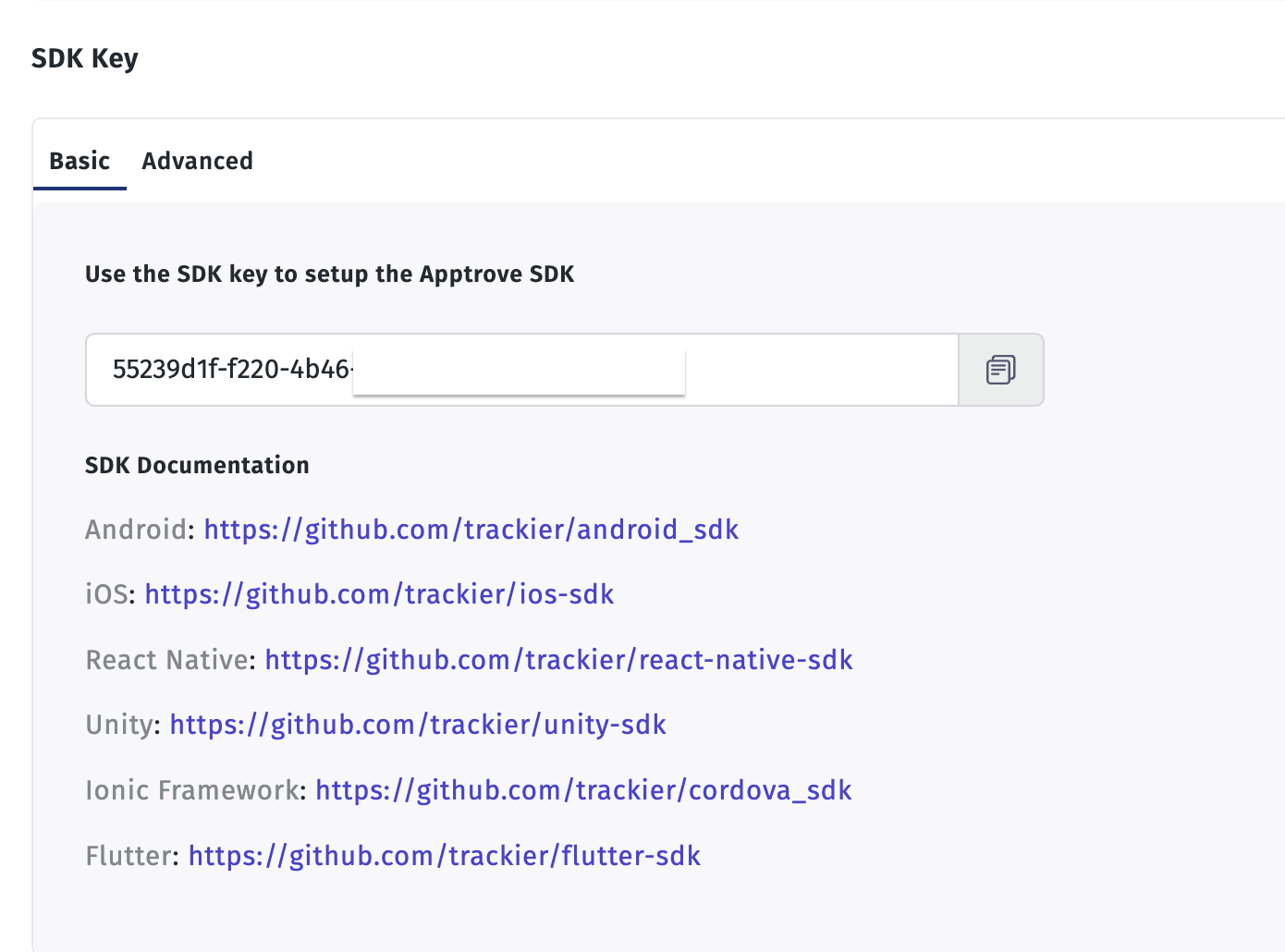
Open the Apptrove Dashboard, select your app, and go to Settings → Development → SDK Key.
Step 5: Copy the SDK Key (Basic)
Under the Basic tab, copy your SDK key and paste it into the SDK/App Key field in Appmaker.
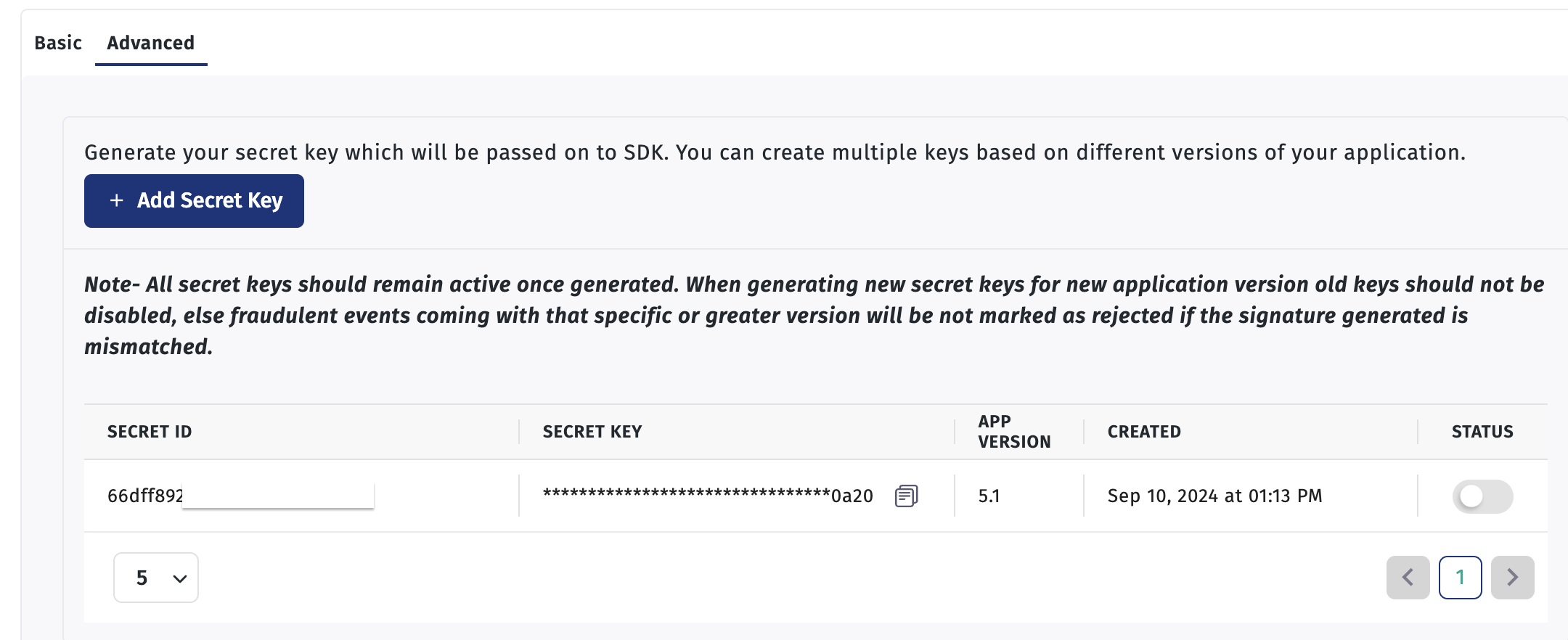
Step 6: Copy Signing Details (Advanced)
Switch to the Advanced tab. Copy the Secret ID and Secret Key, then paste them into the SDK Signing Secret ID and SDK Signing Key fields in Appmaker.
Save your changes in Appmaker when all fields are filled.
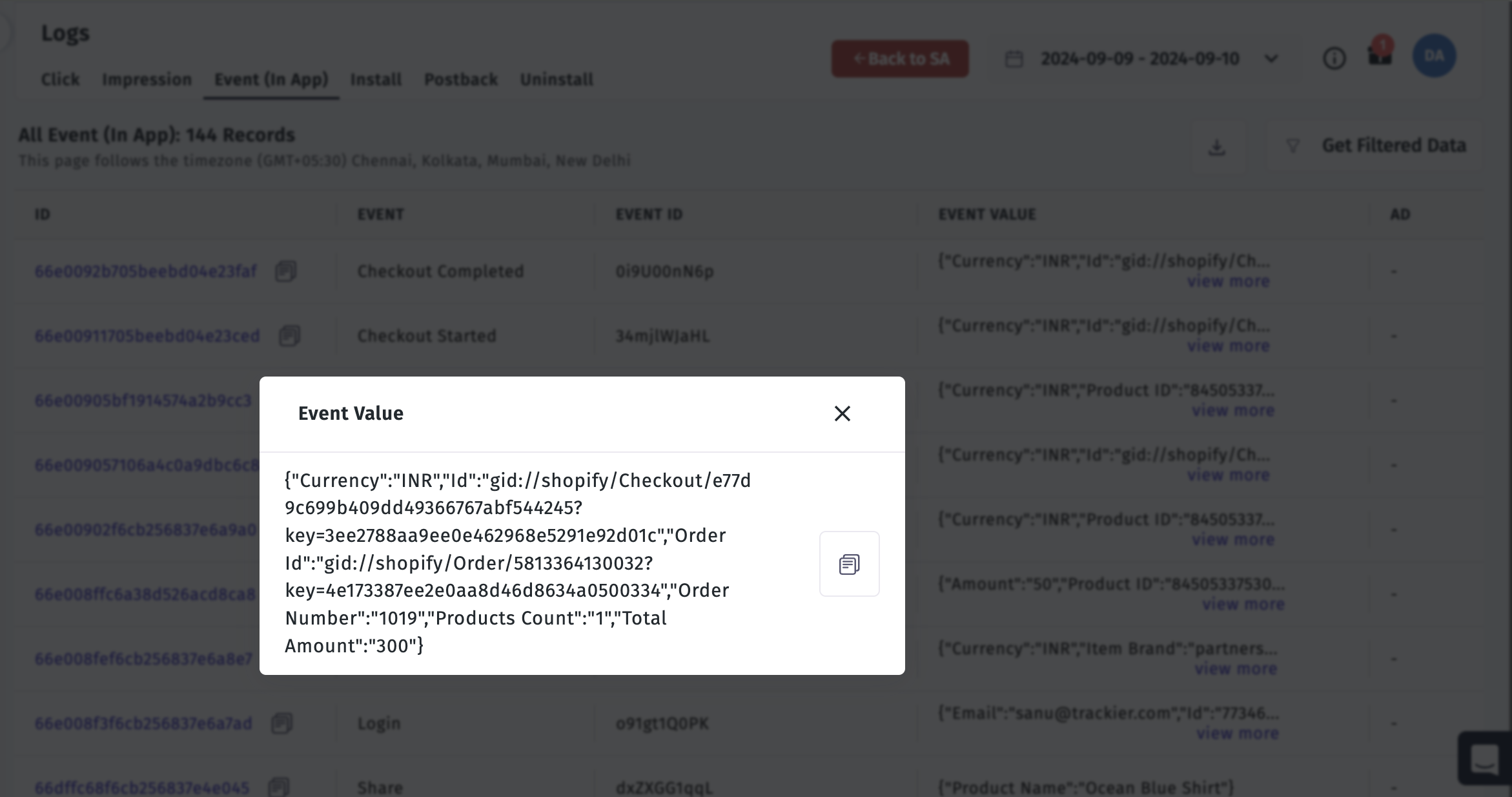
Step 7: Check Event Logs
After setup, events will appear in the Apptrove dashboard. Go to Logs → Event (In App) to view raw event data.