SDK Signing
SDK signing authenticates API requests using a SecretId and SecretKey, ensuring secure communication between your app and Apptrove.
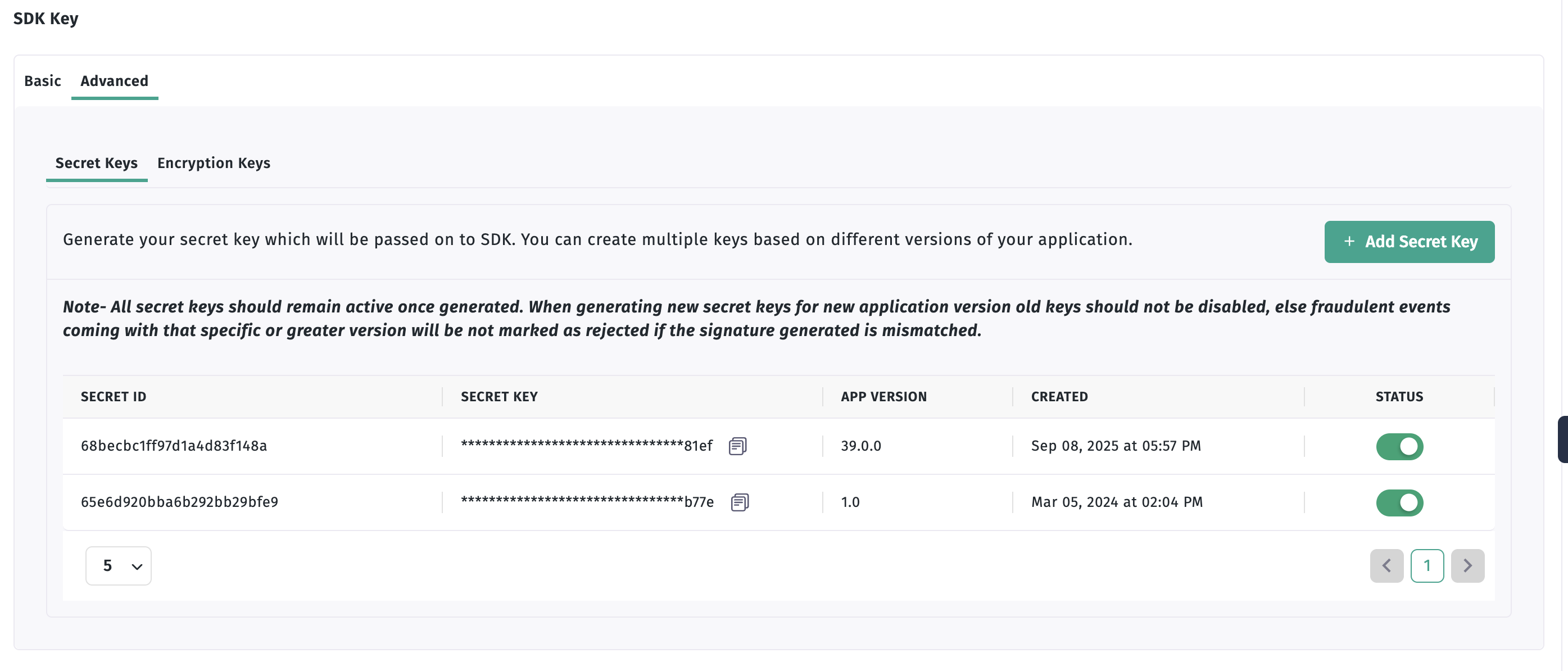
Step 1: Retrieve SecretId and SecretKey
- Log in to your Apptrove Panel
- Select your application
- Go to SDK Integration > Advanced tab
- Copy the
SecretIdandSecretKey
Step 2: Configure SDK Signing
using AppTroveSDK.Maui;

void InitializeSdk()
{
    var config = new AppTroveSDKConfig("YOUR_SDK_KEY", AppTroveEnvironment.Production)
    {
        SecretId = "your_secret_id",
        SecretKey = "your_secret_key"
    };

    AppTroveSDK.Initialize(config);
}
Best Practices
- Secure Credentials: Store
SecretIdandSecretKeysecurely - Don't Commit: Avoid exposing credentials in version control
- Test First: Use
Developmentenvironment before production
Troubleshooting
| Issue | Solution |
|---|---|
| Authentication errors | Verify credentials match Apptrove Panel |
| SDK not initialized | Ensure credentials are set before Initialize() |
For support, contact support@trackier.com.