Overview
This guide provides step-by-step instructions to initialize the Apptrove .NET MAUI SDK in your application.
Prerequisites
- A .NET MAUI application with the Apptrove SDK installed
- Access to the Apptrove Panel
- .NET 10.0 or later
Initialization
Step 1: Retrieve SDK Key
- Log in to your Apptrove Panel.
- Select your application, click the Action button, and log in.
- In the Dashboard, click the SDK Integration option on the left side of the panel.
- Under SDK Integration, locate and copy the SDK Key.
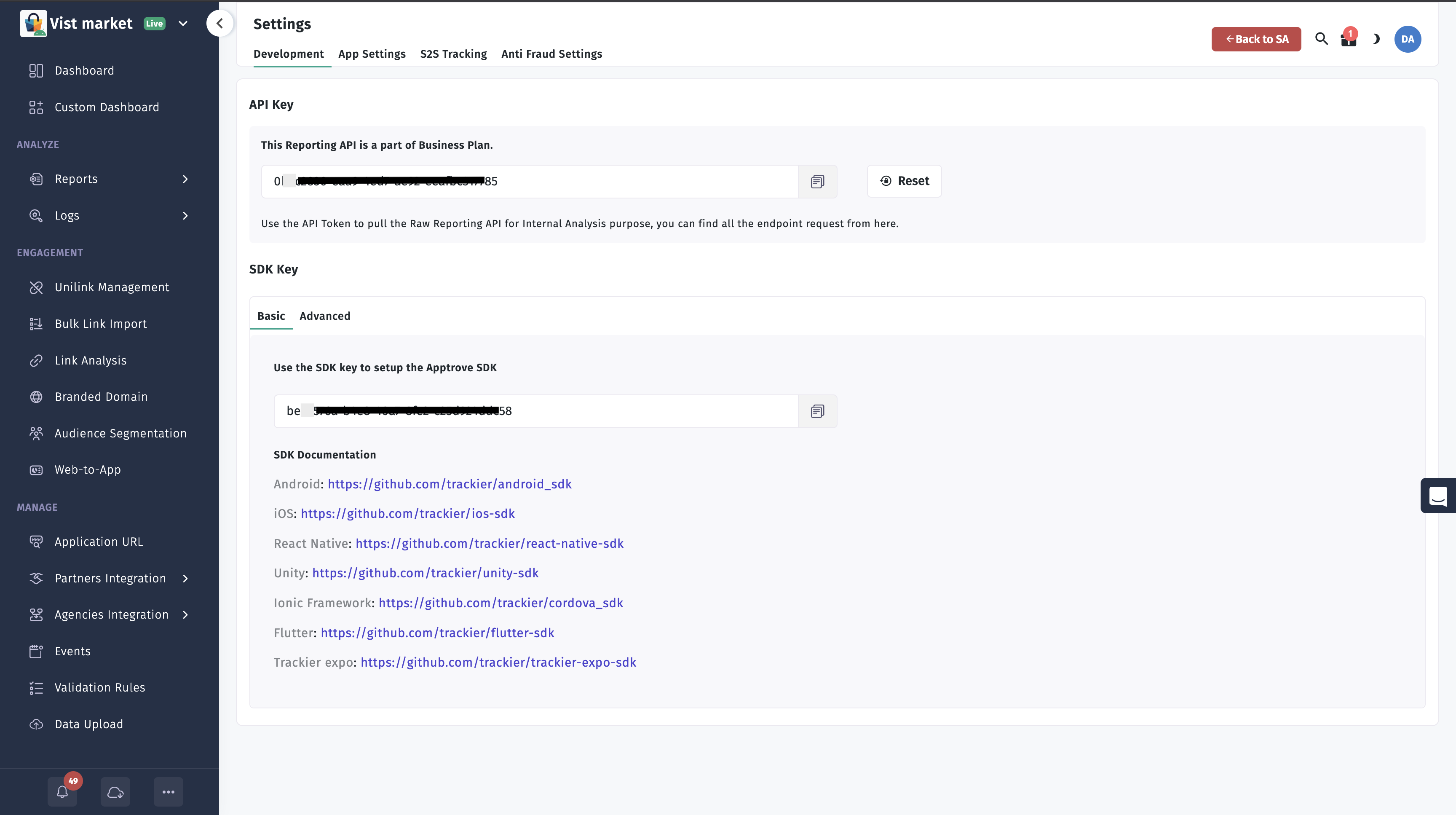
important
Using the correct SDK key is critical. An incorrect key may cause attribution and reporting issues.
Step 2: Initialize the SDK
Initialize the Apptrove SDK in your App.xaml.cs class:
using AppTroveSDK.Maui;

public partial class App : Application
{
    public App()
    {
        InitializeComponent();
    }

    protected override void OnStart()
    {
        base.OnStart();

        string key = "xxxx-xx-4505-bc8b-xx"; // Your SDK key from Panel

        var config = new AppTroveSDKConfig(key, AppTroveEnvironment.Production);
        AppTroveSDK.Initialize(config);
    }
}
Parameters
- key: Your SDK key from the Apptrove Panel.
- environment: Use
Development,Production, orTesting.
Troubleshooting
| Issue | Solution |
|---|---|
| Incorrect SDK Key | Verify key matches Apptrove Panel |
| Initialization Issues | Ensure SDK is added via NuGet |
| Environment Mismatch | Use correct environment for your build |
For support, contact support@trackier.com.