Overview
This guide provides instructions for tracking user interactions in your .NET MAUI application using the Apptrove SDK's AppTroveEvent object. Event tracking offers insights into user actions, such as logins, purchases, or custom events, enabling better analytics and optimization.
Prerequisites
- A .NET MAUI application with the Apptrove SDK installed and initialized
- Access to the Trackier Panel for configuring custom events
- .NET 10.0 or later
- Basic knowledge of C# and .NET MAUI development
Event Tracking
Event tracking provides insights into how users interact with your app. The AppTroveEvent object is used to structure and send event information to Trackier servers, triggered by user actions like button clicks. The SDK supports built-in events, custom events, revenue events, and custom parameters.
1. Built-in Events
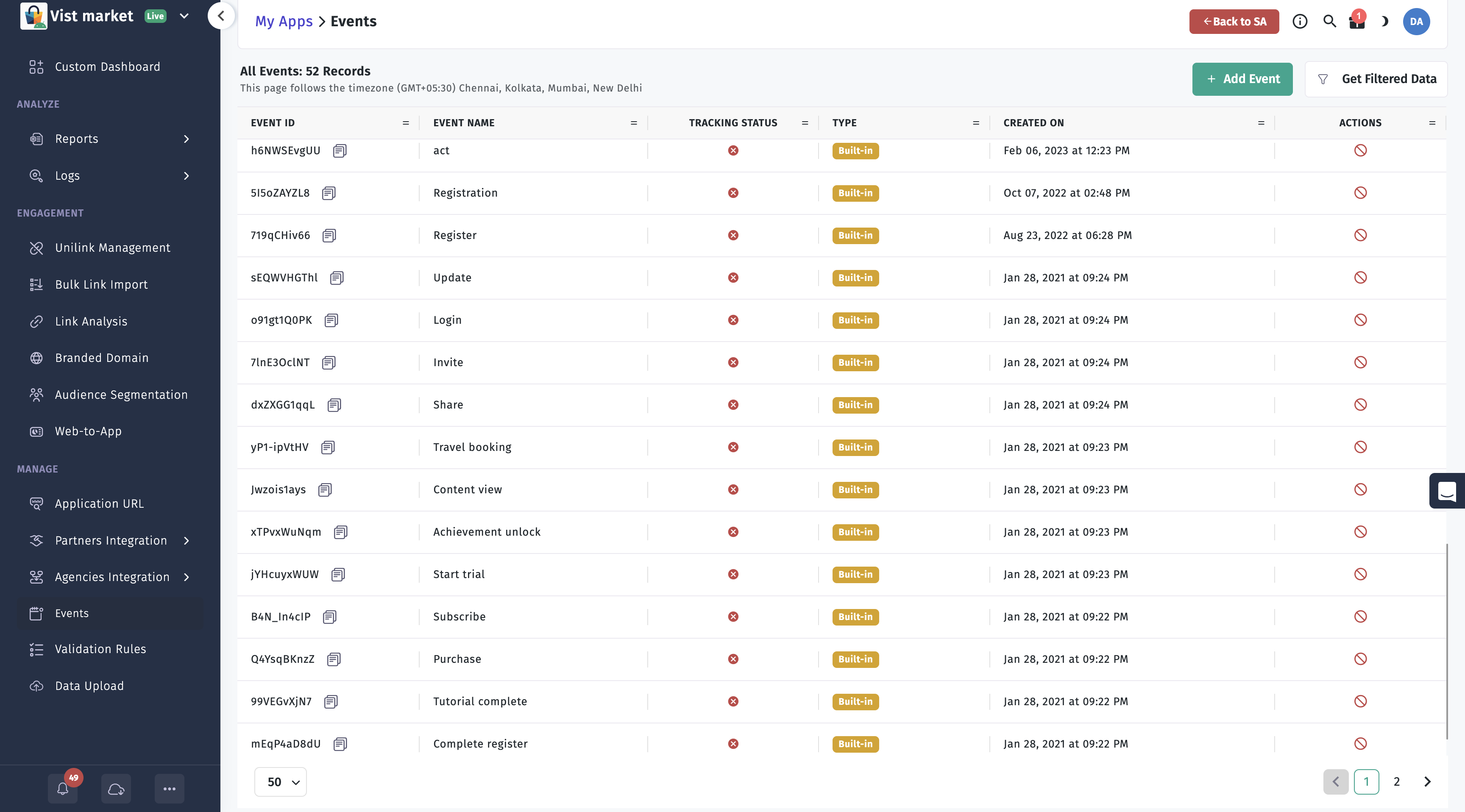
Built-in events are predefined constants available on the Trackier dashboard. You can implement these events directly in your app to track common user interactions.
Supported Built-in Events
AppTroveEvent.LOGINAppTroveEvent.PURCHASEAppTroveEvent.ADD_TO_CARTAppTroveEvent.ADD_TO_WISHLISTAppTroveEvent.COMPLETE_REGISTRATIONAppTroveEvent.CONTENT_VIEWAppTroveEvent.SUBSCRIBEAppTroveEvent.START_TRIALAppTroveEvent.ACHIEVEMENT_UNLOCKEDAppTroveEvent.LEVEL_ACHIEVEDAppTroveEvent.TUTORIAL_COMPLETIONAppTroveEvent.TRAVEL_BOOKINGAppTroveEvent.SHAREAppTroveEvent.INVITEAppTroveEvent.UPDATE
Available Parameters
You can include additional data with events using the following parameters:
OrderIdRevenueCurrencyParam1,Param2,Param3,Param4,Param5,Param6,Param7,Param8,Param9,Param10
Usage
Create an AppTroveEvent instance with the event ID and trigger it on a user action, such as a button click. Below is an example for tracking a LOGIN event.
/*
 * Event Tracking
 * <------------->
 * The below code is the example to pass an event to the Apptrove SDK.
 * This event requires only 1 Parameter which is the Event ID.
 * Below are the example of built-in events function calling
 * The arguments - "AppTroveEvent.LOGIN" passed in the AppTrove event class is Events id
 */
void TrackLoginEvent()
{
    var trackierEvent = new AppTroveEvent(AppTroveEvent.LOGIN);

    /* Below are the function for the adding the extra data,
       You can add the extra data like login details of user or anything you need.
       We have 10 params to add data, Below 5 are mentioned */
    trackierEvent.Param1 = "param1";
    trackierEvent.Param2 = "param2";
    trackierEvent.Param3 = "param3";
    trackierEvent.Param4 = "param4";
    trackierEvent.Param5 = "param5";

    trackierEvent.SetEventValue("ev1", "eventValue1");
    trackierEvent.SetEventValue("ev2", 1);
    AppTroveSDK.TrackEvent(trackierEvent);
}
2. Custom Events
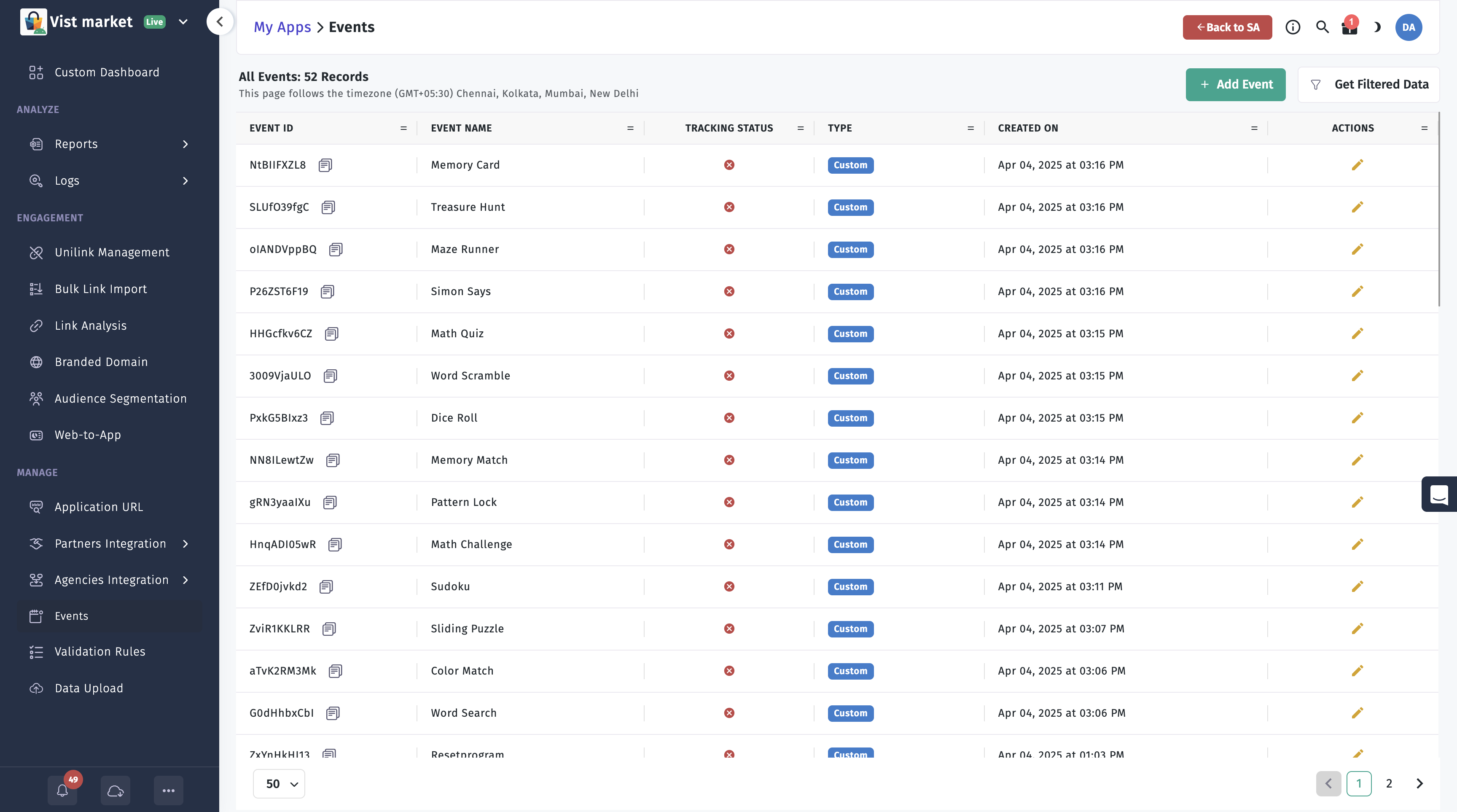
Custom events are defined in the Trackier dashboard and identified by unique event IDs. Use these to track app-specific interactions not covered by built-in events.
Usage
Create an AppTroveEvent instance with the custom event ID from the Trackier dashboard and trigger it as needed.
/*
 * Event Tracking
 * <------------->
 * The below code is the example to pass an event to the Apptrove SDK.
 * This event requires only 1 Parameter which is the Event ID.
 * Below are the example of customs events function calling for `AppOpen` event name.
 * The arguments - "sEMWSCTXeu" passed in the AppTrove event class is Events id
 */
void TrackCustomEvent()
{
    var trackierEvent = new AppTroveEvent("sEMWSCTXeu");

    /* Below are the function for the adding the extra data,
       You can add the extra data like login details of user or anything you need.
       We have 10 params to add data, Below 5 are mentioned */
    trackierEvent.Param1 = "param1";
    trackierEvent.Param2 = "param2";
    trackierEvent.Param3 = "param3";
    trackierEvent.Param4 = "param4";
    trackierEvent.Param5 = "param5";

    trackierEvent.SetEventValue("ev1", "eventValue1");
    trackierEvent.SetEventValue("ev2", 1);
    AppTroveSDK.TrackEvent(trackierEvent);
}
3. Complete Event Tracking Example
This comprehensive example demonstrates how to track a COMPLETE_REGISTRATION event with all available parameters, user data, and custom attributes.
void TrackCompleteRegistration()
{
    // Create event with COMPLETE_REGISTRATION ID (String) or Custom Event ID
    var evt = new AppTroveEvent(AppTroveEvent.COMPLETE_REGISTRATION);
    // Alternatively: var evt = new AppTroveEvent("w43424"); // Pass your Event ID

    // Built-in fields for event tracking
    evt.OrderId = "REG_001";         // String: Unique registration ID
    evt.CouponCode = "";             // String: No coupon used (empty for free plan)
    evt.Discount = 0.0;              // double: No discount applied
    evt.Revenue = 0.0;               // double: No revenue (free signup)
    evt.Currency = "USD";            // String: Currency code

    // Custom parameters for structured data
    // Data type: String - You can add any string value here
    evt.Param1 = "Test1";     // String: Dummy value
    evt.Param2 = "Test2";     // String: Dummy value
    evt.Param3 = "Test3";     // String: Dummy value
    evt.Param4 = "Test4";     // String: Dummy value
    evt.Param5 = "Test5";     // String: Dummy value
    evt.Param6 = "Test6";     // String: Dummy value
    evt.Param7 = "Test7";     // String: Dummy value
    evt.Param8 = "Test8";     // String: Dummy value
    evt.Param9 = "Test9";     // String: Dummy value
    evt.Param10 = "Test10";   // String: Dummy value

    // Custom key-value pairs for flexible data (Dictionary<string, object>)
    evt.SetEventValue("signup_time", 1631234567890); // int: Timestamp
    evt.SetEventValue("device", "MAUI");             // String: Device type

    // Set user details in AppTrove SDK
    AppTroveSDK.SetUserId("USER123");              // String: User ID
    AppTroveSDK.SetUserEmail("user@example.com");  // String: User email
    AppTroveSDK.SetUserName("Jane Doe");           // String: User name
    AppTroveSDK.SetUserPhone("+1234567890");       // String: User phone
    AppTroveSDK.SetDOB("1990-01-01");              // String: Date of birth (YYYY-MM-DD)
    AppTroveSDK.SetGender(AppTroveGender.Male);    // Gender: Male, Female, or Others
    AppTroveSDK.SetIMEI("123456789012345", "987654321098765"); // String, String: Device IMEI
    AppTroveSDK.SetMacAddress("00:1A:2B:3C:4D:5E"); // String: Device MAC address

    // Passing the custom params in events be like below example
    var eventCustomParams = new Dictionary<string, object>
    {
        { "name", "abcd" },
        { "age", "28" }
    };
    evt.Ev = eventCustomParams;

    // Additional user details (Dictionary)
    var userDetails = new Dictionary<string, object>
    {
        { "Plan", "FREE_PLAN" },
        { "SignupMethod", "Email" },
        { "AppVersion", "1.0.0" }
    };
    AppTroveSDK.SetUserAdditionalDetails(userDetails);

    // Send the event to AppTrove
    AppTroveSDK.TrackEvent(evt);
}
4. Revenue Events
Revenue events track in-app revenue, including the amount, currency, and order ID, to monitor app monetization. Use these for actions like purchases, subscription activations, or in-app purchase completions.
Usage
Create an AppTroveEvent instance, set the Revenue, Currency, and other relevant fields, and trigger the event.
void TrackRevenueEvent()
{
    // Below are the example of revenue events function calling
    // The arguments - "AppTroveEvent.PURCHASE" passed in the event class is Events id
    var trackierEvent = new AppTroveEvent(AppTroveEvent.PURCHASE);

    // Passing the revenue events be like below example
    trackierEvent.Revenue = 10.0; // Pass your generated revenue here
    trackierEvent.Currency = "INR"; // Pass your currency here
    trackierEvent.OrderId = "orderID";
    trackierEvent.Param1 = "param1";
    trackierEvent.Param2 = "param2";
    trackierEvent.SetEventValue("ev1", "eventValue1");
    trackierEvent.SetEventValue("ev2", 1);
    AppTroveSDK.TrackEvent(trackierEvent);
}
5. Custom Parameters
Add custom key-value pairs to events for additional context, such as user details or event-specific metadata.
Usage
Create an AppTroveEvent instance, set custom parameters using a Dictionary, and assign it to Ev before tracking.
void TrackCustomParams()
{
    // Below are the example of revenue events function calling
    // The arguments - "AppTroveEvent.LOGIN" passed in the event class is Events id
    var trackierEvent = new AppTroveEvent(AppTroveEvent.LOGIN);

    // Passing the custom params in events be like below example
    var eventCustomParams = new Dictionary<string, object>
    {
        { "name", "abcd" },
        { "age", "28" }
    };
    trackierEvent.Ev = eventCustomParams;
    AppTroveSDK.TrackEvent(trackierEvent);
}
Best Practices
- Use Built-in Events: Leverage built-in events for standard interactions to simplify integration.
- Define Custom Events: Create custom events in the Trackier dashboard for app-specific actions.
- Include Relevant Parameters: Set
Revenue,Currency, andOrderIdfor revenue events to ensure accurate monetization tracking. - Test in Development Mode: Use
DevelopmentorTestingenvironments to validate events before switching toProduction. - Use Meaningful Parameter Names: Choose descriptive names for custom parameters to improve reporting clarity.
Troubleshooting
- Events Not Tracking: Verify the SDK is initialized and the correct event ID is used.
- Invalid Parameters: Ensure parameter names match those defined in the Trackier dashboard.
- Revenue Issues: Confirm the
Revenue,Currency, andOrderIdfields are set correctly. - Custom Parameters Not Recorded: Check that the
Evdictionary is properly assigned before tracking the event.
For further assistance, refer to the Trackier Documentation Portal or contact Trackier support at support@trackier.com.