iOS Uninstall Tracking (APN)
Overview
Track app uninstalls using Apple Push Notification Service (APNs) to measure user retention and optimize your campaigns.
After completing this setup, you will call this method to send the APN token to Apptrove:
AppTroveSDK.SendAPNToken(apnToken);
iOS uninstalls take 9+ days to appear in reports due to Apple Push Notification service.
Prerequisites
- iOS 10.0 or higher
- Xcode 12.0 or later
- Apple Developer Account
- Apptrove .NET MAUI SDK installed
Step 1: Request Certificate in Keychain Access
1.1. Open Keychain Access on your Mac.
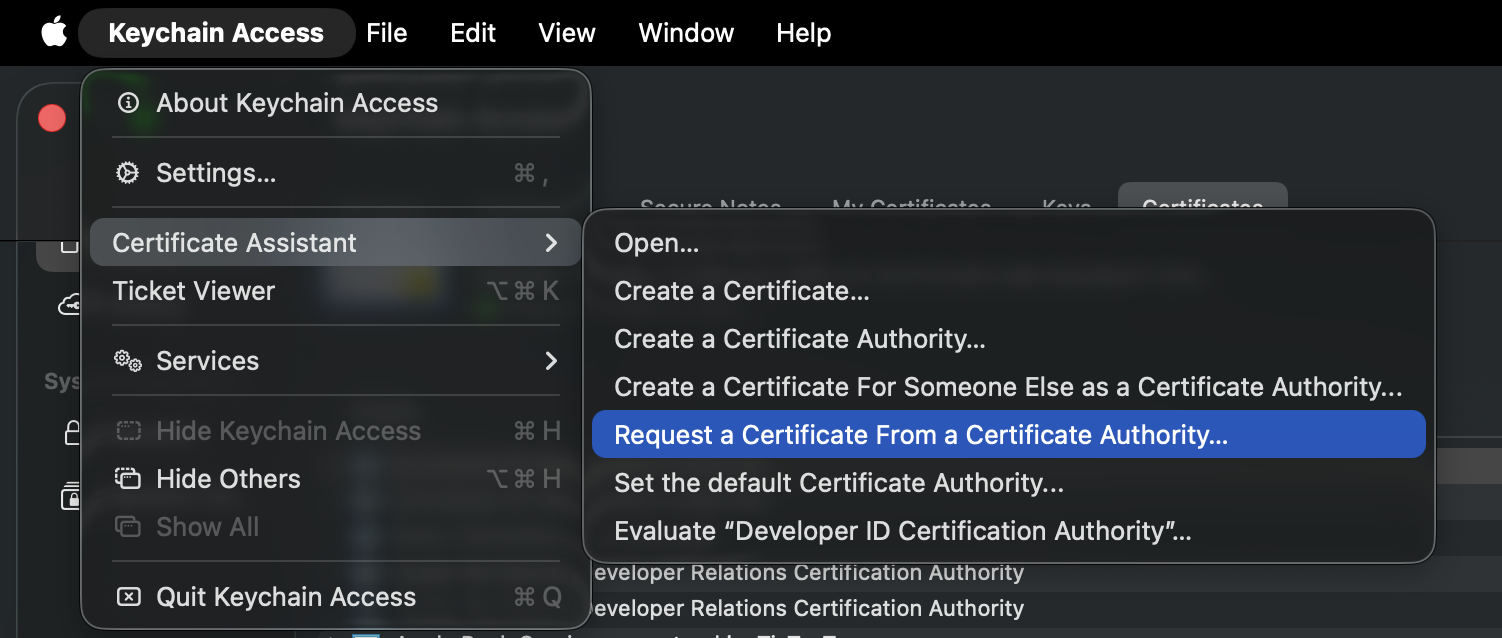
1.2. Go to Keychain Access > Certificate Assistant > Request a Certificate From a Certificate Authority.
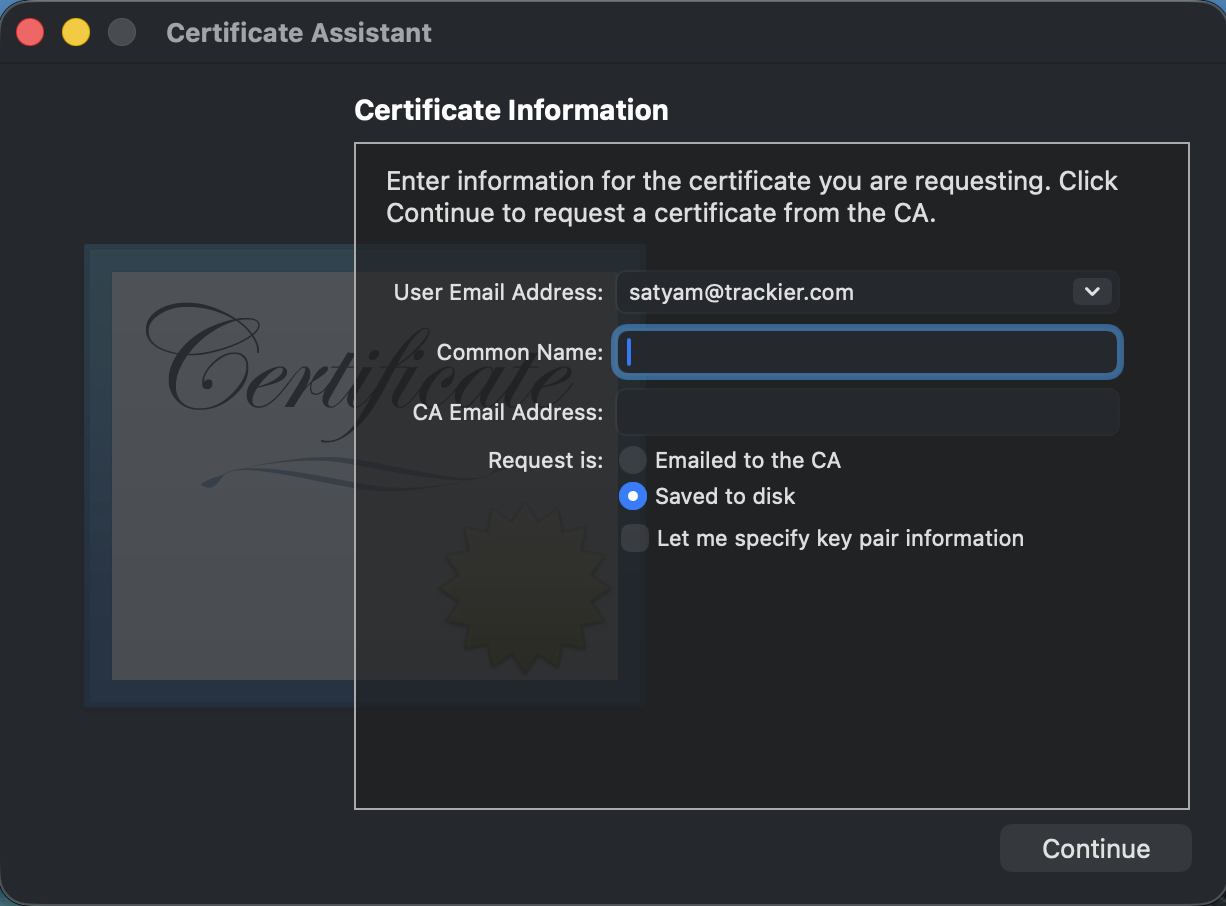
1.3. Fill in the form:
- User Email Address: Your email
- Common Name: Your name
- Request is: Select Saved to disk
- Click Continue
1.4. Save the file to your Desktop.
Step 2: Go to Apple Developer Portal - Identifiers
2.1. Open Apple Developer Portal.
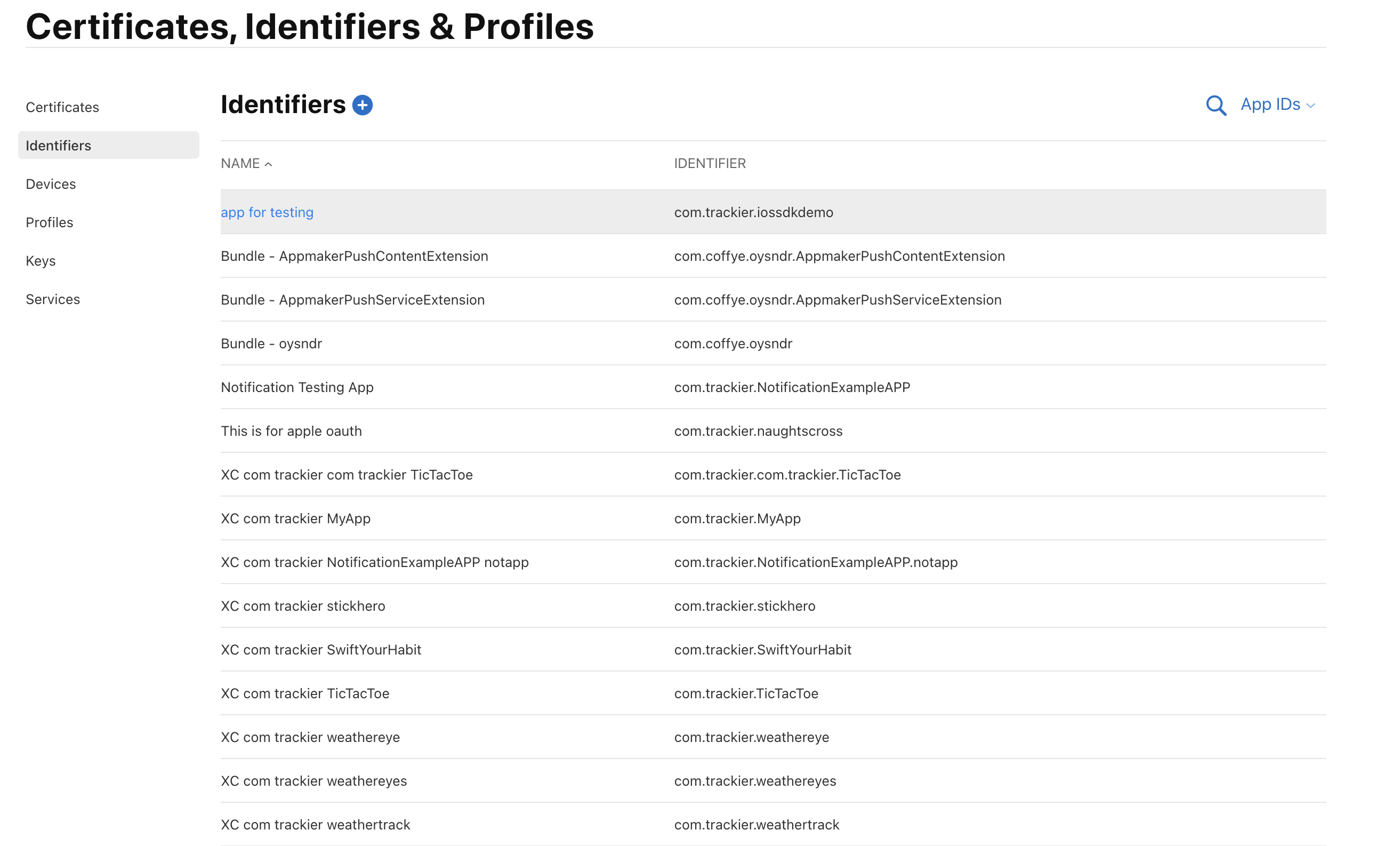
2.2. Go to Certificates, Identifiers & Profiles.
2.3. Click Identifiers.
2.4. Select your App ID (your app's bundle ID/package name).
Step 3: Configure Push Notifications
3.1. After clicking your App ID, you'll see the App ID Configuration page.
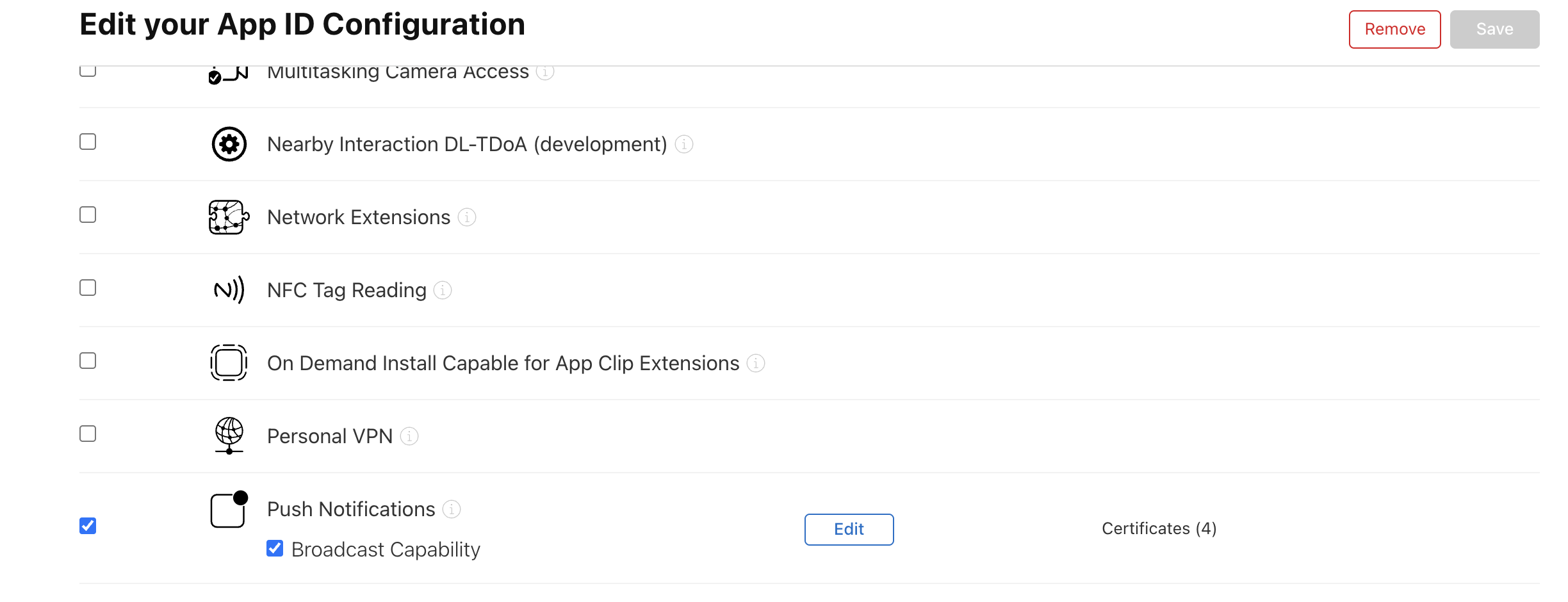
3.2. Scroll to Capabilities section.
3.3. Check Push Notifications.
3.4. Click Configure.
Step 4: Upload Certificate and Download .cer
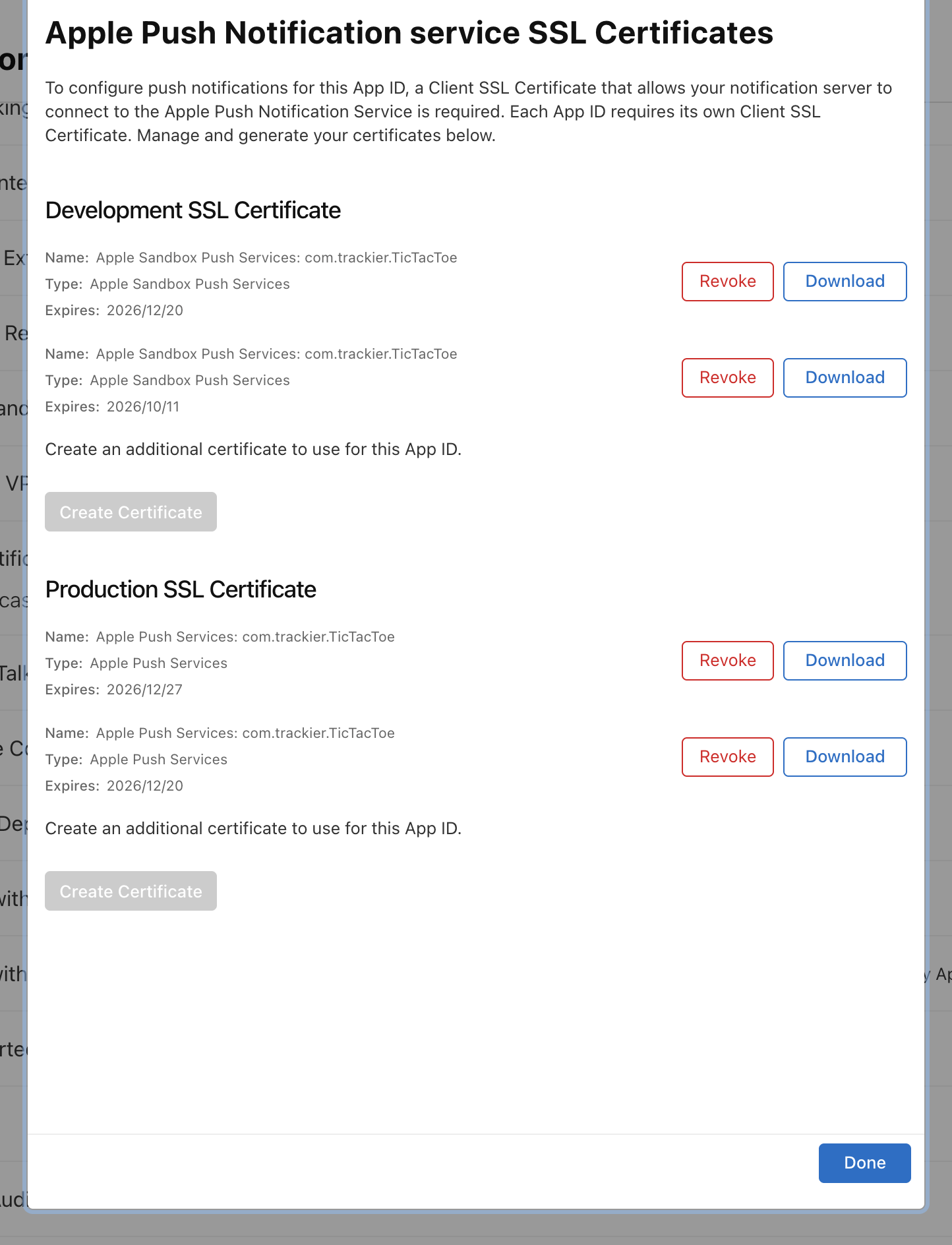
4.1. In the Push Notifications configuration screen, choose:
- Production SSL Certificate (for App Store/Production)
- Click Create Certificate
4.2. Click Choose File and upload the .certSigningRequest file from Step 1.
4.3. Click Continue.
4.4. Click Download to save the .cer file.
Step 5: Go to Keychain and Export as .p12
5.1. Double-click the downloaded .cer file to open it in Keychain Access.
5.2. In Keychain Access, click My Certificates in the left sidebar.
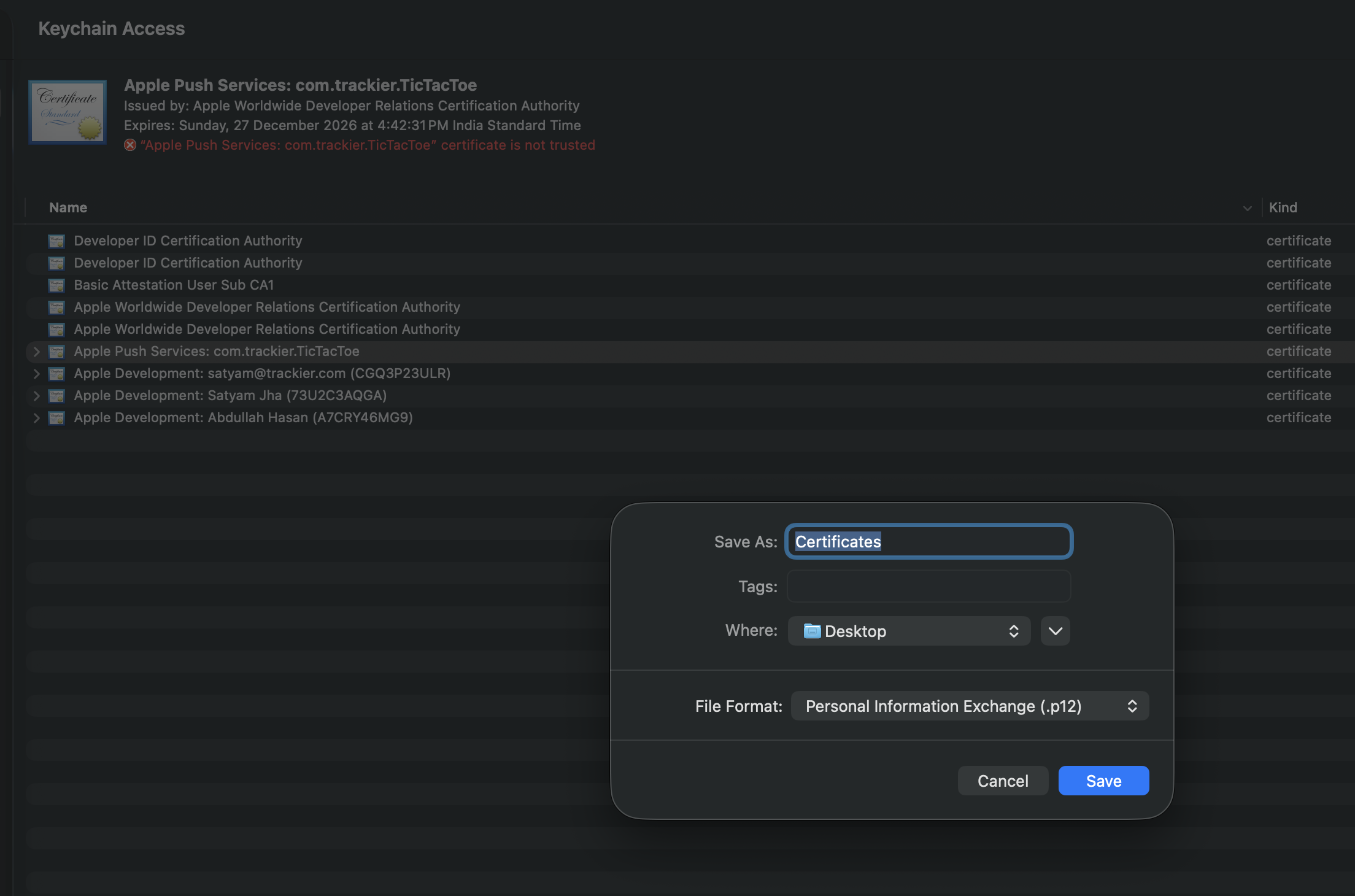
5.3. Find your Push Notification certificate (e.g., "Apple Push Services: com.yourapp.package").
5.4. Right-click on the certificate → Select Export.
5.5. Save as:
- File Format: Personal Information Exchange (.p12)
- Enter a password (you will need this later)
- Click Save
Step 6: Upload .p12 to Apptrove Panel
6.1. Log in to your Apptrove Panel.
6.2. Go to Settings > Uninstall Tracking.
6.3. Select your iOS app.
6.4. Click Upload and select the .p12 file.
6.5. Enter the password you created in Step 5.
6.6. Click Save.
Step 7: Configure in Xcode
7.1. Open your project in Xcode.
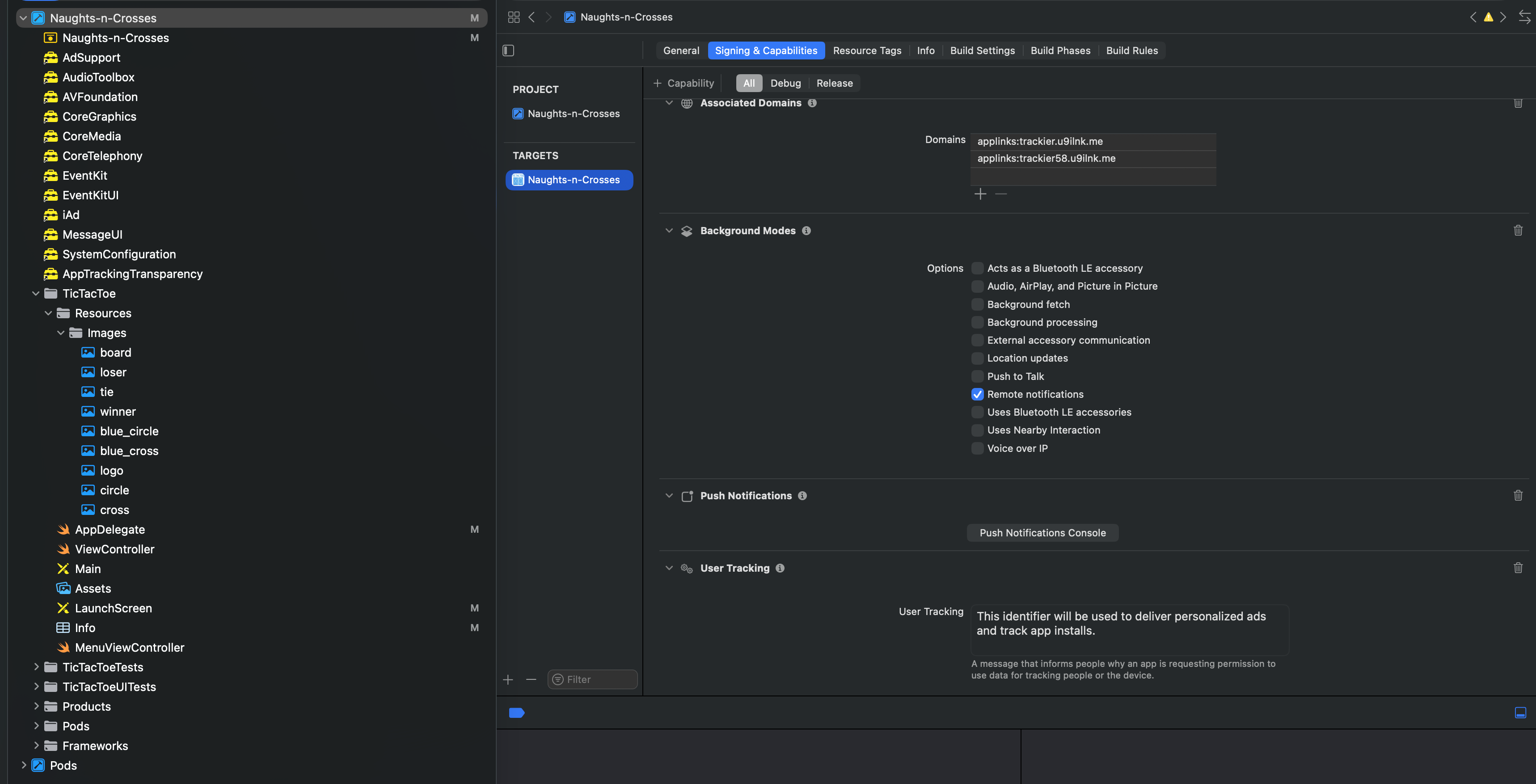
7.2. Select your app Target → Signing & Capabilities tab.
7.3. Click + Capability → Add Push Notifications.
7.4. Click + Capability again → Add Background Modes.
7.5. Check Remote notifications.
Step 8: Add User Permission in Info.plist
8.1. Open your project's Platforms/iOS/Info.plist file.
8.2. Add the following key and description:
Key: NSUserNotificationsUsageDescription
Value: We need permission to send you notifications and track uninstalls.
You can also add it in the Source Code view:
<key>NSUserNotificationsUsageDescription</key>
<string>We need permission to send you notifications and track uninstalls.</string>
Also add background modes for remote notifications:
<key>UIBackgroundModes</key>
<array>
    <string>remote-notification</string>
</array>
This permission message will be shown to users when your app requests notification access.
Step 9: Configure Entitlements
Create or update Platforms/iOS/Entitlements.plist:
<?xml version="1.0" encoding="UTF-8"?>
<!DOCTYPE plist PUBLIC "-//Apple//DTD PLIST 1.0//EN" "http://www.apple.com/DTDs/PropertyList-1.0.dtd">
<plist version="1.0">
<dict>
    <key>aps-environment</key>
    <string>development</string>
</dict>
</plist>
For production/App Store builds, change to <string>production</string>.
Step 10: Send Token to Apptrove SDK
Create Platforms/iOS/PushNotificationHelper.cs:
using Foundation;
using UIKit;
using UserNotifications;

namespace YourApp.Platforms.iOS;

public static class PushNotificationHelper
{
    private static TaskCompletionSource<string?>? _tokenTcs;
    public static string? DeviceToken { get; private set; }

    /// <summary>
    /// Register for remote notifications and get APN device token
    /// </summary>
    public static async Task<string?> RegisterForPushNotificationsAsync()
    {
        try
        {
            Console.WriteLine("[APN] Registering for push notifications...");

            // Request notification permissions
            var authOptions = UNAuthorizationOptions.Alert | UNAuthorizationOptions.Badge | UNAuthorizationOptions.Sound;
            var (granted, error) = await UNUserNotificationCenter.Current.RequestAuthorizationAsync(authOptions);

            if (error != null)
            {
                Console.WriteLine($"[APN] Authorization error: {error.LocalizedDescription}");
                return null;
            }

            if (!granted)
            {
                Console.WriteLine("[APN] Notification permission denied");
                return null;
            }

            Console.WriteLine("[APN] Notification permission granted");

            // Register for remote notifications on main thread
            _tokenTcs = new TaskCompletionSource<string?>();

            MainThread.BeginInvokeOnMainThread(() =>
            {
                UIApplication.SharedApplication.RegisterForRemoteNotifications();
            });

            // Wait for token with timeout
            var timeoutTask = Task.Delay(10000);
            var completedTask = await Task.WhenAny(_tokenTcs.Task, timeoutTask);

            if (completedTask == timeoutTask)
            {
                Console.WriteLine("[APN] Token registration timed out");
                return DeviceToken; // Return cached token if available
            }

            return await _tokenTcs.Task;
        }
        catch (Exception ex)
        {
            Console.WriteLine($"[APN] Error registering for push: {ex.Message}");
            return null;
        }
    }

    /// <summary>
    /// Called from AppDelegate when device token is received
    /// </summary>
    public static void DidRegisterForRemoteNotifications(NSData deviceToken)
    {
        try
        {
            // Convert NSData to hex string
            var token = ConvertDeviceTokenToString(deviceToken);
            DeviceToken = token;

            Console.WriteLine($"[APN] Device token received: {token}");

            _tokenTcs?.TrySetResult(token);
        }
        catch (Exception ex)
        {
            Console.WriteLine($"[APN] Error processing device token: {ex.Message}");
            _tokenTcs?.TrySetResult(null);
        }
    }

    /// <summary>
    /// Called from AppDelegate when registration fails
    /// </summary>
    public static void DidFailToRegisterForRemoteNotifications(NSError error)
    {
        Console.WriteLine($"[APN] Failed to register: {error.LocalizedDescription}");
        _tokenTcs?.TrySetResult(null);
    }

    /// <summary>
    /// Convert NSData device token to hex string
    /// </summary>
    private static string ConvertDeviceTokenToString(NSData deviceToken)
    {
        // iOS 13+ way to convert device token
        var bytes = deviceToken.ToArray();
        return BitConverter.ToString(bytes).Replace("-", "").ToLowerInvariant();
    }
}
Update Platforms/iOS/AppDelegate.cs:
using Foundation;
using UIKit;
using UserNotifications;

namespace YourApp;

[Register("AppDelegate")]
public class AppDelegate : MauiUIApplicationDelegate
{
    protected override MauiApp CreateMauiApp() => MauiProgram.CreateMauiApp();

    public override bool FinishedLaunching(UIApplication application, NSDictionary launchOptions)
    {
        // Set notification delegate
        UNUserNotificationCenter.Current.Delegate = new NotificationDelegate();

        return base.FinishedLaunching(application, launchOptions);
    }

    // These callbacks need to be hooked via UNUserNotificationCenterDelegate
    [Export("application:didRegisterForRemoteNotificationsWithDeviceToken:")]
    public void DidRegisterForRemoteNotifications(UIApplication application, NSData deviceToken)
    {
        Console.WriteLine("[AppDelegate] DidRegisterForRemoteNotifications called");
        Platforms.iOS.PushNotificationHelper.DidRegisterForRemoteNotifications(deviceToken);
    }

    [Export("application:didFailToRegisterForRemoteNotificationsWithError:")]
    public void DidFailToRegisterForRemoteNotifications(UIApplication application, NSError error)
    {
        Console.WriteLine($"[AppDelegate] DidFailToRegisterForRemoteNotifications: {error.LocalizedDescription}");
        Platforms.iOS.PushNotificationHelper.DidFailToRegisterForRemoteNotifications(error);
    }
}

public class NotificationDelegate : UNUserNotificationCenterDelegate
{
    public override void WillPresentNotification(UNUserNotificationCenter center, UNNotification notification, Action<UNNotificationPresentationOptions> completionHandler)
    {
        // Show notification even when app is in foreground
        completionHandler(UNNotificationPresentationOptions.Banner | UNNotificationPresentationOptions.Sound);
    }
}
Add the initialization code in your App.xaml.cs:
using AppTroveSDK.Maui;

public partial class App : Application
{
    protected override async void OnStart()
    {
        base.OnStart();

        // Initialize SDK first
        var config = new AppTroveSDKConfig(
            "YOUR_SDK_KEY",
            AppTroveEnvironment.Production
        );

        AppTroveSDK.Initialize(config);

        // Initialize APNs token for iOS
#if IOS
        await GetAndSendApnsTokenAsync();
#endif
    }

    /// <summary>
    /// Get and send APNs token for iOS
    /// </summary>
    private async Task GetAndSendApnsTokenAsync()
    {
#if IOS
        try
        {
            Console.WriteLine("[APN] Getting APNs token...");

            var apnToken = await Platforms.iOS.PushNotificationHelper.RegisterForPushNotificationsAsync();

            if (!string.IsNullOrEmpty(apnToken))
            {
                Console.WriteLine($"[APN] Raw APNs Token: {apnToken}");

                // Send to SDK
                AppTroveSDK.SendAPNToken(apnToken);
                Console.WriteLine("[APN] APNs Token sent to Apptrove successfully");
            }
            else
            {
                Console.WriteLine("[APN] Failed to get APNs token (common on simulator; test on device)");
            }
        }
        catch (Exception ex)
        {
            Console.WriteLine($"[APN] Error getting APNs token: {ex.Message}");
        }
#endif
    }
}
Step 11: Testing Uninstall Tracking
Local APN tokens do NOT work for uninstall tracking testing. You must upload your app to TestFlight and test with TestFlight APN tokens.
Testing with TestFlight
To properly test uninstall tracking, follow these steps:
- Upload your app to TestFlight via App Store Connect
- Install the app from TestFlight on a physical device
- Launch the app and grant notification permissions
- Capture the APN token using one of these methods:
Method 1: Send Token via Custom Event Parameter
Add this code to capture and send the token for testing purposes:
- ✓ Apptrove SDK (Recommended)
- Trackier SDK (Deprecating August 2026)
// After getting APN token
void SendTokenForTesting(string apnsToken)
{
    // Send to Apptrove SDK
    AppTroveSDK.SendAPNToken(apnsToken);

    // TESTING ONLY: Send token via custom event parameter
    var testEvent = new AppTroveEvent("apn_token_test");
    testEvent.Param1 = apnsToken;  // Send token in Param1
    AppTroveSDK.TrackEvent(testEvent);
}
// After getting APN token
void SendTokenForTesting(string apnsToken)
{
    // Send to Trackier SDK
    TrackierSDK.SendAPNToken(apnsToken);

    // TESTING ONLY: Send token via custom event parameter
    var testEvent = new TrackierEvent("apn_token_test");
    testEvent.Param1 = apnsToken;  // Send token in Param1
    TrackierSDK.TrackEvent(testEvent);
}
Sending the APN token via a custom event parameter allows you to:
- Verify the token is being generated correctly
- See the token value in your dashboard for debugging
- Confirm the SDK is properly initialized and tracking events
Method 2: Check Xcode Console Logs
Run your app on a physical device (Simulator doesn't support APNs).
Check Xcode console logs. You should see:
APN Token: b0adf7c9730763f88e1a048e28c68a9f806ed032fb522debff5bfba010a9b052
Apn token Api response saved successfully
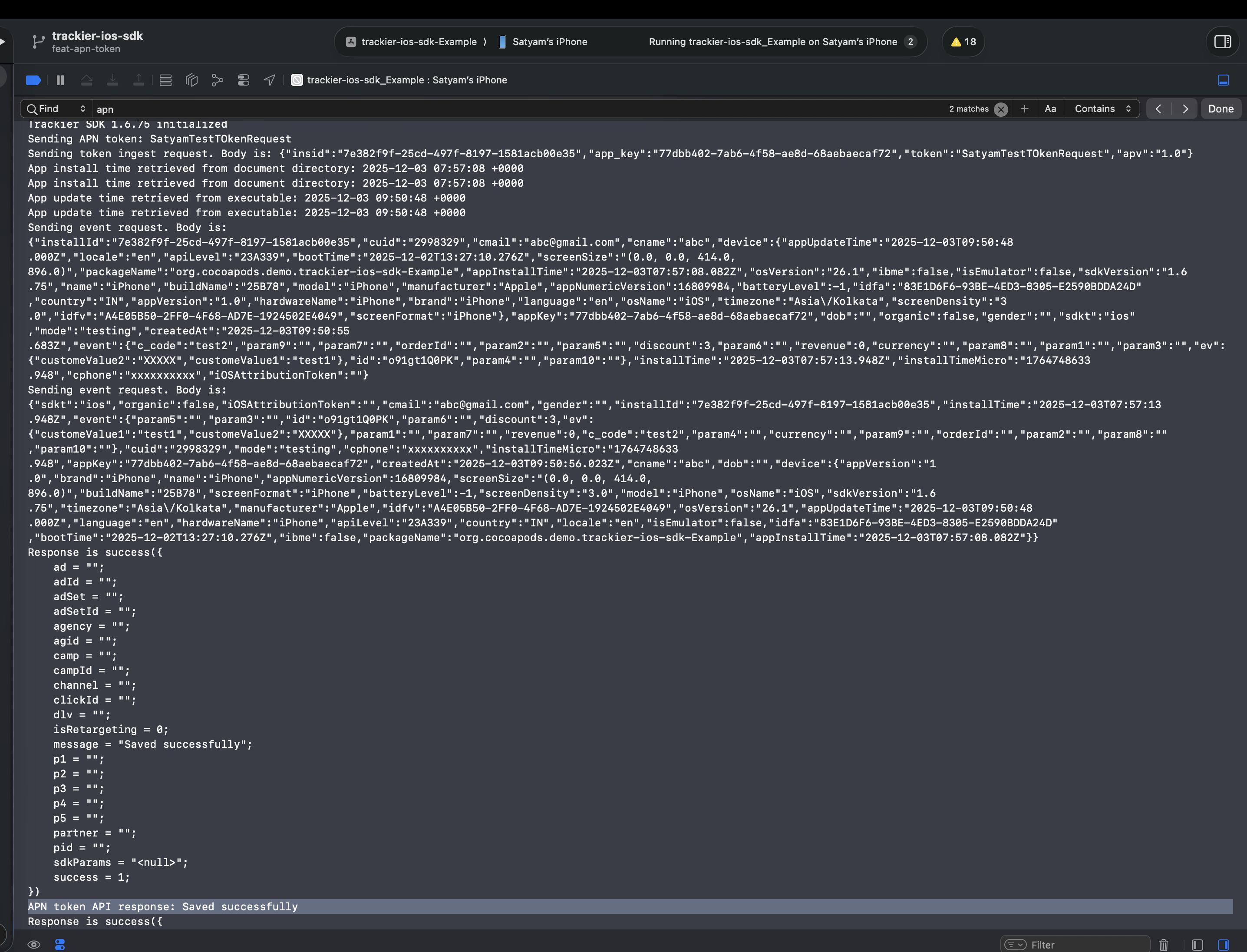
| Success: "Apn token Api response saved successfully"
| Error: If you see an error message, check the troubleshooting section below.
Verify Token in Dashboard
After sending the token, verify it in your Apptrove dashboard:
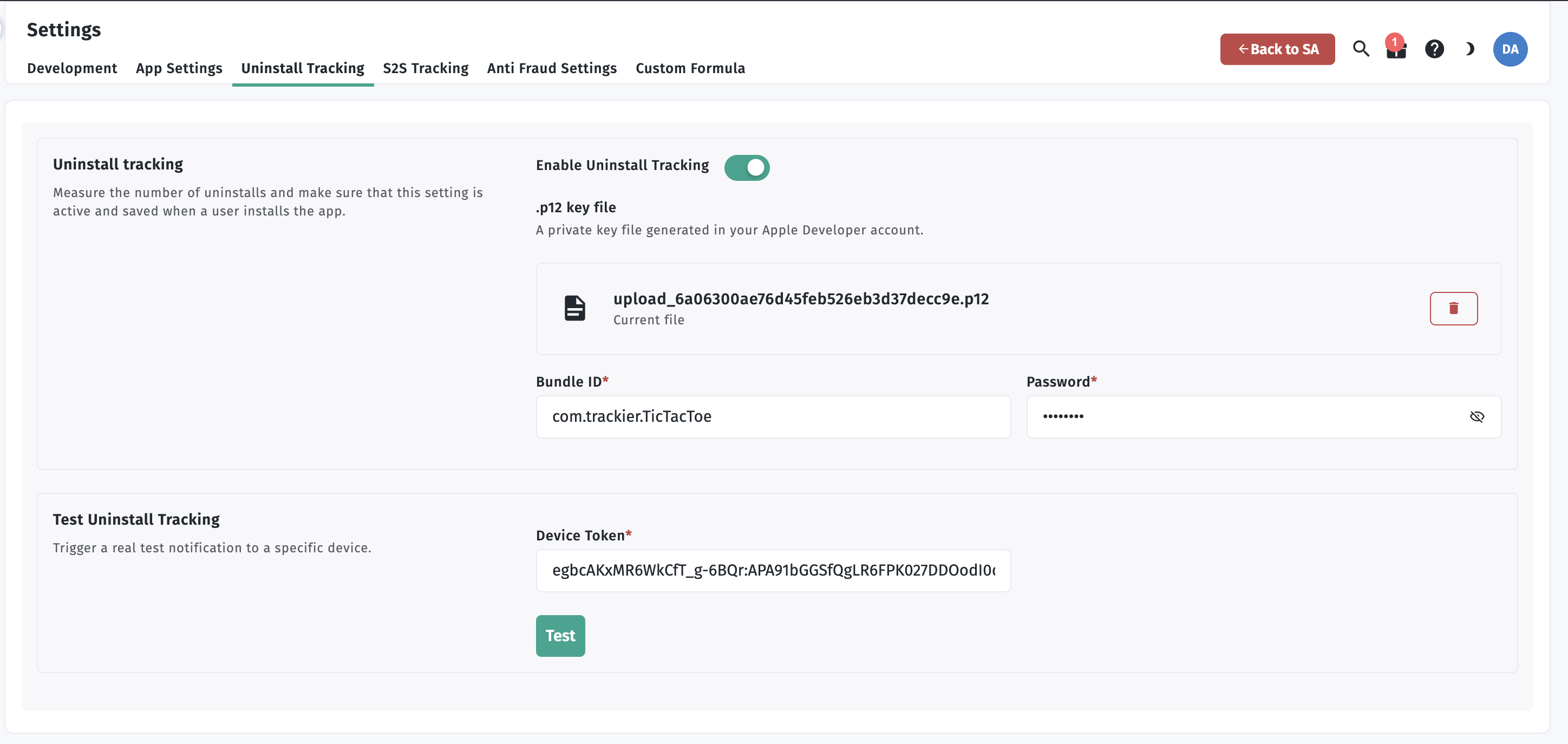
- Go to Apptrove Panel > Settings > Uninstall Tracking
- Verify your iOS app is configured
- Check that the .p12 certificate is uploaded
- Confirm tokens are being received in the logs
- Upload app to TestFlight
- Install from TestFlight on physical device
- Launch app and grant notification permission
- Check Xcode logs for APN token
- Verify "Apn token Api response saved successfully" message
- Check Apptrove dashboard for token receipt
- Uninstall app and wait 9+ days to see uninstall event
Troubleshooting
Issue: Token Not Generated
Check:
- Push Notifications capability is enabled in Xcode
- Testing on physical device (not Simulator)
- User granted notification permission
Issue: "API Response Failed" Error
Check:
- .p12 certificate uploaded to Apptrove panel
- Password is correct
- Using Production certificate for App Store builds
- SDK is initialized before calling
SendAPNToken
Issue: User Denied Notification Permission
Solution: User must enable in Settings > [Your App] > Notifications
Issue: Uninstalls Not Appearing in Dashboard
Remember: Takes 9+ days to appear for production builds.
Complete Flow Summary
- Keychain Access → Request Certificate → Save
.certSigningRequestfile - Apple Developer Portal → Identifiers → Select your App ID
- Configure Push Notifications → Enable and click Configure
- Upload Certificate Request → Download
.cerfile - Keychain Access → Export
.ceras.p12with password - Apptrove Panel → Upload
.p12file + password - Xcode → Enable Push Notifications + Background Modes
- Info.plist → Add user permission description
- Entitlements.plist → Add
aps-environment - MAUI App → Call
AppTroveSDK.SendAPNToken(token) - Check Logs → Verify "Apn token Api response saved successfully"
SDK Method
SendAPNToken(token)
Send the APN token to Apptrove for uninstall tracking.
Usage:
AppTroveSDK.SendAPNToken("your_apn_token_string");
When to call: After SDK initialization, in your MAUI app's initialization flow.
For support, contact support@trackier.com.