App Tracking Transparency (ATT)
Choose your SDK version below:
- Apptrove SDK → Recommended for all projects (Latest)
- Trackier SDK → Deprecated and scheduled for sunset in August 2026
Use the tabs below to view ATT implementation for your chosen SDK.
This guide provides comprehensive instructions for implementing Apple's App Tracking Transparency (ATT) framework with the Expo SDK. ATT is required for iOS 14.5+ apps that want to access the Identifier for Advertisers (IDFA) for accurate attribution and tracking.
Overview
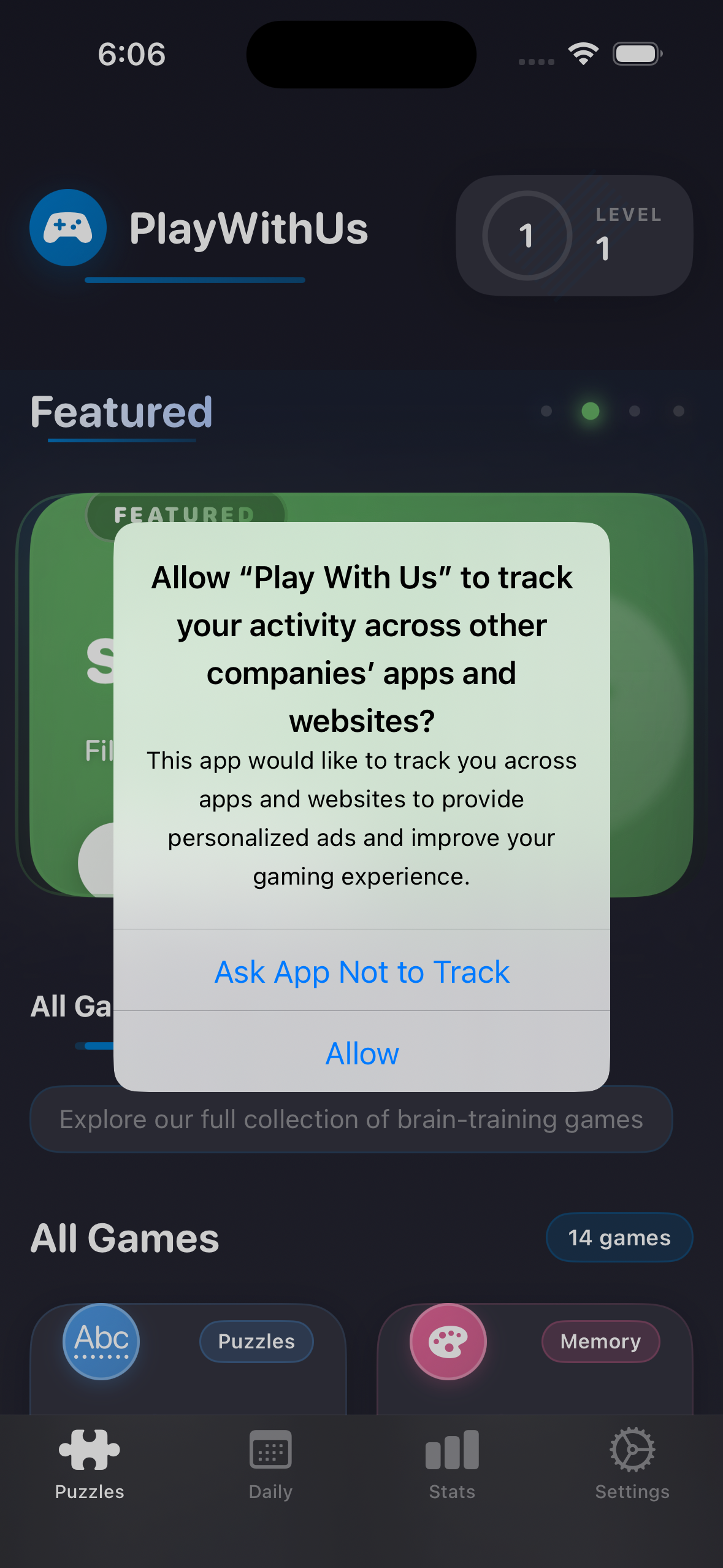
App Tracking Transparency (ATT) is Apple's privacy framework that requires apps to request user permission before accessing the IDFA. This is crucial for accurate attribution and tracking on iOS 14.5 and later.
Prerequisites
- iOS 14.5 or later
- Expo SDK 48+ or React Native 0.64+
- Expo SDK package installed (
apptrove-expo-sdkortrackier-expo-sdk) - Access to your app's
Info.plistfile react-native-permissionspackage installed
Installation
Install the permissions package:
npm install react-native-permissions@^5.4.4
Configure iOS Podfile
Add permissions setup to your ios/Podfile:
# Setup permissions for react-native-permissions
setup_permissions([
  'AppTrackingTransparency',
])
Then install pods:
cd ios && pod install && cd ..
Package Link: react-native-permissions on npm
Implementation
Step 1: Add Permission Description
Add the following key-value pair to your Info.plist to describe why your app needs tracking permission:
<key>NSUserTrackingUsageDescription</key>
<string>We use tracking to personalize your experience and improve our services.</string>
Step 2: Complete Implementation
Important: On iOS, request ATT permission first, then call waitForATTUserAuthorization(20) between creating the SDK config and initializing. Once the user grants permission, the SDK will automatically fetch and send IDFA to the panel.
Here is the complete implementation:
- ✓ Apptrove SDK (Latest)
- Trackier SDK (Deprecated)
import React, { useEffect } from 'react';
import { Platform } from 'react-native';
import { request, PERMISSIONS, RESULTS } from 'react-native-permissions';
import { AppTroveSDK, AppTroveConfig } from 'apptrove-expo-sdk';

const App = () => {
  useEffect(() => {
    initializeApp();
  }, []);

  const initializeApp = async () => {
    await initializeAppTroveSDK();
  };

  const requestATTPermission = async () => {
    if (Platform.OS === 'ios') {
      try {
        console.log('Requesting ATT (App Tracking Transparency) permission...');
        const result = await request(PERMISSIONS.IOS.APP_TRACKING_TRANSPARENCY);
        console.log('ATT permission result:', result);

        switch (result) {
          case RESULTS.GRANTED:
            console.log('ATT permission granted');
            // The AppTrove SDK will automatically fetch and send IDFA to the panel
            break;
          case RESULTS.DENIED:
            console.log('ATT permission denied');
            break;
          case RESULTS.BLOCKED:
            console.log('ATT permission blocked');
            break;
          case RESULTS.UNAVAILABLE:
            console.log('ATT is not available on this device');
            break;
          case RESULTS.LIMITED:
            console.log('ATT permission limited');
            break;
        }

        return result;
      } catch (error) {
        console.log('Error requesting ATT permission:', error);
        return null;
      }
    }
  };

  const initializeAppTroveSDK = async () => {
    try {
      // Create SDK configuration
      const appTroveConfig = new AppTroveConfig('YOUR_SDK_KEY', AppTroveConfig.EnvironmentProduction);

      // iOS: Request ATT permission and configure timeout
      if (Platform.OS === 'ios') {
        console.log('Requesting ATT permission before SDK initialization...');
        await requestATTPermission();

        console.log('Waiting for ATT user authorization (20 seconds timeout)...');
        AppTroveSDK.waitForATTUserAuthorization(20);
        console.log('ATT wait completed');
      }

      // Initialize SDK
      AppTroveSDK.initialize(appTroveConfig);
      console.log('AppTrove SDK initialized successfully');
    } catch (error) {
      console.log('Error in SDK initialization:', error);
    }
  };

  return (
    // Your app components
    null
  );
};

export default App;
import React, { useEffect } from 'react';
import { Platform } from 'react-native';
import { request, PERMISSIONS, RESULTS } from 'react-native-permissions';
import { TrackierSDK, TrackierConfig } from 'trackier-expo-sdk';

const App = () => {
  useEffect(() => {
    initializeApp();
  }, []);

  const initializeApp = async () => {
    await initializeTrackierSDK();
  };

  const requestATTPermission = async () => {
    if (Platform.OS === 'ios') {
      try {
        const result = await request(PERMISSIONS.IOS.APP_TRACKING_TRANSPARENCY);
        return result;
      } catch (error) {
        console.log('Error requesting ATT permission:', error);
        return null;
      }
    }
  };

  const initializeTrackierSDK = async () => {
    try {
      const trackierConfig = new TrackierConfig('YOUR_SDK_KEY', TrackierConfig.EnvironmentProduction);

      if (Platform.OS === 'ios') {
        await requestATTPermission();
        TrackierSDK.waitForATTUserAuthorization(20);
      }

      TrackierSDK.initialize(trackierConfig);
      console.log('Trackier SDK initialized successfully');
    } catch (error) {
      console.log('Error in SDK initialization:', error);
    }
  };

  return null;
};

export default App;
Key Features
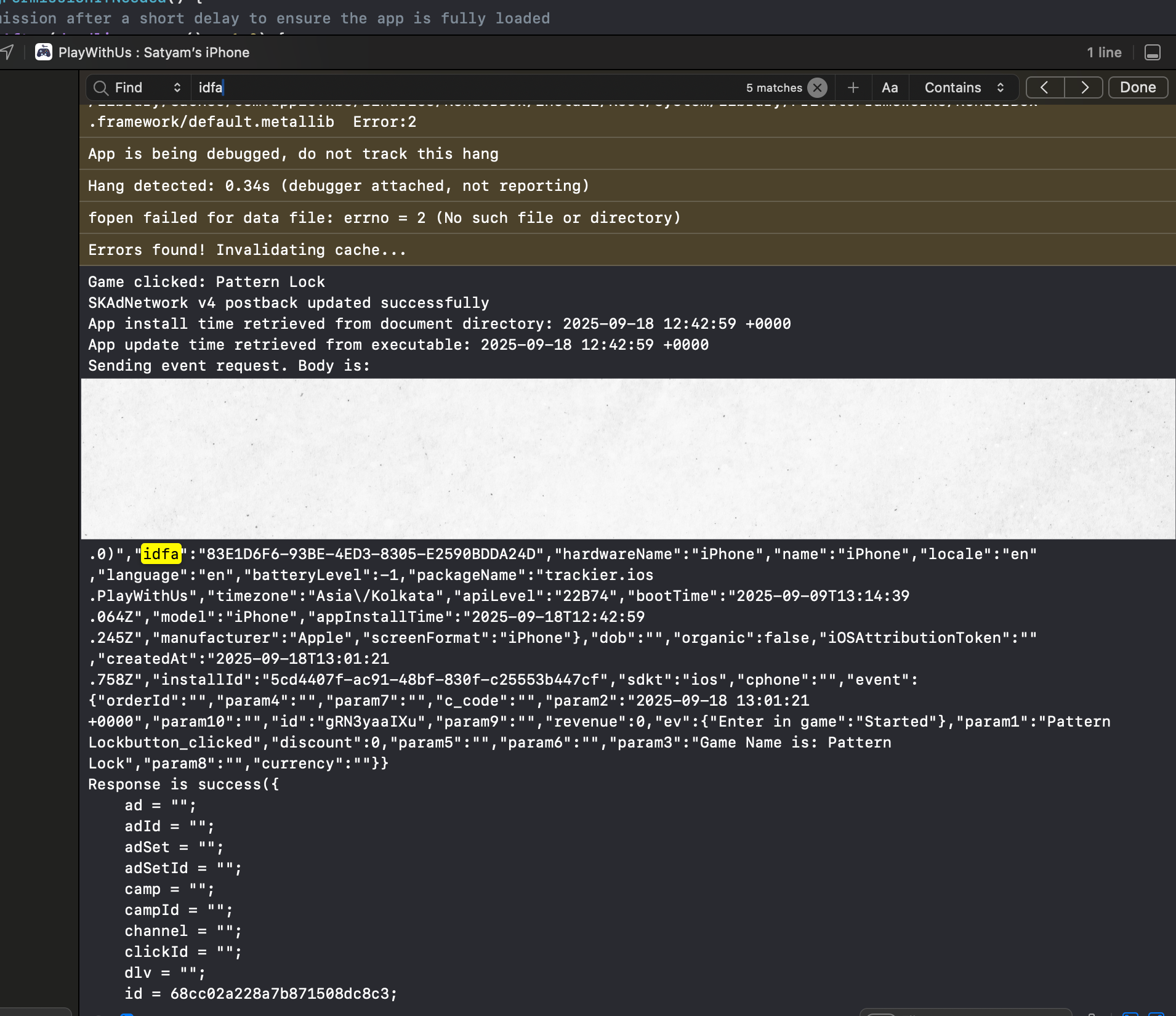
waitForATTUserAuthorization(timeoutInterval): Configures the SDK to wait for user ATT decision before starting tracking. The timeout can be adjusted based on your app's needs.- Automatic IDFA Handling: Once permission is granted, the SDK automatically fetches and sends IDFA to the panel.
- Manual Permission Request: You control when to show the ATT permission dialog to users.
- Platform-Specific: Only runs on iOS, gracefully skips on other platforms.
Always replace "YOUR_SDK_KEY" with your actual SDK token from the dashboard. Using an incorrect token will cause attribution issues.
Visual Examples
ATT Permission Dialog:
IDFA Console Logs:
IDFA Panel in Dashboard: When tracking is properly configured with ATT, you can see the IDFA details in the panel for installs and events:
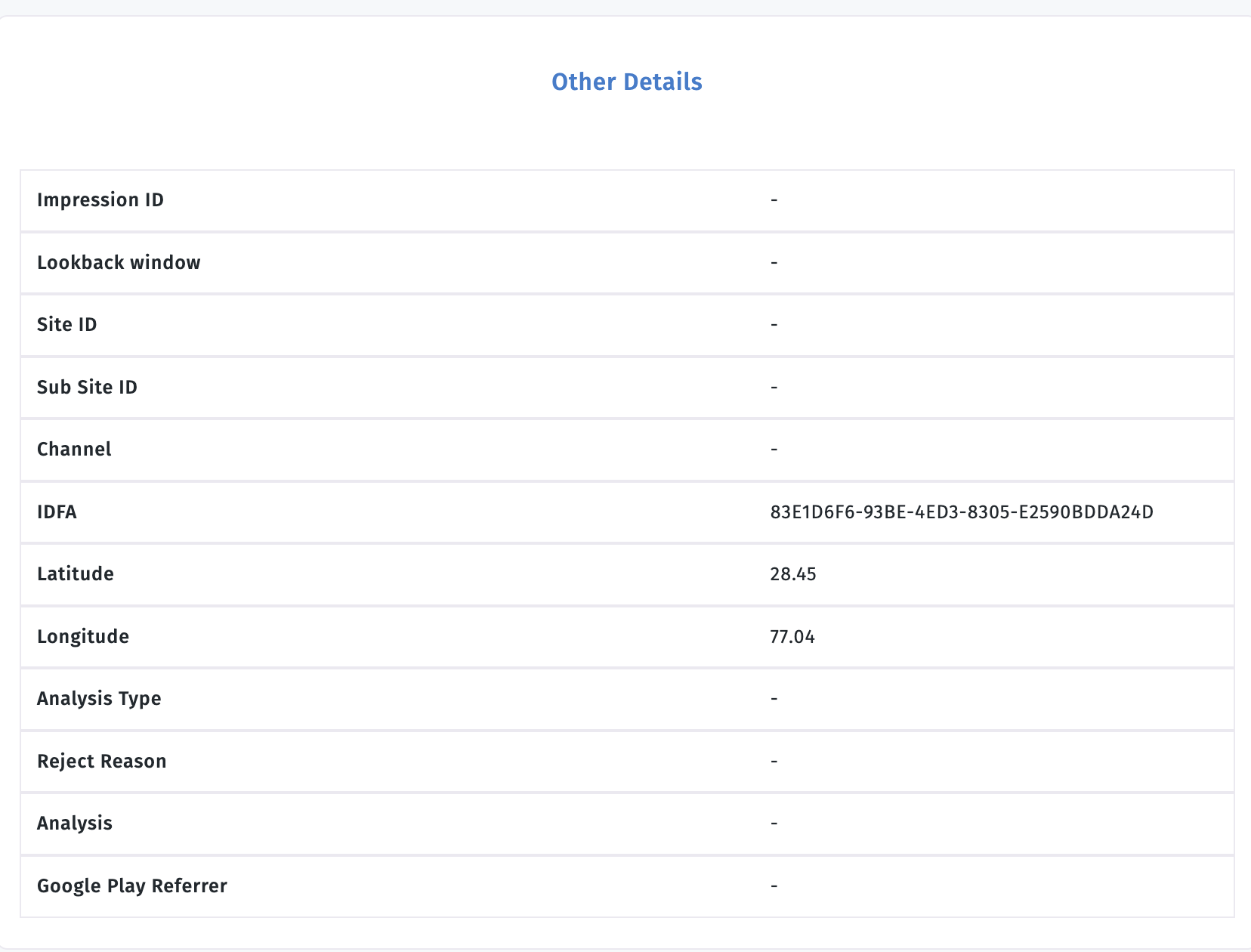
This panel shows the IDFA information when users grant tracking permission, allowing accurate attribution and detailed tracking analytics.
ATT Permission Result Values
| Result | Description | SDK Behavior |
|---|---|---|
RESULTS.GRANTED | User granted permission | Full tracking enabled, IDFA available |
RESULTS.DENIED | User denied permission | Limited tracking, no IDFA |
RESULTS.BLOCKED | Permission blocked (settings) | Limited tracking, no IDFA |
RESULTS.LIMITED | Limited tracking permission | Limited tracking |
RESULTS.UNAVAILABLE | ATT not available on device | Continue without IDFA |
Best Practices
- Timing: Request permission after app launch (1-2 second delay)
- User Experience: Explain why tracking is needed before requesting permission
- Timeout Configuration: Adjust timeout based on your app flow (default 20 seconds)
- Status Monitoring: Monitor tracking status changes and update UI accordingly
- Check Status First: Always check whether permission is already determined before requesting
- Handle All Cases: Implement handling for all ATT result values
- iOS Version Check: Always check platform before using ATT
Troubleshooting
Common Issues
ATT Permission Not Requested
- Ensure
NSUserTrackingUsageDescriptionis added toInfo.plist - Check that the app targets iOS 14.5 or later
- Verify the permission request is called after app launch
IDFA Not Available
- Check if user granted permission (result should be
RESULTS.GRANTED) - Ensure the device supports IDFA (not available on simulator)
- Verify the app is not restricted by parental controls
SDK Initialization Issues
- Make sure
waitForATTUserAuthorizationis called before SDK initialization - Check that the timeout value is appropriate for your app flow
- Verify the SDK token is correct
Debug Tips
// Check current tracking status
import { check, PERMISSIONS, RESULTS } from 'react-native-permissions';

const checkATTStatus = async () => {
  if (Platform.OS === 'ios') {
    const result = await check(PERMISSIONS.IOS.APP_TRACKING_TRANSPARENCY);
    console.log('Current ATT Status:', result);
  }
};
Support
For technical support and questions:
- Support Email: support@apptrove.com
- Documentation: Developer Portal
This guide provides comprehensive implementation of App Tracking Transparency with the Expo SDK, ensuring compliance with Apple's privacy requirements while maintaining accurate attribution and tracking capabilities.