Overview
This guide provides step-by-step instructions to initialize the Apptrove iOS SDK in your iOS application. Proper initialization ensures accurate tracking, attribution, and reporting.
Prerequisites
- Access to the Trackier Panel
- iOS 10.0 or later and Xcode 12.0 or later
- Basic knowledge of Swift and iOS development
Initialization
Step 1: Retrieve SDK Key
- Log in to your Apptrove Panel.
- Select your app, click Action, and choose SDK Integration.
- Copy the displayed SDK Key.
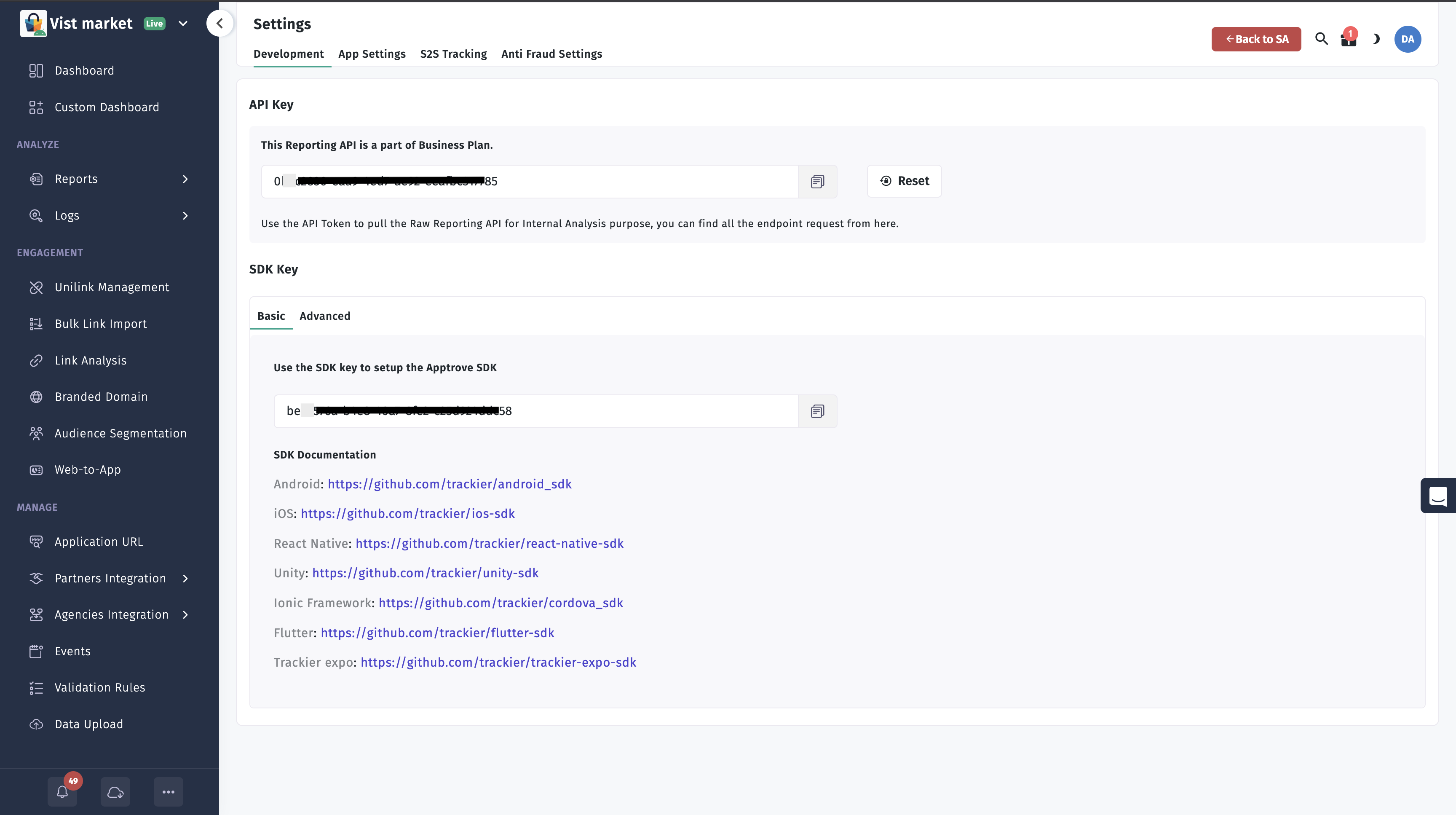
Using the correct SDK key is critical. An incorrect key may cause attribution and reporting issues.
Step 2: Initialize the SDK
Initialize the SDK in AppDelegate.swift within the application(_:didFinishLaunchingWithOptions:) method to ensure it loads in all scenarios, including deep linking. Use the AppTroveSDKConfig class to configure the SDK with your SDK key and environment.
- ✓ Apptrove SDK (Recommended)
- Trackier SDK (Deprecating August 2026)
- Swift
- Objective-C
import UIKit
import ApptroveSDK // or import apptrove_ios_sdk

@UIApplicationMain
class AppDelegate: UIResponder, UIApplicationDelegate {

    var window: UIWindow?

    func application(
        _ application: UIApplication,
        didFinishLaunchingWithOptions launchOptions: [UIApplication.LaunchOptionsKey: Any]?
    ) -> Bool {
        // Override point for customization after application launch.

        /*
         While Initializing the SDK, you need to pass two arguments in the AppTroveSDKConfig:
         1. The Apptrove SDK API key
         2. The environment, which can be either "development", "production", or "testing"
         */

        let config = AppTroveSDKConfig(
            appToken: "xxxx-xx-xxx-xxx", // Pass your Apptrove SDK API key
            env: AppTroveSDKConfig.ENV_DEVELOPMENT
        )
        AppTroveSDK.initialize(config: config)

        return true
    }
}
#import "AppDelegate.h"
@import apptrove_ios_sdk;

@implementation AppDelegate

- (BOOL)application:(UIApplication *)application
    didFinishLaunchingWithOptions:(NSDictionary *)launchOptions {
    // Override point for customization after application launch.

    /*
     While Initializing the SDK, you need to pass two arguments in the AppTroveSDKConfig:
     1. The Apptrove SDK API key
     2. The environment, which can be either "development", "production", or "testing"
     */

    AppTroveSDKConfig *config =
        [[AppTroveSDKConfig alloc] initWithAppToken:@"xxxx-xx-xxx-xxx" // Pass your Apptrove SDK API key
                                                env:AppTroveSDKConfig.ENV_DEVELOPMENT];
    [AppTroveSDK initializeWithConfig:config];

    return YES;
}

@end
Use AppTroveSDKConfig.ENVIRONMENT_PRODUCTION for release builds (Swift and Objective-C). There is no ENV_PRODUCTION constant on Apptrove SDK.
import UIKit
import TrackierSDK // or import trackier_ios_sdk

@UIApplicationMain
class AppDelegate: UIResponder, UIApplicationDelegate {

    var window: UIWindow?

    func application(
        _ application: UIApplication,
        didFinishLaunchingWithOptions launchOptions: [UIApplication.LaunchOptionsKey: Any]?
    ) -> Bool {
        // Override point for customization after application launch.

        /*
         While Initializing the SDK, you need to pass two arguments in the TrackierSDKConfig:
         1. The Apptrove SDK API key
         2. The environment, which can be either "development", "production", or "testing"
         */

        let config = TrackierSDKConfig(
            appToken: "xxxx-xx-xxx-xxx", // Pass your Apptrove SDK API key
            env: TrackierSDKConfig.ENV_DEVELOPMENT
        )
        TrackierSDK.initialize(config: config)

        return true
    }
}
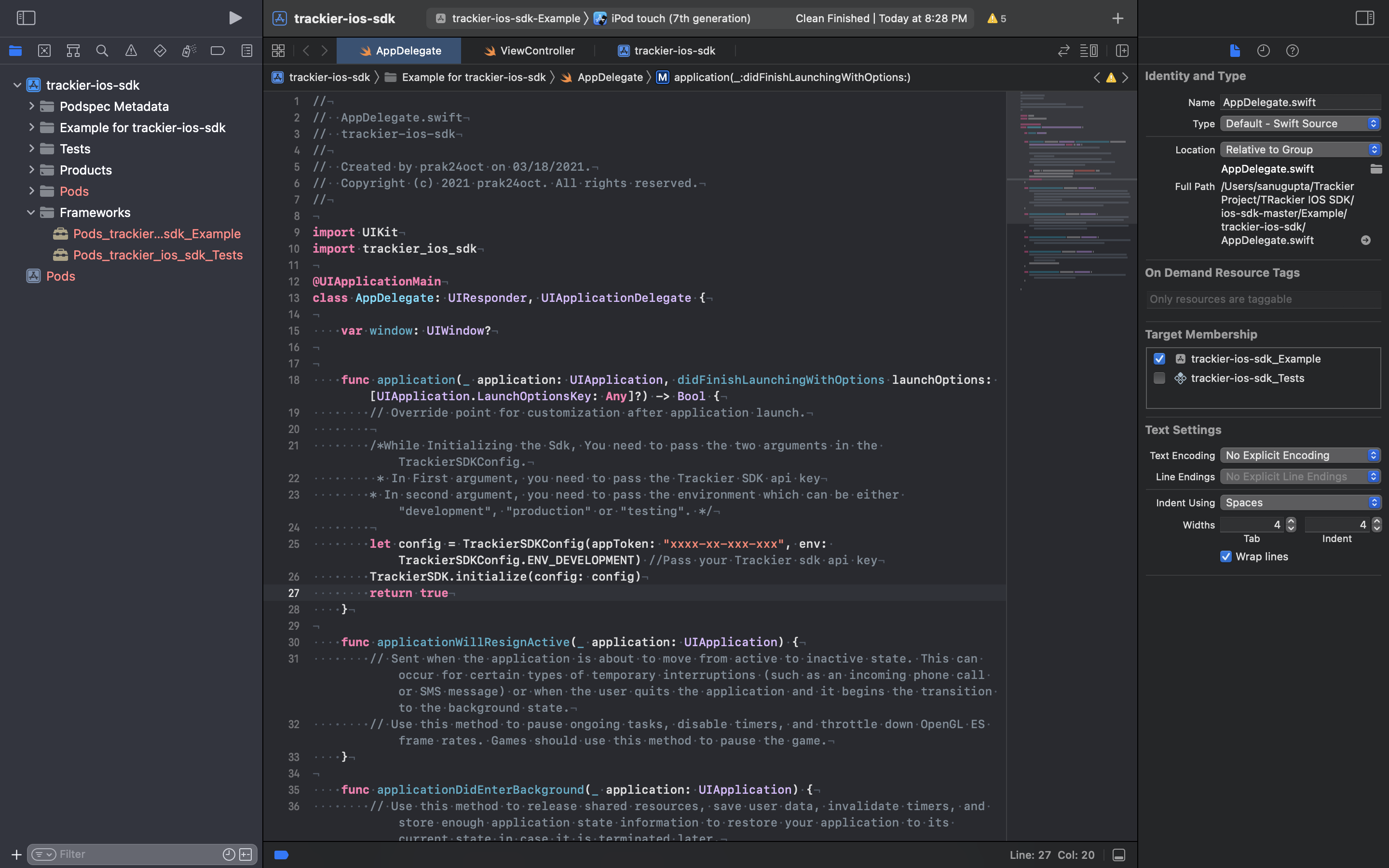
Parameters
- ✓ Apptrove SDK (Recommended)
- Trackier SDK (Deprecating August 2026)
- appToken: Your SDK key from the Apptrove Panel.
- env: Environment setting. Use:
AppTroveSDKConfig.ENV_DEVELOPMENTfor testing.AppTroveSDKConfig.ENVIRONMENT_PRODUCTIONfor release builds (notENV_PRODUCTION).AppTroveSDKConfig.ENV_TESTINGfor staging environments.
Ensure the SDK key matches your application in the Apptrove Panel to avoid attribution and reporting issues.
- appToken: Your SDK key from the Trackier Panel.
- env: Environment setting. Use:
TrackierSDKConfig.ENV_DEVELOPMENTfor testing.TrackierSDKConfig.ENV_PRODUCTIONfor release builds.TrackierSDKConfig.ENV_TESTINGfor staging environments.
Ensure the SDK key matches your application in the Trackier Panel to avoid attribution and reporting issues.
:::
Step 3: Associate User Info (Optional)
You can associate user information (e.g., user ID, email) during SDK initialization to enhance tracking and attribution.
- ✓ Apptrove SDK (Recommended)
- Trackier SDK (Deprecating August 2026)
- Swift
- Objective-C
func application(_ application: UIApplication, didFinishLaunchingWithOptions launchOptions: [UIApplication.LaunchOptionsKey: Any]?) -> Bool {
    // Override point for customization after application launch.
    let config = AppTroveSDKConfig(appToken: "xxxx-xx-xxx-xxx", env: AppTroveSDKConfig.ENV_DEVELOPMENT)
    AppTroveSDK.setUserId("XXXXXXXX")
    AppTroveSDK.setUserEmail("abc@gmail.com")

    // Add custom user details
    var userAdditionalDetails = [String: AnyObject]()
    userAdditionalDetails["userMobile"] = "99XXXXXXXX" as AnyObject
    AppTroveSDK.setUserAdditionalDetails(userAdditionalDetails)

    AppTroveSDK.initialize(config: config)
    return true
}
// Override point for customization after application launch.
AppTroveSDKConfig *config =
    [[AppTroveSDKConfig alloc] initWithAppToken:@"xxxx-xx-xxx-xxx"
                                            env:AppTroveSDKConfig.ENV_DEVELOPMENT];
[AppTroveSDK setUserIDWithUserId:@"XXXXXXXX"];
[AppTroveSDK setUserEmailWithUserEmail:@"abc@gmail.com"];

// Add custom user details
NSDictionary *details = @{ @"userMobile": @"99XXXXXXXX" };
[AppTroveSDK setUserAdditionalDetailsWithUserAdditionalDetails:details];

[AppTroveSDK initializeWithConfig:config];
func application(_ application: UIApplication, didFinishLaunchingWithOptions launchOptions: [UIApplication.LaunchOptionsKey: Any]?) -> Bool {
    // Override point for customization after application launch.
    let config = TrackierSDKConfig(appToken: "xxxx-xx-xxx-xxx", env: TrackierSDKConfig.ENV_DEVELOPMENT)
    TrackierSDK.setUserId("XXXXXXXX")
    TrackierSDK.setUserEmail("abc@gmail.com")

    // Add custom user details
    var userAdditionalDetails = [String: AnyObject]()
    userAdditionalDetails["userMobile"] = "99XXXXXXXX" as AnyObject
    TrackierSDK.setUserAdditionalDetails(userAdditionalDetails)

    TrackierSDK.initialize(config: config)
    return true
}
Available Methods
setUserId(_:): Unique user identifier.setUserEmail(_:): User's email address.setUserName(userName:): User's display name.setUserPhone(userPhone:): User's phone number.setUserAdditionalDetails(_:): Custom key-value pairs for extra metadata.
Best Practices
- Initialize Early: Place initialization in
application(_:didFinishLaunchingWithOptions:)to capture all app launches. - Use Correct Environment: Set
ENV_TESTINGorENV_DEVELOPMENTduring testing to avoid polluting production data. Switch toENV_PRODUCTIONfor release builds. - Verify SDK Key: Ensure the SDK key matches the one in the Apptrove Panel to prevent tracking issues.
- Leverage User Info: Associate user details (e.g., user ID, email) to improve attribution accuracy.
Troubleshooting
- Incorrect SDK Key: Verify the SDK key matches the one in the Apptrove Panel.
- Initialization Issues: Ensure initialization occurs in
application(_:didFinishLaunchingWithOptions:). - Environment Mismatch: Confirm the environment (
ENV_TESTING,ENV_DEVELOPMENT, orENV_PRODUCTION) aligns with your deployment stage.
For further assistance, refer to the Apptrove Documentation Portal or contact Apptrove support at support@apptrove.com.