Choose your SDK version below:
- Apptrove SDK → Recommended for all projects (Latest: v2.x.x)
- Trackier SDK → Will be deprecated in August 2026 (v1.x.xx)
Use the tabs below to view SDK signing code for your chosen SDK.
Overview
This guide provides instructions for configuring SDK signing in the Apptrove Flutter SDK to authenticate API requests, enhancing the security of data sent to the Apptrove Mobile Marketing Platform (MMP).
Prerequisites
- A Flutter application with the Apptrove SDK installed and initialized
- Access to the Apptrove Panel to retrieve the
secretIdandsecretKey - Flutter 2.0 or later, Dart 2.12 or later
- Basic knowledge of Dart and Flutter development
SDK Signing
SDK signing authenticates API requests using a secretId and secretKey, ensuring secure communication between your app and the Apptrove MMP. This prevents unauthorized access and enhances the integrity of tracked data.
Step 1: Retrieve secretId and secretKey
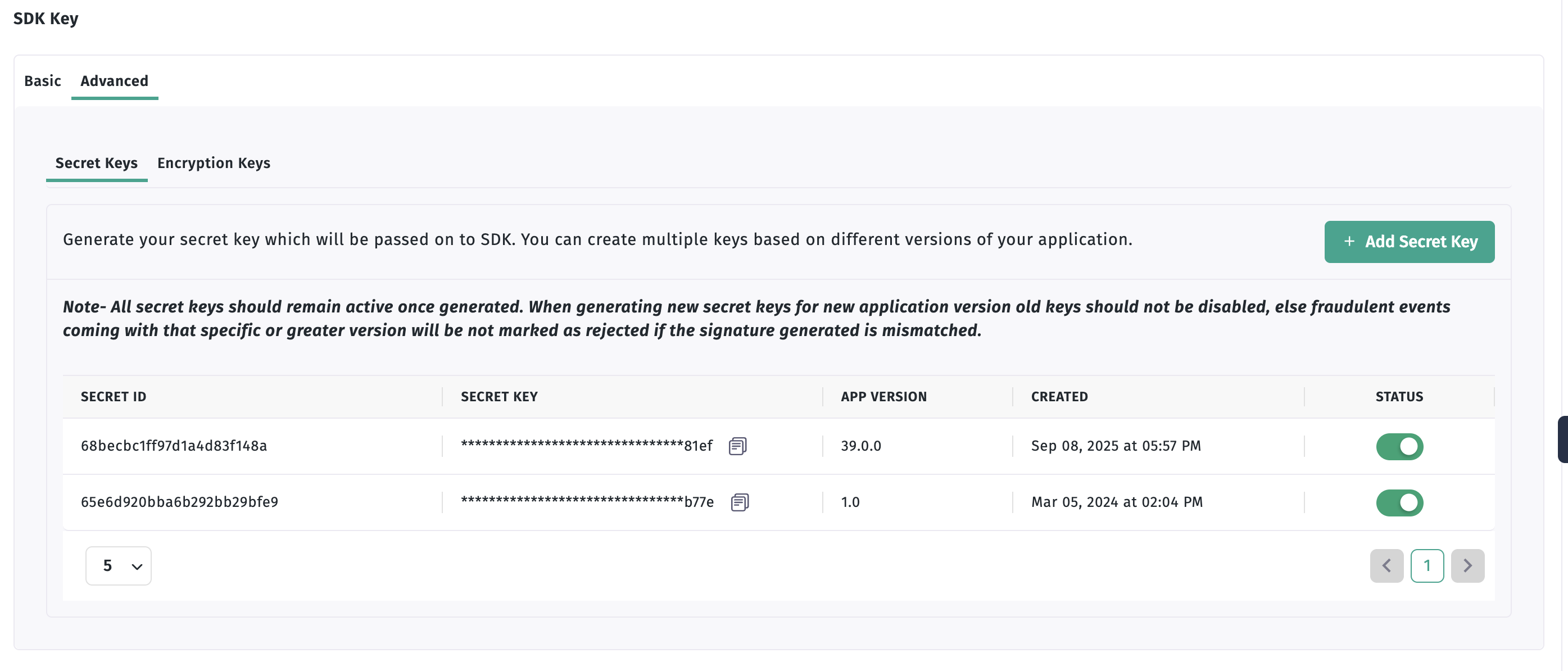
- Log in to your Apptrove Panel and select your application.
- In the Dashboard, click the SDK Integration option.
- Under the Advanced tab, locate and copy the
secretIdandsecretKey.
Step 2: Configure SDK Signing
Incorporate the secretId and secretKey into the Apptrove SDK configuration during initialization. Add the setAppSecret method to your SDK config object in your main.dart file.
- ✓ Apptrove SDK (Recommended)
- Trackier SDK (Deprecating August 2026)
import 'package:apptrove_sdk_flutter/apptrove_sdk_flutter.dart';
class _MyHomePageState extends State<MyHomePage> {
void initState() {
super.initState();
initializeSdk();
}
Future<void> initializeSdk() async {
String key = "xxxx-xx-4505-bc8b-xx"; // Your SDK key
AppTroveSDKConfig config = AppTroveSDKConfig(key, "production");
config.setAppSecret("xxx", "xxx-xx"); // Pass your secretId and secretKey here
AppTroveFlutterSdk.initializeSDK(config);
}
}
import 'package:trackier_sdk_flutter/trackier_sdk_flutter.dart';
class _MyHomePageState extends State<MyHomePage> {
void initState() {
super.initState();
initializeSdk();
}
Future<void> initializeSdk() async {
String key = "xxxx-xx-4505-bc8b-xx"; // Your SDK key
TrackerSDKConfig trackerSDKConfig = TrackerSDKConfig(key, "production");
trackerSDKConfig.setAppSecret("xxx", "xxx-xx"); // Pass your secretId and secretKey here
Trackierfluttersdk.initializeSDK(trackerSDKConfig);
}
}
Parameters
secretId: The unique identifier for your app, retrieved from the Apptrove Panel.secretKey: The secret key for authentication, retrieved from the Apptrove Panel.
Keep the secretId and secretKey secure and avoid exposing them in version control systems (e.g., Git). Use environment variables or secure storage if necessary.
Best Practices
- Secure Credentials: Store
secretIdandsecretKeysecurely, such as in a.envfile or secure vault, to prevent unauthorized access. - Test in Development Mode: Use the
"development"environment to verify SDK signing before switching to"production". - Validate Configuration: Ensure the
secretIdandsecretKeymatch those in the Apptrove Panel to avoid authentication errors. - Monitor Logs: Check app logs during testing to confirm successful authentication with the Apptrove MMP.
Troubleshooting
- Authentication Errors:
- Verify that the
secretIdandsecretKeyare correct and match the values in the Apptrove Panel. - Ensure
setAppSecretis called beforeinitializeSDK.
- Verify that the
- SDK Initialization Issues:
- Confirm the Apptrove SDK is properly initialized with a valid SDK key.
- Check for network connectivity issues that may prevent authentication.
- General Issues:
- Review console logs for errors related to SDK signing.
For further assistance, refer to the Apptrove Documentation Portal or contact support at support@apptrove.com.