SDK Signing
Choose your SDK version below:
- Apptrove SDK → Recommended for all projects (Latest: v2.x.x)
- Trackier SDK → Will be deprecated in August 2026 (Latest legacy: v1.x.xx)
Use the tabs below for SDK-specific snippets.
SDK Signing enhances the security of the Apptrove Cordova SDK by authenticating requests sent to Apptrove using a secret ID and secret key. This ensures data integrity, prevents unauthorized access, and secures communication between your app and Apptrove's servers. This section outlines how to configure SDK Signing in your Cordova or Ionic Native application.
Prerequisites
- Apptrove Cordova SDK installed and initialized in your project (Apptrove recommended)
- Apptrove account with access to the Apptrove Panel
- Cordova 9.0 or later
- For Ionic Native apps:
- Ionic CLI and Capacitor
@awesome-cordova-plugins/coreinstalled (Trackier legacy only:trackierplugin configured)
- Basic knowledge of JavaScript, TypeScript, Angular (for Ionic Native), and Cordova development
Configure SDK Signing
To enable SDK Signing, retrieve the secret ID and secret key from the Apptrove Panel and incorporate them into the SDK configuration during initialization.
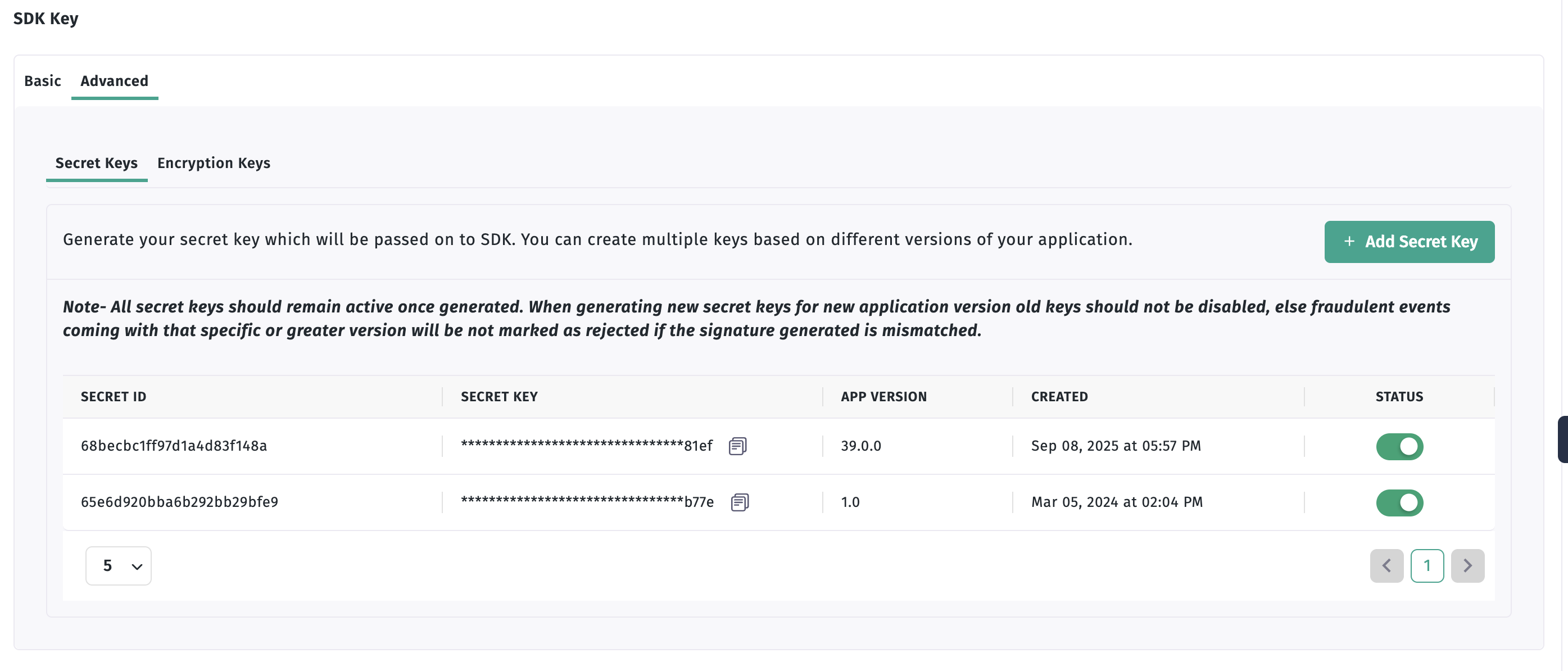
Step 1: Retrieve Secret ID and Secret Key
- Log in to your Apptrove account.
- Select your application from the Dashboard.
- Navigate to SDK Integration via the left-side navigation menu.
- Click on the Advanced tab under SDK Integration.
- Copy the Secret ID and Secret Key displayed.
Reference: Screenshot 2022-08-17 at 12:23:01 PM
Step 2: Add Signing to SDK Initialization
Modify your SDK initialization code to include the secret ID and secret key using the setAppSecret method of the SDK config object (AppTroveConfig / TrackierConfig).
TypeScript Example (Ionic Native)
- ✓ Apptrove SDK (Recommended)
- Trackier SDK (Deprecating August 2026)
import { Component } from '@angular/core';
import { AppTroveCordovaPlugin, AppTroveConfig, AppTroveEnvironment } from 'com.apptrove.cordova_sdk/ionic-native/apptrove/ngx';

@Component({
  selector: 'app-tab1',
  templateUrl: 'tab1.page.html',
  styleUrls: ['tab1.page.scss']
})
export class Tab1Page {
  constructor(private apptroveCordovaPlugin: AppTroveCordovaPlugin) {}

  async ngOnInit() {
    // Initialize SDK with Signing
    var key = "abcf2270-xxxx-xxxx-a2ae-34903c6e1d53"; // Replace with your SDK key
    var appTroveConfig = new AppTroveConfig(key, AppTroveEnvironment.Development);
    appTroveConfig.setAppSecret("659fb6f1xxxxxxxa29d46c9", "9258fcdb-a7a7-xxxxx-xxxx-65835ed38407"); // Pass secretId and secretKey
    this.apptroveCordovaPlugin.initializeSDK(appTroveConfig);
  }
}
import { Component } from '@angular/core';
import { TrackierCordovaPlugin, TrackierConfig, TrackierEnvironment } from '@awesome-cordova-plugins/trackier/ngx';

@Component({
  selector: 'app-tab1',
  templateUrl: 'tab1.page.html',
  styleUrls: ['tab1.page.scss']
})
export class Tab1Page {
  constructor(private trackierCordovaPlugin: TrackierCordovaPlugin) {}

  async ngOnInit() {
    // Initialize SDK with Signing
    var key = "abcf2270-xxxx-xxxx-a2ae-34903c6e1d53"; // Replace with your SDK key
    var trackierConfig = new TrackierConfig(key, TrackierEnvironment.Development);
    trackierConfig.setAppSecret("659fb6f1xxxxxxxa29d46c9", "9258fcdb-a7a7-xxxxx-xxxx-65835ed38407"); // Pass secretId and secretKey
    this.trackierCordovaPlugin.initializeSDK(trackierConfig);
  }
}
JavaScript Example (Pure Cordova)
- ✓ Apptrove SDK (Recommended)
- Trackier SDK (Deprecating August 2026)
document.addEventListener('deviceready', onDeviceReady, false);

function onDeviceReady() {
  // Initialize SDK with Signing
  var key = "abcf2270-xxxx-xxxx-a2ae-34903c6e1d53"; // Replace with your SDK key
  var appTroveConfig = new AppTroveConfig(key, AppTroveEnvironment.Development);
  appTroveConfig.setAppSecret("659fb6f1xxxxxxxa29d46c9", "9258fcdb-a7a7-xxxxx-xxxx-65835ed38407"); // Pass secretId and secretKey
  AppTroveCordovaPlugin.initializeSDK(appTroveConfig);
}
document.addEventListener('deviceready', onDeviceReady, false);

function onDeviceReady() {
  // Initialize SDK with Signing
  var key = "abcf2270-xxxx-xxxx-a2ae-34903c6e1d53"; // Replace with your SDK key
  var trackierConfig = new TrackierConfig(key, TrackierEnvironment.Development);
  trackierConfig.setAppSecret("659fb6f1xxxxxxxa29d46c9", "9258fcdb-a7a7-xxxxx-xxxx-65835ed38407"); // Pass secretId and secretKey
  TrackierCordovaPlugin.initializeSDK(trackierConfig);
}
Parameters
- Secret ID: The unique identifier for request authentication (e.g.,
"659fb6f1xxxxxxxa29d46c9"). - Secret Key: The secure key paired with the secret ID (e.g.,
"9258fcdb-a7a7-xxxxx-xxxx-65835ed38407").
Expected Outcome
The SDK will sign all requests with the provided secret ID and key, ensuring secure communication with the Apptrove. You can verify successful authentication by checking tracking data (e.g., events, user data) in the Apptrove Panel without authentication-related errors.
Best Practices
- Secure Secret Credentials: Store the secret ID and key in environment variables or a secure configuration file, avoiding hardcoding in source code.
- Validate Credentials: Ensure the secret ID and key are accurately copied from the Apptrove Panel to prevent authentication failures.
- Test in Development Mode: Use a development/testing environment (Apptrove:
AppTroveEnvironment.*, Trackier legacy:TrackierEnvironment.*) to test SDK Signing without affecting production data. - Initialize Early: Call
setAppSecretduring SDK initialization to ensure all subsequent requests are signed. - Monitor Authentication: Regularly check the Apptrove Panel for authentication-related issues during testing.
- Comply with Privacy Regulations: Ensure secure handling of tracking data complies with GDPR, CCPA, and other privacy laws.
Troubleshooting
- Authentication Errors:
- Verify the secret ID and key match the values in the Apptrove Panel's Advanced tab.
- Ensure
setAppSecretis called beforeinitializeSDK. - Check console logs for authentication-related errors.
- Tracking Data Not Appearing:
- Confirm the SDK is initialized with the correct SDK key and environment.
- Ensure the secret ID and key are associated with the correct application in the Apptrove Panel.
- Ionic Native Issues:
- Verify the correct provider (
AppTroveCordovaPlugin/TrackierCordovaPlugin) is registered inapp.module.ts. - Run
ionic cap syncand verify the import path matches your SDK (com.apptrove.cordova_sdk/ionic-native/apptrove/ngxfor Apptrove,@awesome-cordova-plugins/trackier/ngxfor Trackier legacy).
- Verify the correct provider (
For further assistance, refer to the Apptrove Documentation Portal or contact Apptrove support at support@apptrove.com.