Choose your SDK version below:
- Apptrove SDK → Recommended for all projects (Latest: v2.x.x)
- Trackier SDK → Will be deprecated in August 2026 (Latest legacy: v1.x.xx)
Use the tabs below for SDK-specific snippets.
Uninstall Tracking through Firebase Cloud Messaging
Firebase Cloud Messaging (FCM) uninstall tracking detects app uninstalls by monitoring FCM delivery receipts. This method is ideal for Cordova/Ionic apps that already use push notifications.
How FCM Uninstall Tracking Works
- Purpose: Tracks app uninstalls using FCM delivery receipts to assess user engagement and campaign performance
- Mechanism: Uses FCM to send silent push notifications and monitors delivery receipts for failed deliveries
- Detection: Uninstall data typically appears in the panel within 24-48 hours
- Use Case: Measure uninstall rates for campaigns to refine targeting and improve user retention
For Firebase Analytics-based uninstall tracking, see Through Firebase Analytics.
Prerequisites
Before implementing FCM uninstall tracking, ensure you have:
- Firebase project with Cloud Messaging enabled
- Cordova/Ionic app with Capacitor configured
- Apptrove Cordova SDK properly initialized
- @capacitor/push-notifications plugin installed (version 6.0.2+)
- Android platform (FCM uninstall tracking is Android-only)
Implementation
1. Add Dependencies
Add Capacitor Push Notifications plugin to your project:
npm install @capacitor/push-notifications
npx cap sync
Add the dependency to your package.json:
- ✓ Apptrove SDK (Recommended)
- Trackier SDK (Deprecating August 2026)
{
  "dependencies": {
    "@capacitor/push-notifications": "^6.0.2",
    "com.apptrove.cordova_sdk": "github:ApptroveLabs/cordova_sdk#ApptroveSDK"
  }
}
{
  "dependencies": {
    "@capacitor/push-notifications": "^6.0.2",
    "com.trackier.cordova_sdk": "^1.6.0"
  }
}
Check the Capacitor Push Notifications documentation for the latest version and setup instructions.
2. Create FCM Service
For Cordova/Ionic apps using Capacitor, use the Capacitor Push Notifications API instead of the native Firebase SDK. This service listens for FCM token registration and sends it to the SDK using sendFcmToken(token.value) (Apptrove: apptroveCordovaPlugin.sendFcmToken(token.value), Trackier legacy: trackierCordovaPlugin.sendFcmToken(token.value)).
Call this method only when the token is generated or refreshed (similar to Android's onNewToken()). The token is saved by the SDK.
Create an Angular service to handle FCM token management:
- ✓ Apptrove SDK (Recommended)
- Trackier SDK (Deprecating August 2026)
import { Injectable } from '@angular/core';
import { Platform } from '@ionic/angular';
import { PushNotifications, Token } from '@capacitor/push-notifications';
import { AppTroveCordovaPlugin } from 'com.apptrove.cordova_sdk/ionic-native/apptrove/ngx';

@Injectable({
  providedIn: 'root'
})
export class FcmService {
  constructor(
    private platform: Platform,
    private apptroveCordovaPlugin: AppTroveCordovaPlugin
  ) {}

  async initializeFCM(): Promise<void> {
    try {
      if (!this.platform.is('android')) {
        console.log('FCM is only initialized on Android platform');
        return;
      }

      const permStatus = await PushNotifications.requestPermissions();

      if (permStatus.receive === 'granted') {
        await PushNotifications.register();

        PushNotifications.addListener('registration', (token: Token) => {
          console.log('FCM Token received:', token.value);
          this.apptroveCordovaPlugin.sendFcmToken(token.value);
        });

        PushNotifications.addListener('registrationError', (error: any) => {
          console.error('Error on FCM registration:', error);
        });
      }
    } catch (error) {
      console.error('Error initializing FCM:', error);
    }
  }
}
import { Injectable } from '@angular/core';
import { Platform } from '@ionic/angular';
import { PushNotifications, Token } from '@capacitor/push-notifications';
import { TrackierCordovaPlugin } from '@awesome-cordova-plugins/trackier/ngx';

@Injectable({
  providedIn: 'root'
})
export class FcmService {
  constructor(
    private platform: Platform,
    private trackierCordovaPlugin: TrackierCordovaPlugin
  ) {}

  async initializeFCM(): Promise<void> {
    try {
      if (!this.platform.is('android')) {
        console.log('FCM is only initialized on Android platform');
        return;
      }

      const permStatus = await PushNotifications.requestPermissions();

      if (permStatus.receive === 'granted') {
        await PushNotifications.register();

        PushNotifications.addListener('registration', (token: Token) => {
          console.log('FCM Token received:', token.value);
          this.trackierCordovaPlugin.sendFcmToken(token.value);
        });

        PushNotifications.addListener('registrationError', (error: any) => {
          console.error('Error on FCM registration:', error);
        });
      }
    } catch (error) {
      console.error('Error initializing FCM:', error);
    }
  }
}
FCM tokens are generated only once when the app is first installed or when Firebase generates a new token. If you run the app once and don't see the token in logs, you won't see it again on subsequent runs. To see the token again, you need to:
- Uninstall the app completely
- Reinstall the app
- Check logs immediately for the token
This is normal FCM behavior - tokens are not generated on every app launch, only when:
- App is first installed
- Firebase generates a new token (rare)
- App data is cleared
- App is restored on a new device
3. Initialize SDK and FCM
Initialize the SDK first, then initialize FCM:
- ✓ Apptrove SDK (Recommended)
- Trackier SDK (Deprecating August 2026)
import { Component } from '@angular/core';
import { Platform } from '@ionic/angular';
import { AppTroveCordovaPlugin, AppTroveConfig, AppTroveEnvironment } from 'com.apptrove.cordova_sdk/ionic-native/apptrove/ngx';
import { FcmService } from './services/fcm.service';

@Component({
  selector: 'app-root',
  templateUrl: 'app.component.html',
  styleUrls: ['app.component.scss'],
})
export class AppComponent {
  constructor(
    private platform: Platform,
    private apptroveCordovaPlugin: AppTroveCordovaPlugin,
    private fcmService: FcmService
  ) {
    this.initializeApp();
  }

  async initializeApp() {
    await this.platform.ready();

    const appTroveConfig = new AppTroveConfig(
      'YOUR_SDK_KEY',
      AppTroveEnvironment.Production
    );

    await this.apptroveCordovaPlugin.initializeSDK(appTroveConfig);

    // Initialize FCM after SDK initialization
    if (this.platform.is('android')) {
      await this.fcmService.initializeFCM();
    }
  }
}
import { Component } from '@angular/core';
import { Platform } from '@ionic/angular';
import { TrackierCordovaPlugin, TrackierConfig } from '@awesome-cordova-plugins/trackier/ngx';
import { FcmService } from './services/fcm.service';

@Component({
  selector: 'app-root',
  templateUrl: 'app.component.html',
  styleUrls: ['app.component.scss'],
})
export class AppComponent {
  constructor(
    private platform: Platform,
    private trackierCordovaPlugin: TrackierCordovaPlugin,
    private fcmService: FcmService
  ) {
    this.initializeApp();
  }

  async initializeApp() {
    await this.platform.ready();

    const trackierConfig: TrackierConfig = {
      appToken: 'YOUR_SDK_KEY',
      environment: 'production'
    };

    await this.trackierCordovaPlugin.initializeSDK(trackierConfig);

    // Initialize FCM after SDK initialization
    if (this.platform.is('android')) {
      await this.fcmService.initializeFCM();
    }
  }
}
Always call initializeFCM() after the SDK has been initialized. The SDK must be ready before sending the FCM token. Calling it before SDK initialization will result in the token not being properly registered.
4. Verify Firebase Configuration
Ensure your Firebase configuration is properly set up in your Android app:
4.1 Add google-services.json
Place your google-services.json file in the Android app directory:
android/app/google-services.json
4.2 Configure build.gradle (If Not Using Capacitor Plugin)
If you're using @capacitor/push-notifications plugin, the Firebase Messaging dependency and Google Services plugin are typically configured automatically when you run npx cap sync. You may skip this step unless you encounter build issues.
If needed, manually add the Google Services plugin to your android/build.gradle:
buildscript {
    dependencies {
        classpath 'com.google.gms:google-services:4.3.15'
    }
}
Apply the plugin in android/app/build.gradle:
apply plugin: 'com.google.gms.google-services'

dependencies {
    implementation 'com.google.firebase:firebase-messaging'
}
5. Firebase Console Configuration
Step 1: Connect Product to Firebase
If you haven't already connected your product to Firebase:
- Go to the Firebase Console
- Create a new project or select an existing one
- Add your Android app to the project
- After setting up the project on console, go to Settings
- In the General tab, see the Project ID and copy it

Step 2: Configure in Apptrove Panel
- Go to your Apptrove panel
- Navigate to Settings page
- Go to Uninstall Tracking tab
- Paste the Project ID you copied from Firebase Console
- Enable the toggle for uninstall tracking

Step 3: Enable Cloud Messaging API
- Go to the Cloud Messaging tab
- Check if Firebase Cloud Messaging API (V1) is enabled

If not enabled:
- Go to Service accounts tab

- Go to Library
- Search for Firebase Cloud Messaging API
- Click Enable

Step 4: Create Custom Role for Apptrove
- In the side menu, select Roles
- Click +Create role

- Complete the form as follows:
- Title: Enter
Apptrove Uninstall - ID: Enter
at_uninstalls - Role launch stage: Select
General availability
- Title: Enter
- Click Add permissions

- In the Filter field, search for:
cloudmessaging.messages.create - Select the permission and click Add
- Click Create
After creating the role, check and verify that the Apptrove Uninstall role has been added successfully with the cloudmessaging.messages.create permission.

Step 5: Assign Apptrove the FCM Uninstall Role
- In the side menu, select IAM
- Click Grant Access

- In Add Principals → New principals, enter:
at-uninstalls-tracking-tra-430@trackier-mmp.iam.gserviceaccount.com - In Assign roles → Role select Custom and choose Apptrove Uninstall (the role we created earlier)
- Click Save
Use this exact email address for production: at-uninstalls-tracking-tra-430@trackier-mmp.iam.gserviceaccount.com

Step 6: Verify Permissions
- Go to IAM & Admin → IAM
- Search for the service account you just added
- Verify that the Apptrove Uninstall role is assigned

If you need to test uninstall tracking in a development environment, you can also add the testing service account:
Testing Service Account: mmp-dev@trackier-mmp.iam.gserviceaccount.com
Repeat Step 5 with this email address and assign the same Apptrove Uninstall custom role. This allows the development team to test the uninstall tracking flow without affecting production data.
Verification and Testing
1. Test FCM Token Registration
When your app starts, check the logs to verify the FCM token is being sent to the SDK:
npx cap run android
Verify in Android Studio Logcat:
- Open your Android project folder in Android Studio
- Run the app on a device or emulator
- Open Logcat in Android Studio
- Set the filter to your SDK log tag (for example:
trackiersdk) - Check for the following log messages:
- ✓ Apptrove SDK (Recommended)
- Trackier SDK (Deprecating August 2026)
Initializing FCM...
FCM Token received: [YOUR_FCM_TOKEN]
FCM Token sent to AppTrove SDK successfully
Initializing FCM...
FCM Token received: [YOUR_FCM_TOKEN]
FCM Token sent to Trackier SDK successfully
Check Token Response: Look for the log message Fcm token Api response saved successfully
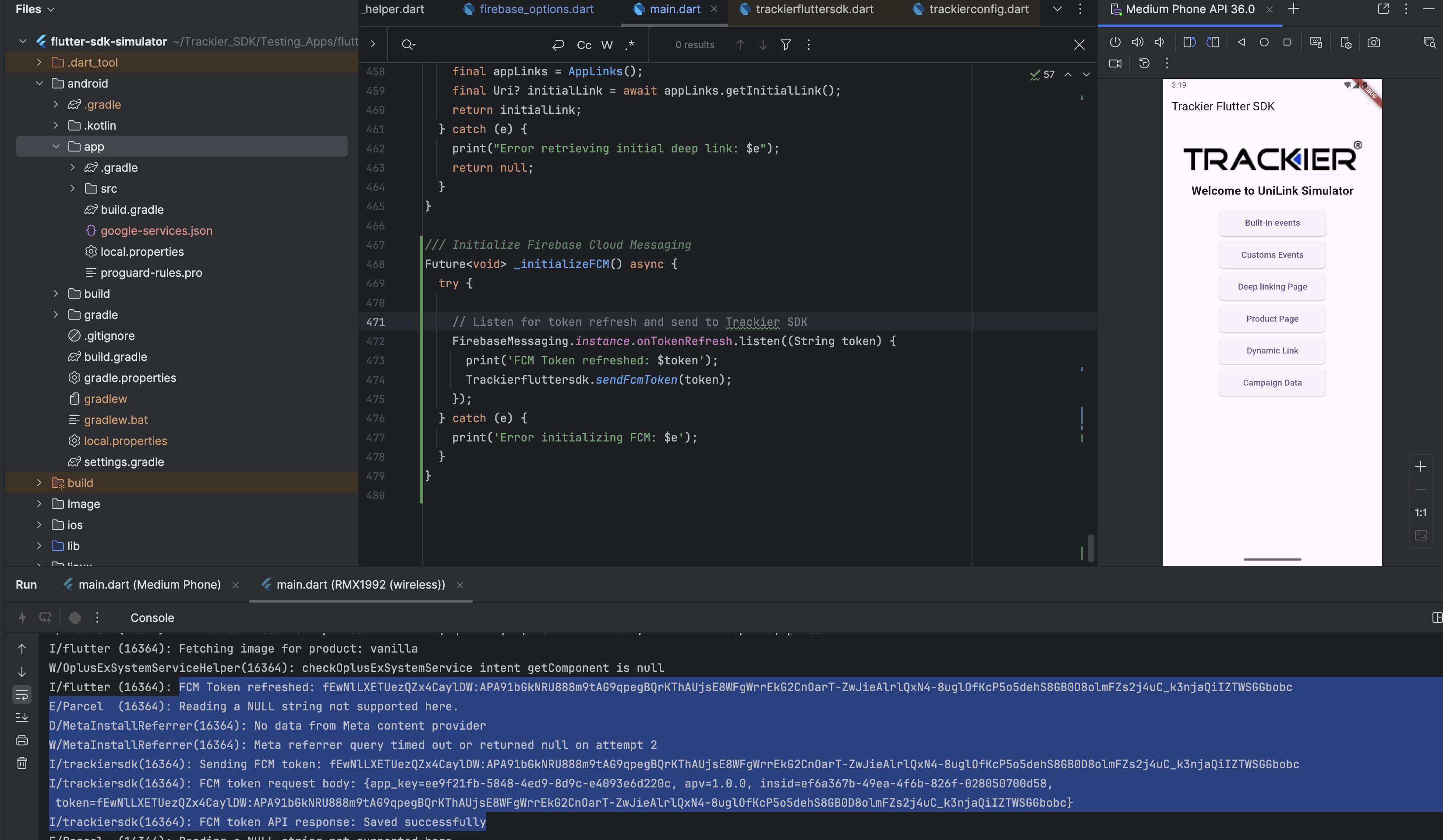
Expected Log Output:
D/trackiersdk: Fcm token Api response saved successfully
2. Verify Setup in Dashboard
After successfully sending the FCM token, verify the complete setup in your Apptrove dashboard:
- Go to Apptrove Panel > Settings > Uninstall Tracking
- Verify your Firebase Project ID is correctly configured
- Check that the toggle for uninstall tracking is enabled
- Confirm the service account has proper permissions in Firebase Console (IAM section)
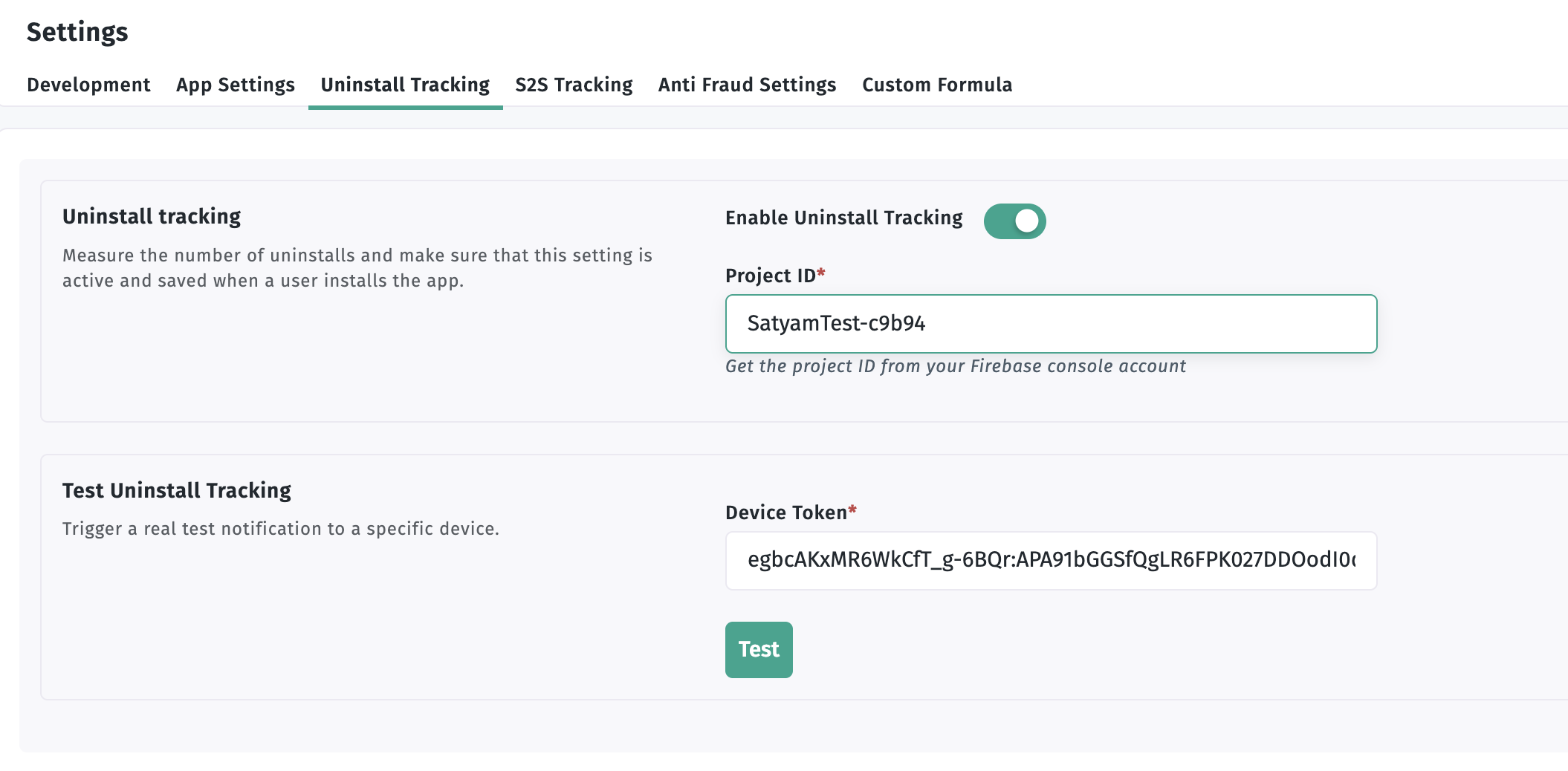
The image above shows a successful uninstall tracking setup with:
- ✅ Firebase Project ID configured
- ✅ Uninstall tracking toggle enabled
- ✅ Service account permissions verified
- ✅ FCM API enabled
3. Test Uninstall Detection
- Install your app and register FCM token
- Verify token is saved (check logs for "Fcm token Api response saved successfully")
- Uninstall the app
- Wait 24-48 hours for the uninstall data to be processed
- Check Apptrove dashboard for uninstall event
4. Monitor Apptrove Dashboard
- Log in to your Apptrove dashboard
- Navigate to uninstall logs
- Confirm the uninstall event was received (typically within 24-48 hours)
Uninstall events are not detected immediately. It typically takes 24-48 hours for uninstall data to appear in the Apptrove panel after an app is uninstalled. This is normal behavior for FCM-based uninstall tracking.
Important Notes
- Token Generation: FCM tokens are generated when the app is first installed or when the token is refreshed
- Token Refresh: Tokens can change when:
- App is restored on a new device
- App data is cleared
- App is uninstalled and reinstalled
- Token expires (rare)
- One-Time Call: Token registration listener is called only when a new token is generated, not on every app launch
Apptrove uses silent push notifications solely to measure uninstalls or identify inactive users and does not use them for any other purposes. These notifications are invisible to users and don't affect app performance.
Troubleshooting
Common Issues
- FCM token not received: Ensure Firebase is properly configured and
google-services.jsonis in the correct location - Uninstall not detected: Check server logs for FCM delivery failures and verify token registration
- Token not sent to SDK: Ensure
initializeFCM()is called after SDK initialization - Rate limiting: Implement proper delays between FCM sends to avoid Google's rate limits
- Token expiration: The token refresh listener automatically handles token updates
Best Practices
- Silent notifications: Use silent push notifications to avoid user disruption
- Rate limiting: Implement proper delays to avoid FCM rate limits
- Token management: Handle FCM token refresh and updates properly
- Error handling: Implement comprehensive error handling for FCM failures
- Security: Store FCM tokens securely
- Call Order: Always initialize FCM after SDK initialization